> ## Documentation Index
> Fetch the complete documentation index at: https://docs.gradial.com/llms.txt
> Use this file to discover all available pages before exploring further.
# GEO Monitoring
> Continuous brand and competitor visibility tracking across AI search models — with automated recommendations that turn regressions into executable tasks.
## Overview
GEO Monitoring Dashboard gives enterprise marketing and SEO teams continuous visibility into how their brand and competitors are performing across AI search models — ChatGPT, Perplexity, Claude, Gemini, and more. Instead of running one-off GEO audits manually, teams configure queries once and the dashboard populates with trend data automatically, surfacing regressions and content opportunities as they happen.
This feature is for enterprise accounts with active GEO programs who need ongoing brand performance tracking, not just point-in-time snapshots.
***
## How to Use
### Step 1: Configure a dashboard view
Select the brand and URLs you would like to monitor GEO for. The URLs you provide will be scanned for page-health recommendations so include multiple page families.
A brand automatically covers its root domain and every subdomain beneath it — see [Domain and Brand Coverage](#domain-and-brand-coverage) for what a single brand does and doesn't include.
### Step 2: Load your prompts
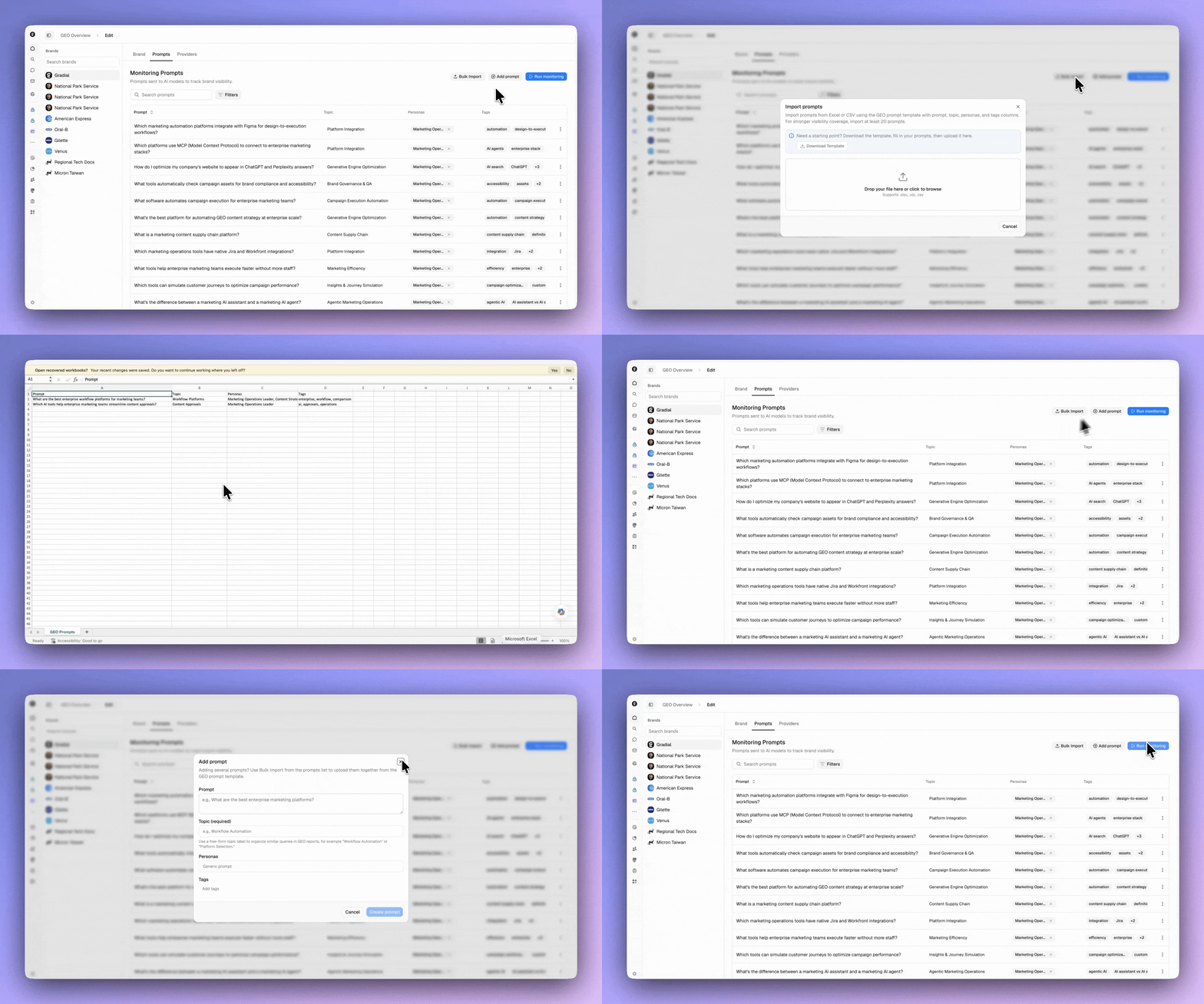
From the GEO Monitoring Dashboard, assemble the prompts you want tracked over time. Prompts can be bulk-uploaded in the dashboard interface and will need to have a topic in addition to the prompt itself. By default, we will run your prompts against all providers supported in Gradial.
To bulk-upload, open a brand on the GEO dashboard — either **Edit** an existing brand or create a **New Brand** — then open the **Prompts** tab and click **Bulk Import**. The Bulk Import dialog includes a link to download the upload template to fill in your prompts. You can assign each prompt to a topic and specific personas, then upload your spreadsheet through the same dialog. You can also add prompts one at a time with **Add prompt**.
Every prompt has one **topic**, and prompts can also carry **tags** — see [Topics and Tags](#topics-and-tags) for how the two differ and when to use each.
Not sure what to monitor? See [Example monitoring prompts](#example-monitoring-prompts) for a starter set of 20+ prompts you can adapt, plus a downloadable template.
 ### Step 3: Run monitoring
Once your brand is set up for recurring monitoring, GEO runs **automatically every day** in the background — there's nothing to schedule on the user end. From the **Prompts** tab you can also click **Run monitoring** to trigger a run on demand.
It may still take up to a day for results to appear after triggering a run.
### Step 4: Let the dashboard build over time
The dashboard populates as runs accumulate. Trends sharpen as history builds — the longer you let monitoring run, the richer your trend view becomes.
### Step 5: Open Insights → GEO
Review trend lines, drill into individual responses, and convert page-health recommendations into tasks with one click.
***
## Domain and Brand Coverage
### Adding a root domain covers all of its subdomains
When you add a root domain such as `example.com`, the brand automatically covers **everything ending in `.example.com`** — including non-English subdomains like `in.example.com`. Language doesn't matter: those pages count toward the brand automatically, and you don't need to list each subdomain individually.
These pages always count **toward your brand** — never as a competitor — and they roll up into the brand's overall report.
Subdomain pages are counted when an AI answer **cites** them — GEO measures your brand's presence in AI responses. They roll up into the brand's combined score rather than being broken out by subdomain. There is no per-subdomain or per-region breakdown within a single brand report today.
### A different web address is not covered automatically
Coverage applies only to true subdomains of the domain you added. A separate web address that does **not** end in your root domain is a different site and must be added on its own.
Country sites on a different top-level domain are a common miss. `example.cn` is a **different address** (`.cn`, not `.example.com`), so adding only `example.com` will not capture that country site — its results are missed entirely.
To cover both in this example, add **two domains**: `example.com` (covers all `.example.com` subdomains) and `example.cn` (covers the country site on the separate domain).
## Structuring Brands by Region
For brands with distinct regional sites, set up **one GEO Monitoring configuration per region** — a separate brand run for each — and switch between them with the brand dropdown. For example:
* **Brand US** — `example.com`
* **Brand India** — `in.example.com`
* **Brand China** — `example.cn`
Each is its own independent report with its own prompts. Tailor each brand's prompts to that region's market, pages, and competitors.
**This is a recommended workaround for today.** First-class support for tracking multiple regions within a single brand configuration is on the roadmap; this section will be updated when it lands.
***
## Brand Sentiment
GEO Monitoring now surfaces not just whether AI systems mention your brand, but how they describe it. The **Brand Sentiment** section of the dashboard summarizes favorability, recurring perception themes, and supporting evidence so teams can see how their brand is being presented in AI-generated answers.
Brand Sentiment must be explicitly enabled for your organization. Contact your Gradial team to get access.
### What Brand Sentiment shows
| Capability | Description |
| -------------------------- | --------------------------------------------------------------------------------------------------- |
| **Favorability breakdown** | See the share of monitored brand mentions that are favorable, neutral, or unfavorable. |
| **Perception summary** | A concise narrative of how AI systems are currently describing your brand. |
| **Recurring themes** | Topics and themes that repeatedly appear across monitored AI responses. |
| **Evidence drilldown** | Supporting quotes and examples behind each theme, so findings are traceable to specific AI outputs. |
| **Trend view** | Net favorability charted over time when the trend view is enabled. |
### How to use Brand Sentiment
Brand Sentiment is part of the GEO Monitoring Dashboard — no separate configuration is needed beyond your existing brand and prompt setup. Once enabled for your organization, the section appears automatically and updates as your monitoring runs accumulate.
Use favorability trends alongside your citation and mention data to get a fuller picture: a brand that is frequently cited but mostly described unfavorably faces a different challenge than one that is rarely cited at all.
***
## Example monitoring prompts
GEO Monitoring works best with a **broad set of prompts** — typically 20 or more — that cover the different ways buyers ask AI search engines about your category, your brand, and your competitors. A single prompt only tells you about one question; the value comes from the spread.
The examples below are a starter set you can adapt. Replace `[Your Brand]` and `[Competitor A]` / `[Competitor B]` with real names, and reshape the topics around your market.
**Personas:** The **Personas** column should be filled in with personas that already exist in your organization. Populate it with the names of your pre-existing personas so prompts are attributed to the right audiences — don't invent new persona names in the spreadsheet.
To upload in bulk, download the template, fill in your prompts, and import it from the **Prompts** tab (see [Step 2](#step-2-load-your-prompts)).
20+ example prompts with topics, personas, and tags — formatted for Bulk Import.
A few examples to illustrate the spread of topics — the full set of 20+ is in the download above:
| Prompt | Topic | Tags |
| --------------------------------------------------------------------------- | --------------------------- | ----------------------- |
| What are the best enterprise content operations platforms? | Category Overview | category, enterprise |
| What is the best agentic marketing platform for enterprise teams? | Agentic Marketing Platforms | category, agentic |
| How does `[Your Brand]` compare to `[Competitor A]` for content automation? | Competitive Comparison | competitive, comparison |
| How much does enterprise marketing content automation software cost? | Pricing | pricing, enterprise |
| Does `[Your Brand]` integrate with Adobe Experience Manager? | Integrations | integrations, aem |
| Who are the leaders in AI-powered marketing content operations? | Analyst & Market Position | analyst, leadership |
***
## Topics and Tags
Every monitoring prompt has a **topic**, and prompts can also carry **tags**. They serve different purposes — topics describe what a prompt is *about* and shape the report, while tags are a flexible way to organize and filter your prompts.
| | Topic | Tags |
| ------------------------- | --------------------------------------------------------------------------------------------------------------------- | ----------------------------------------------------------------------------------------------------------------------------- |
| **What it's for** | Says what a prompt is about (e.g. "Agentic Marketing Platforms") | A labeling layer for organizing and filtering your prompts |
| **How many per prompt** | Exactly one — required on every prompt | Any number — none, one, or many |
| **Reused across prompts** | Each prompt has its own topic; the topic also serves as the prompt's name | Yes — the same tag is reused across prompts and managed at the org level |
| **In the report** | Shown as a sortable **Topic** column in the Prompt Performance table | Used for filtering prompts in Settings; tags don't appear in the report itself |
| **In Grady's analysis** | Sent to Grady as context ("this query is about X"), which can shape how brand and competitor mentions are interpreted | Tags are for your own organization — they don't influence Grady's analysis, so you can label freely without affecting results |
### When to use each
* **Topic** — set the one thing each prompt is about. It names the prompt, appears in the report, and gives Grady context for interpreting results.
* **Tags** — group and slice prompts however your team works: by audience (`enterprise`), intent (`competitive`), campaign (`Q2-launch`), funnel stage (`top-of-funnel`), and so on. In Settings you can then filter to, say, every prompt tagged `enterprise` across all topics.
### Can a prompt be in more than one topic?
No — a prompt has exactly one topic (the topic is a single field that also names the prompt). For example, *"What are the best AI agents for automating marketing campaigns?"* can be `Agentic Marketing Platforms` **or** `Marketing Automation`, but not both.
When you want a prompt to belong to more than one group, that's what **tags** are for: add both `agentic-marketing` and `marketing-automation` as tags, and the prompt surfaces when you filter by either in Settings. Keep in mind that tag filtering happens in Settings — the report groups by topic, so you can't break the report itself down by tag.
### Step 3: Run monitoring
Once your brand is set up for recurring monitoring, GEO runs **automatically every day** in the background — there's nothing to schedule on the user end. From the **Prompts** tab you can also click **Run monitoring** to trigger a run on demand.
It may still take up to a day for results to appear after triggering a run.
### Step 4: Let the dashboard build over time
The dashboard populates as runs accumulate. Trends sharpen as history builds — the longer you let monitoring run, the richer your trend view becomes.
### Step 5: Open Insights → GEO
Review trend lines, drill into individual responses, and convert page-health recommendations into tasks with one click.
***
## Domain and Brand Coverage
### Adding a root domain covers all of its subdomains
When you add a root domain such as `example.com`, the brand automatically covers **everything ending in `.example.com`** — including non-English subdomains like `in.example.com`. Language doesn't matter: those pages count toward the brand automatically, and you don't need to list each subdomain individually.
These pages always count **toward your brand** — never as a competitor — and they roll up into the brand's overall report.
Subdomain pages are counted when an AI answer **cites** them — GEO measures your brand's presence in AI responses. They roll up into the brand's combined score rather than being broken out by subdomain. There is no per-subdomain or per-region breakdown within a single brand report today.
### A different web address is not covered automatically
Coverage applies only to true subdomains of the domain you added. A separate web address that does **not** end in your root domain is a different site and must be added on its own.
Country sites on a different top-level domain are a common miss. `example.cn` is a **different address** (`.cn`, not `.example.com`), so adding only `example.com` will not capture that country site — its results are missed entirely.
To cover both in this example, add **two domains**: `example.com` (covers all `.example.com` subdomains) and `example.cn` (covers the country site on the separate domain).
## Structuring Brands by Region
For brands with distinct regional sites, set up **one GEO Monitoring configuration per region** — a separate brand run for each — and switch between them with the brand dropdown. For example:
* **Brand US** — `example.com`
* **Brand India** — `in.example.com`
* **Brand China** — `example.cn`
Each is its own independent report with its own prompts. Tailor each brand's prompts to that region's market, pages, and competitors.
**This is a recommended workaround for today.** First-class support for tracking multiple regions within a single brand configuration is on the roadmap; this section will be updated when it lands.
***
## Brand Sentiment
GEO Monitoring now surfaces not just whether AI systems mention your brand, but how they describe it. The **Brand Sentiment** section of the dashboard summarizes favorability, recurring perception themes, and supporting evidence so teams can see how their brand is being presented in AI-generated answers.
Brand Sentiment must be explicitly enabled for your organization. Contact your Gradial team to get access.
### What Brand Sentiment shows
| Capability | Description |
| -------------------------- | --------------------------------------------------------------------------------------------------- |
| **Favorability breakdown** | See the share of monitored brand mentions that are favorable, neutral, or unfavorable. |
| **Perception summary** | A concise narrative of how AI systems are currently describing your brand. |
| **Recurring themes** | Topics and themes that repeatedly appear across monitored AI responses. |
| **Evidence drilldown** | Supporting quotes and examples behind each theme, so findings are traceable to specific AI outputs. |
| **Trend view** | Net favorability charted over time when the trend view is enabled. |
### How to use Brand Sentiment
Brand Sentiment is part of the GEO Monitoring Dashboard — no separate configuration is needed beyond your existing brand and prompt setup. Once enabled for your organization, the section appears automatically and updates as your monitoring runs accumulate.
Use favorability trends alongside your citation and mention data to get a fuller picture: a brand that is frequently cited but mostly described unfavorably faces a different challenge than one that is rarely cited at all.
***
## Example monitoring prompts
GEO Monitoring works best with a **broad set of prompts** — typically 20 or more — that cover the different ways buyers ask AI search engines about your category, your brand, and your competitors. A single prompt only tells you about one question; the value comes from the spread.
The examples below are a starter set you can adapt. Replace `[Your Brand]` and `[Competitor A]` / `[Competitor B]` with real names, and reshape the topics around your market.
**Personas:** The **Personas** column should be filled in with personas that already exist in your organization. Populate it with the names of your pre-existing personas so prompts are attributed to the right audiences — don't invent new persona names in the spreadsheet.
To upload in bulk, download the template, fill in your prompts, and import it from the **Prompts** tab (see [Step 2](#step-2-load-your-prompts)).
20+ example prompts with topics, personas, and tags — formatted for Bulk Import.
A few examples to illustrate the spread of topics — the full set of 20+ is in the download above:
| Prompt | Topic | Tags |
| --------------------------------------------------------------------------- | --------------------------- | ----------------------- |
| What are the best enterprise content operations platforms? | Category Overview | category, enterprise |
| What is the best agentic marketing platform for enterprise teams? | Agentic Marketing Platforms | category, agentic |
| How does `[Your Brand]` compare to `[Competitor A]` for content automation? | Competitive Comparison | competitive, comparison |
| How much does enterprise marketing content automation software cost? | Pricing | pricing, enterprise |
| Does `[Your Brand]` integrate with Adobe Experience Manager? | Integrations | integrations, aem |
| Who are the leaders in AI-powered marketing content operations? | Analyst & Market Position | analyst, leadership |
***
## Topics and Tags
Every monitoring prompt has a **topic**, and prompts can also carry **tags**. They serve different purposes — topics describe what a prompt is *about* and shape the report, while tags are a flexible way to organize and filter your prompts.
| | Topic | Tags |
| ------------------------- | --------------------------------------------------------------------------------------------------------------------- | ----------------------------------------------------------------------------------------------------------------------------- |
| **What it's for** | Says what a prompt is about (e.g. "Agentic Marketing Platforms") | A labeling layer for organizing and filtering your prompts |
| **How many per prompt** | Exactly one — required on every prompt | Any number — none, one, or many |
| **Reused across prompts** | Each prompt has its own topic; the topic also serves as the prompt's name | Yes — the same tag is reused across prompts and managed at the org level |
| **In the report** | Shown as a sortable **Topic** column in the Prompt Performance table | Used for filtering prompts in Settings; tags don't appear in the report itself |
| **In Grady's analysis** | Sent to Grady as context ("this query is about X"), which can shape how brand and competitor mentions are interpreted | Tags are for your own organization — they don't influence Grady's analysis, so you can label freely without affecting results |
### When to use each
* **Topic** — set the one thing each prompt is about. It names the prompt, appears in the report, and gives Grady context for interpreting results.
* **Tags** — group and slice prompts however your team works: by audience (`enterprise`), intent (`competitive`), campaign (`Q2-launch`), funnel stage (`top-of-funnel`), and so on. In Settings you can then filter to, say, every prompt tagged `enterprise` across all topics.
### Can a prompt be in more than one topic?
No — a prompt has exactly one topic (the topic is a single field that also names the prompt). For example, *"What are the best AI agents for automating marketing campaigns?"* can be `Agentic Marketing Platforms` **or** `Marketing Automation`, but not both.
When you want a prompt to belong to more than one group, that's what **tags** are for: add both `agentic-marketing` and `marketing-automation` as tags, and the prompt surfaces when you filter by either in Settings. Keep in mind that tag filtering happens in Settings — the report groups by topic, so you can't break the report itself down by tag.