> ## Documentation Index
> Fetch the complete documentation index at: https://docs.gradial.com/llms.txt
> Use this file to discover all available pages before exploring further.
# Release Notes
> Latest features and updates for Gradial — AI agents for marketing content operations, CMS automation, and more.
## Skills
Great marketing teams don't just follow instructions, they learn. The best ones build up institutional knowledge over time: what your brand sounds like, how your workflows run, what actually converts. That expertise lives in your people — and it gets lost every time someone's out, switches teams, or leaves. Skills fixes that, giving Grady a "marketing brain" so your team can get measurably better over time.
**Skills**
Grady now draws on a library of reusable capabilities — proven processes and workflows, brand and compliance rules — and pulls in the right ones automatically for each task. Think of it as your marketing brain, encoded: the institutional knowledge your best team members carry in their heads, made available to every agent, every run, every time.
For teams who've been using Rules: Skills is the evolution of that foundation. Rules gave you guardrails. Skills give you expertise: structured, versioned, improvable capabilities that go far beyond what to avoid and into how to excel.
**Skill Builder**
Create and edit skills in a rich, document-style editor, or let Grady build and refine its own skills from real work (agentic skill development). Skills are scoped to your workspace by default and promotable org-wide, with full version history so you always know what changed and why.
**Access:** Skills must be activated for your organization. Contact your Gradial account team to get started. See [Rules & Skills](/docs/marketing-brain/managing-skills).
***
## Scheduled Tasks
Set a cadence once — daily, weekly, monthly, or any custom interval — and Grady automatically creates and executes a new run at each interval, without anyone needing to trigger it manually.
**Key capabilities:**
* **Recurring schedules on any task** — schedule any existing task, including ones with file attachments; Grady includes the attachments on every run.
* **Enhanced scheduling** — choose from a curated timezone list, preview upcoming fire dates in a calendar, see when a run-limited schedule will naturally end, and confirm Run Now counts toward the run limit.
* **Scheduled Tasks page** — view all your schedules in the same familiar layout as your main tasks, with status (Active, Paused, Failed, Stopped, Ended), next run time, and inline expandable run history. Each org can have up to 50 active schedules at a time.
* **Auto-pause on errors.** If a schedule fails 5 times in a row, it pauses automatically to prevent runaway activity.
* **Stop or delete a schedule.** Stop permanently ends future runs while keeping history intact; Delete removes the schedule and all its runs at once.
* **Bulk Stop.** Stop multiple schedules at once — already-stopped schedules are skipped automatically.
* **Run history.** Every run links back to its parent schedule so you always know where it came from.
**Access:** Scheduled Tasks must be explicitly enabled for your organization. Contact your Gradial team to get access. See [Scheduled Tasks](/docs/workflow-management/scheduled-tasks).
***
## Notifications
Gradial now keeps the right people informed when task statuses change — through an in-app inbox, real-time banners, or email, based on each person's preferences.
**Key capabilities:**
* **Task notification inbox.** A dedicated sidebar tab collects all your task notifications in one place. Mark read/unread, archive, and filter to find what matters.
* **Real-time banners.** Status changes surface instantly in the app — no refresh needed.
* **Email notifications.** Get notified when a task is ready for review, needs attention, or gets unblocked, with a direct link back to the task.
* **Per-event channel control.** Choose email, banner, or nothing for each of the five task events. Org admins set team-wide defaults; individuals can tune their own preferences.
* **Subscriber model.** Assignees and approvers are auto-subscribed; additional subscribers can be added from the task header.
**Access:** Notifications must be explicitly enabled for your organization. Contact your Gradial team to get access. See [Notifications](/docs/platform/notifications).
***
## Quick Starts
Org admins can now tailor the Gradial home screen for their teams. With Quick Starts, admins set up one-click prompts that surface the most common pathways into the app, so marketers land on a home screen built around the work they actually do — instead of staring at a blank prompt wondering where to begin.
Each Quick Start is a ready-to-run prompt that drops the user straight into a high-value workflow. For example: **Run a GEO analysis**, **Run a brand audit**, or **Help me launch a campaign**.
**Key capabilities:**
* **Admin-customized home screen** — org admins curate the set of Quick Starts their users see, aligning Gradial's entry points with the team's priorities and approved workflows.
* **Common pathways, one click away** — surface the workflows marketers reach for most (GEO analysis, brand audits, campaign launches, and more) as prompts users can launch instantly.
* **Faster activation and onboarding** — new and occasional users get guided into proven workflows from the moment they open Gradial, reducing the blank-prompt learning curve.
**Access:** Quick Starts are configured by org admins. Contact your Gradial team if you'd like help setting up Quick Starts for your organization.
***
## Also in This Release
**Create SFMC campaigns and journeys from Gradial.** Marketers can now build Salesforce Marketing Cloud campaigns, multi-email sequences, and Journey Builder automations directly from a Gradial prompt — collapsing what normally takes hours of manual work in SFMC into a single conversation.
**Rules page improvements.** All rules are now in one unified table — no more switching between org and workspace tabs. Use the Scope filter to narrow the view, and hover over any rule title to preview its content without opening it.
## GEO Monitoring Dashboard
Gradial now runs your GEO queries on a schedule and tracks your brand and competitor visibility across seven AI answer engines, like ChatGPT, Claude, and Perplexity. Take action on recommendations immediately without leaving Gradial by creating and executing tasks to improve visibility. Over time, you'll see lift or regressions in an easy-to-use dashboard view.
**Key capabilities:**
* **Trends, not snapshots.** Brand and competitor mention and citation rates show over a rolling time series. Overlay a persona filter to segment any trend chart with one click.
* **Cross-model coverage on one axis.** Major providers are monitored on the same cadence and charted together.
* **Citation rankings and competitor breakdown.** Domain-level aggregates show who else is being cited in the same answer sets, ranked by frequency.
* **Recommendations that name pages.** Gradial analyzes target pages and generates recommendations against your brand URLs. One click turns a recommendation into a task you can execute inside Gradial.
* **Full run history.** Every scheduled run is preserved with underlying data, so any point on the trend line is auditable.
To get started, work with your Account Director to enable the feature, then bulk-upload the queries you want monitored and add a representative list of pages for page-health scans. The dashboard populates as scheduled runs accumulate — the earlier you turn it on, the richer the trend view becomes. See [GEO Monitoring](/docs/insights/geo-monitoring) for setup steps.
***
## Artifact Tabs
The right panel of your workspace now has tabs so your artifacts, sources, and subtasks are organized and reachable in one place. Each artifact can be opened into its own dedicated tab so you can keep better track of your outputs.
**What are subtasks?** When you give Grady a complex task, it sometimes breaks it into smaller parallel steps and handles them independently — those are subtasks.
**Here's more about what is included:**
* **Home tab.** A permanent landing panel showing artifacts, sources, and subtasks in collapsible cards whenever you open a thread. See every subtask Grady created and its status, or open a new table or workflow view for more complex tasks.
* **Dedicated artifact tabs.** Open any artifact into its own named tab and keep it open while you continue chatting or reviewing other outputs. No more hunting back through the conversation.
* **Batch and context tabs.** Dedicated views for monitoring batch progress and reviewing batch objectives without leaving the thread.
* **Searchable tab picker.** Add new views via the + button; the tab bar stays uncluttered by default.
* **Your layout is saved.** Tab layout, ordering, and pane width are saved per thread and restored every time you return.
Artifact Tabs will be active on Friday, May 29.
***
## Sites & Assets Search
Asset Search is the indexing and retrieval foundation that lets Grady act on your enterprise sites and DAMs at scale. Once your AEM sites and asset libraries are indexed, Grady can answer "what's in it?" exhaustively — and turn that answer into bulk action.
**Site Search — Site-Wide Find & Replace**
Swap a brand name, product name, legal phrase, or regulated wording across your entire site. Grady searches indexed page snapshots, fans out one task per matched page, edits each on a safe launch copy, and reports results independently.
**Asset Search — Brand-Matched Asset Packs**
Drop in a campaign brief, pick your audiences, and Grady fills the full audience × treatment × channel matrix with imagery pulled from your indexed DAM. Different audiences get different visuals, every cell stays on brand.
**Asset Search — Visual Duplicate Detection**
Grady groups every visual duplicate and near-duplicate in your DAM into a single cluster — including re-exports, re-crops, and color edits a file-hash check would miss. Pick a canonical version and replace stale variants across every site that references them.
[Site Search docs](/docs/updating-existing-experiences-i-e-content-updates/site-search) · [Asset Search docs](/docs/asset-management/asset-search)
***
## Audience Manager
Define and manage the audience segments Gradial uses across all workflows. Audiences power persona simulation in CX Optimizer, drive content targeting in content update tasks, and determine which visuals are assigned to which cells in Asset Pack matrices. See [Audience Manager](/docs/campaign-management/audience-manager).
***
## Make & Edit Office Documents
Gradial can now create and edit Microsoft Office documents as part of your content workflows. Use Grady to build campaign briefs, pull copy from live pages into Word documents, produce QA analyses, and assemble Excel trackers — all from Gradial Chat or as part of a larger workflow. See [Make & Edit Office Documents](/docs/campaign-management/office-docs).
***
## Gradial Workflows
Gradial Workflows orchestrate and execute enterprise marketing work end-to-end. Upload a strategy doc or brief, and Gradial breaks it into subtasks, assigns work to agents and teammates, tracks dependencies, and ships through the systems your team already uses.
**Key capabilities:**
* Intelligent task breakdown from briefs and process documents
* Dynamic role assignment to agents or named teammates
* Dual-track approvals — AI reviewers for speed, human reviewers for judgment
* Real artifacts: copy docs, Excel trackers, formatted briefs, staged pages
* Jira ticket creation and status-based workflow gating
* Visual workflow graph showing every task, dependency, and blocker
***
## AEM Guides Integration
Gradial's AI agents now integrate with Adobe Experience Manager Guides for structured DITA-based content authoring and publishing. Automate content creation, updates, translation tasks, and QA across your DITA content libraries. See [AEM Guides](/docs/integrations-administration-and-setup/integrations/aem/aem-guides).
## Audiences for CX Optimizer
Audiences add a targeting layer on top of personas for CX Optimizer. Instead of selecting personas one by one for every run, teams can now save named groups — such as `Enterprise Buying Committee`, `Healthcare Prospects`, or `Trial-to-Paid Evaluators` — and reference them directly from chat when launching a CX Optimizer flow.
**Key capabilities:**
* **Named audience groups** — Combine existing personas into a saved audience at the org level or scoped to a specific workspace.
* **Segment filtering** — Layer segment or tag filters on top of an audience to narrow the run without rebuilding the saved group.
* **Chat integration** — Reference an audience by name in chat; the Journey Agent resolves it to the matching personas before the run starts.
* **Persona sampling** — Audiences with 5 or fewer personas run in full; larger audiences are sampled to up to 5 personas per run.
Creating and editing audiences is limited to Admin and Design roles.
**Access:** Audiences must be explicitly enabled for your organization. Contact your Gradial team to get access.
See the [Audiences documentation](/docs/insights/audiences) for full details and use cases.
## Workspace Categories
Categories make it easy to organize and navigate a large number of workspaces. Admins define a reusable label catalog at the org level — such as `Brand: ACME`, `Region: EMEA`, or `Q2 Launch` — and anyone on the team can filter, sort, and search the Workspaces page using those labels.
**Key capabilities:**
* **Org-scoped catalog** — Categories are defined once and reused across every workspace; no per-workspace catalog to maintain.
* **Inline creation** — Workspace Owners and Admins can create new categories directly from the Categories cell on their workspace row.
* **Filter and sort** — Filter the Workspaces page by one or more categories and sort the table by the Categories column.
* **Composable filters** — Combine category filters with the existing search box and `Pinned` / `Public` / `Private` status filters to narrow a long list quickly.
Managing the category catalog (rename, delete) is limited to org Owners and Admins.
See the [Workspace Categories documentation](/docs/governance/workspace-categories) for full details and use cases.
## CX Optimizer
CX Optimizer is now available as an opt-in feature. It uses agent-simulated personas to evaluate the customer experience as users journey through your website — surfacing content issues, UX bugs, and strategic gaps before they affect real customers.
**Key capabilities:**
* **Personas** — In Audience Manager, create individual simulated buyers and users representing your key customer segments. Personas are the foundation for all CX Optimizer analysis.
* **Audiences** — Group personas into saved, reusable sets — e.g. "Enterprise Buying Committee" or "Healthcare Prospects" — and call them directly from chat when launching a CX Optimizer run. Audiences can be shared across your organization or scoped to a specific workspace. Add segments or tags when you want to filter within audiences.
* **Scope** — Choose what CX Optimizer analyzes before a run — e.g. evaluating overall content quality, or checking for specific UX/UI bugs — and select up to 5 personas for each run.
* **CX research report** — Each run produces:
* An overall journey health score (0–10)
* **Actionable insights** — Recommendations can be converted into tasks and immediately executed using the **Create Task** button, organized into four categories:
* **Quick Wins** — Quick wins and content tweaks
* **Bug Fixes** — Broken functionality and UX issues
* **New Content** — Net-new pages, sections, or copy the site is missing
* **New Ideas** — Strategic, higher-effort improvements
* Per-persona breakdown including CX score, goal completion rate, sentiment, and session replay
* **Download Report** — Export the report to PDF for easy sharing
* **Validate changes** — Run CX Optimizer to validate the effect of site changes on the customer experience.
* **Preflight / Pre-Launch Mode** — Run a CX analysis on a single page before a full campaign goes live. Works with published and unpublished AEM pages via direct browser authentication, so you can catch issues before they reach customers.
Runs complete in 15–60 minutes depending on the depth and breadth of the request.
**Access:** CX Optimizer must be explicitly enabled per workspace. Contact your Gradial team to get access.
## GEO PDF Export
GEO reports can now be exported as a branded PDF directly from Gradial. Observations flow naturally across overflow pages with branded headers and footers, making reports easy to share outside the platform.
## Rules Workspace Mapping
A single rule can now be mapped to multiple workspaces at once. Define a rule once in the Rules Manager and apply it to as many workspaces as needed — no more re-creating the same rule across teams.
## Universal Thread Search
Search and jump to any thread from anywhere in the app. Use the thread search to quickly locate conversations across all your workspaces without navigating away from your current context.
## GEO Agent
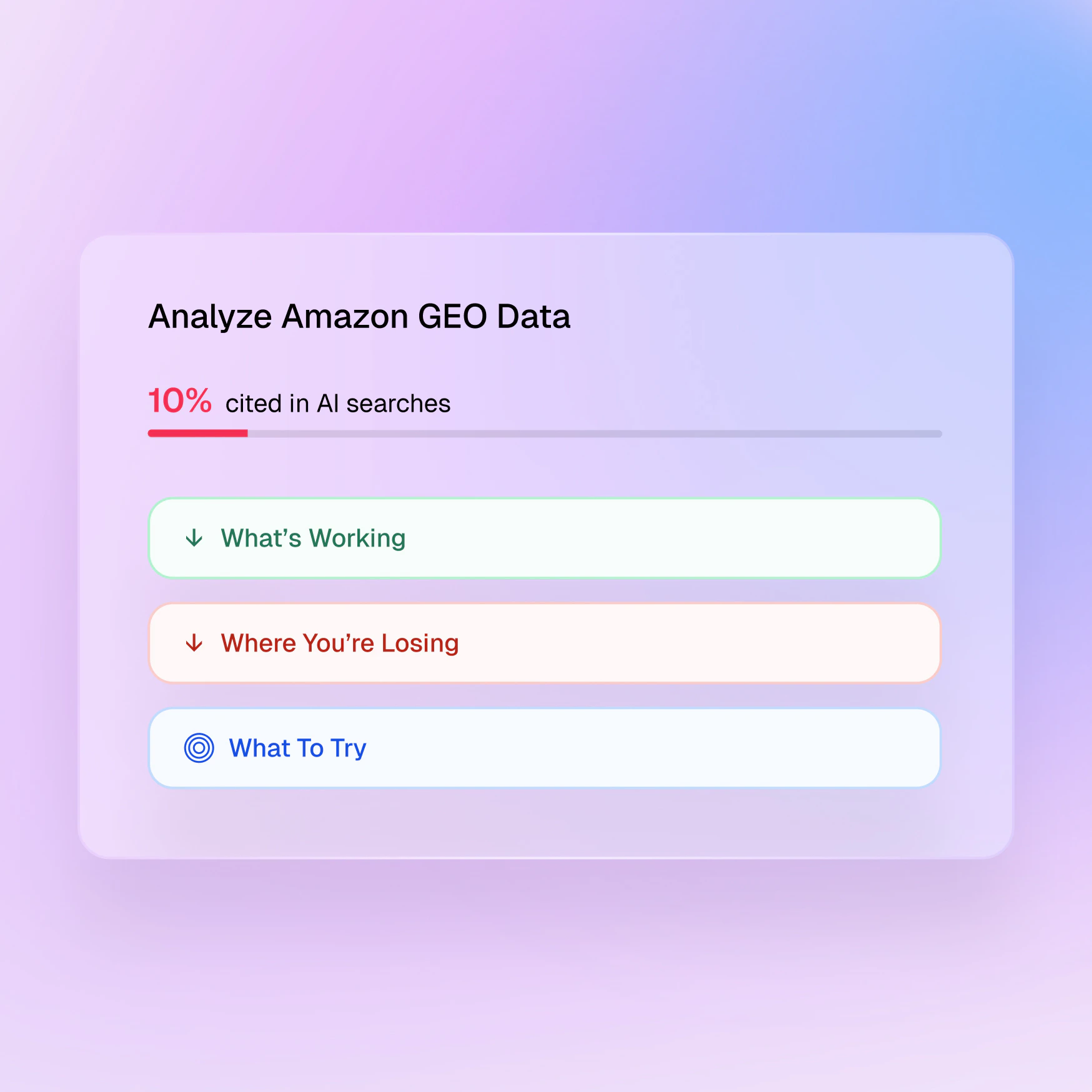
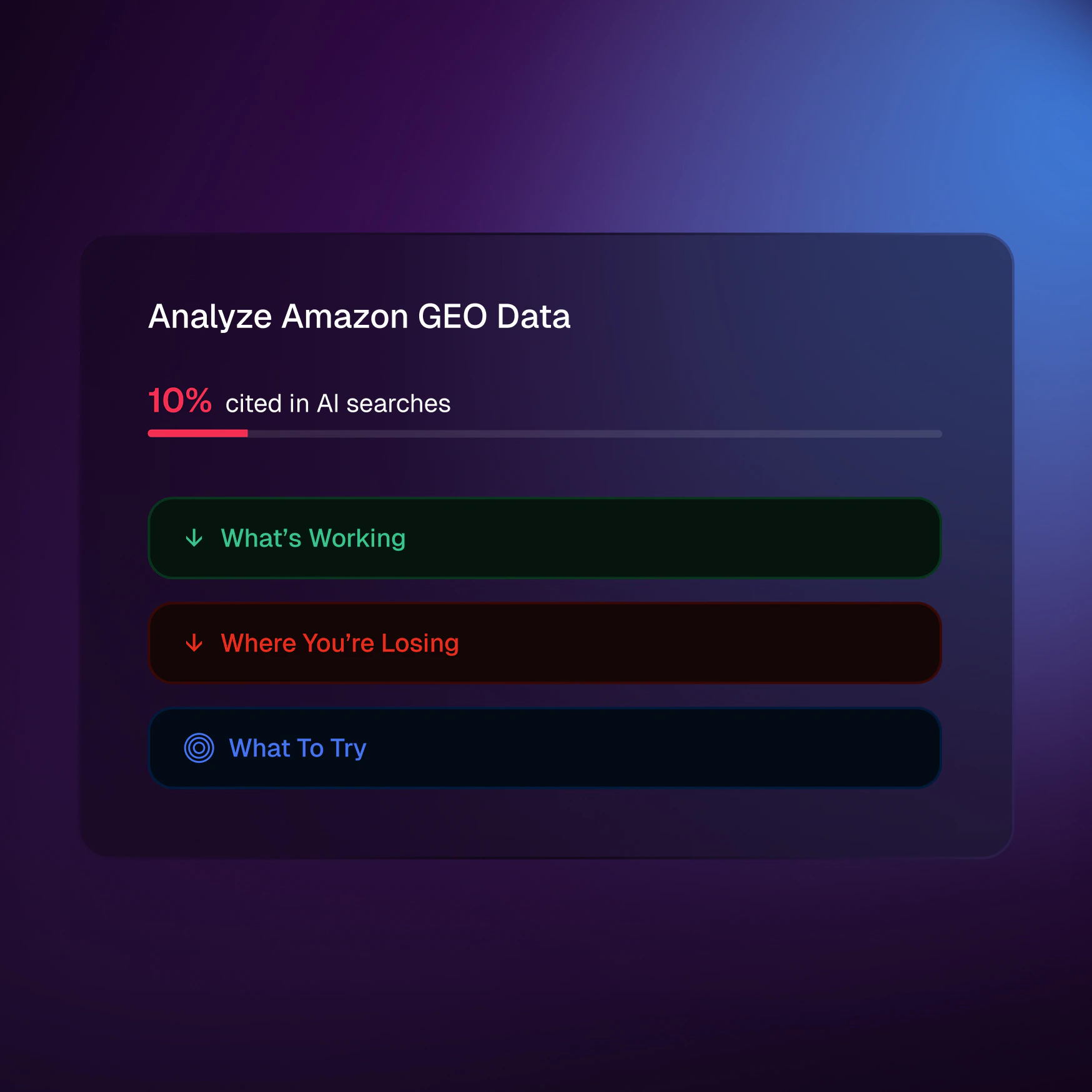
Introducing GEO, a new way to understand how your brand appears in AI-generated answers across platforms such as ChatGPT, Perplexity, and Claude.
**Highlights**
* Measure citation and mention rates across AI-generated answers.
* Compare visibility across brands and providers, including OpenAI, Anthropic, and Perplexity.
* Review prompt-level outputs to see how your brand is positioned.
* See which external sources are influencing responses.
* Generate follow-up recommendations for content and technical improvements.
**Access:** Available upon request. Contact your Gradial team to enable GEO for your account, then run `"Run a GEO report on [yourwebsite.com]"` in a new chat.
## Rules Manager Updates
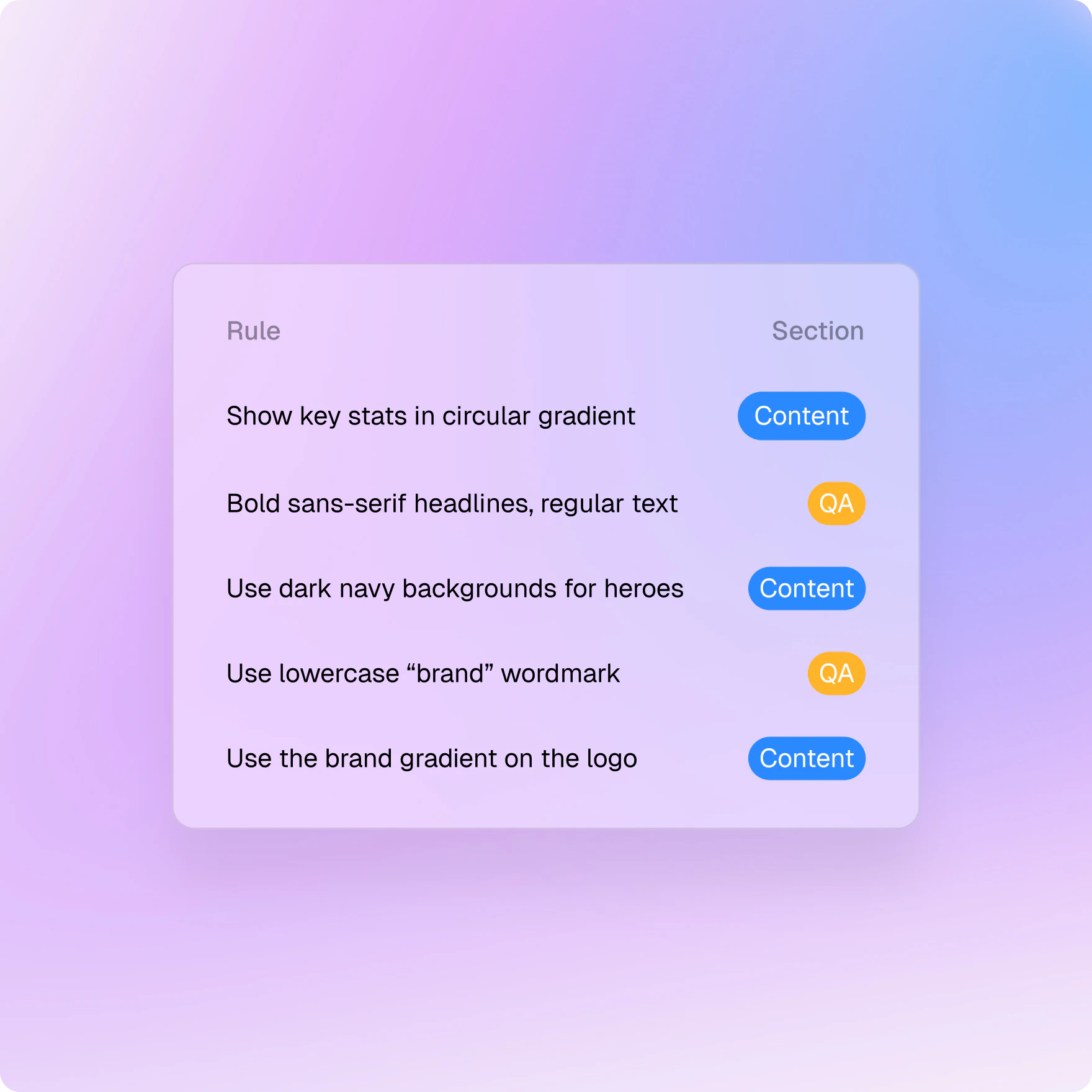
Rules Manager is now simpler to configure and easier to understand across agents.
**Highlights**
* Rule status now uses a simpler Enabled or Disabled model.
* The Section field has been removed from manual rule setup.
* New manual rules now select all integration agents by default.
* Use Apply to Planning Agents to extend rules earlier in the workflow.
## Content Search Agent and DAM Asset Search
Introducing Content Search Agent, a new research assistant for AEM environments, alongside a redesigned DAM Asset Search experience for faster asset discovery.
### Content Search Agent
* Ask questions about site structure, active pages, root folders, and language markers.
* Compare site sections to identify missing pages and localization gaps.
* Create follow-up tasks from identified gaps.
### DAM Asset Search
* View matching assets in an inline grid directly in chat.
* See the most relevant results first.
* Review asset cards with relevance scores, metadata tags, and quick actions.
* Request a specific number of assets in a single search.
**Access:** Available upon request. Contact your Gradial team to enable it for your organization.
## Chats
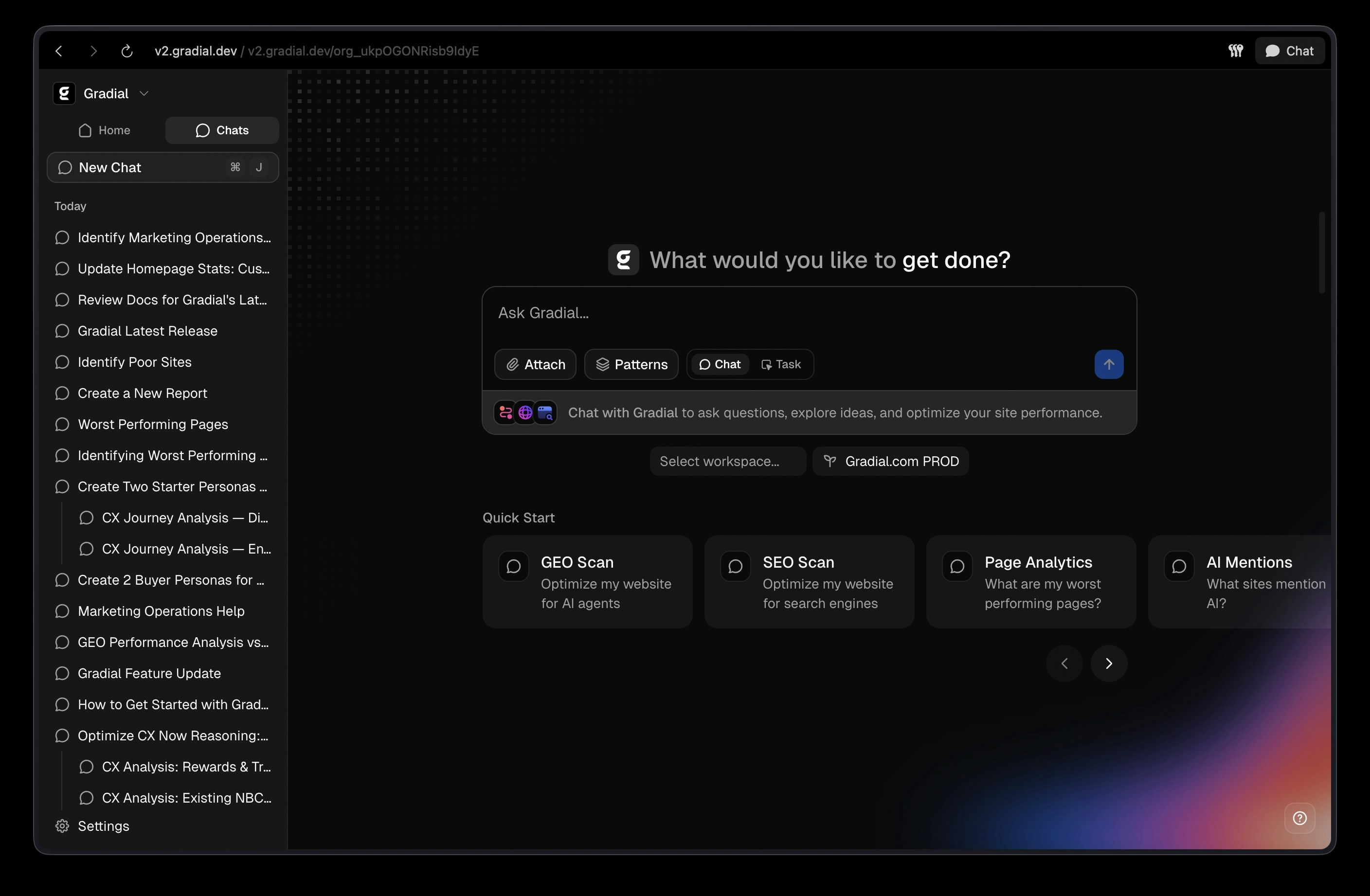
Not every interaction with Gradial needs to be a task. **Chats** give you a fast, conversational way to get answers, explore ideas, and stay informed, powered by full access to your Gradial documentation and the live web.
Ask about platform capabilities, get up-to-date guidance on your content strategy, or surface findings from your published pages, all in a single conversation thread. When you're ready to act, the chat agent can create tasks on your behalf and route them to the right workspace and environment automatically.
**Chat capabilities:**
* Ask questions about Gradial features, best practices, and your existing content
* Get answers grounded in your documentation and real-time web research
* Create new tasks directly from chat. The agent routes them to the correct workspace and environment.
* Find and resume past conversations in the **Chats** tab in the sidebar
GEO analysis, journey analysis, and live site performance reporting will soon be available directly within chat.
Type into the home screen or press `Cmd+J` from anywhere to start a conversation.
## Google Analytics Integration
Connect your Google Analytics 4 properties directly to Gradial. Once linked, your AI agents can query traffic, engagement, and conversion data on demand — no manual exports or dashboards required.
**What you can do:**
* Pull metrics like active users, bounce rate, session duration, and conversion rate across any date range
* Break data down by dimensions such as traffic source, device, country, or page path
* Let agents reference real performance data when making content recommendations
**Setup:** Add your GA4 service account key in **Settings → Integrations**. A guided setup walks you through enabling API access, creating a service account, and granting read permissions.
## External Web Search Across All Gradial Agents
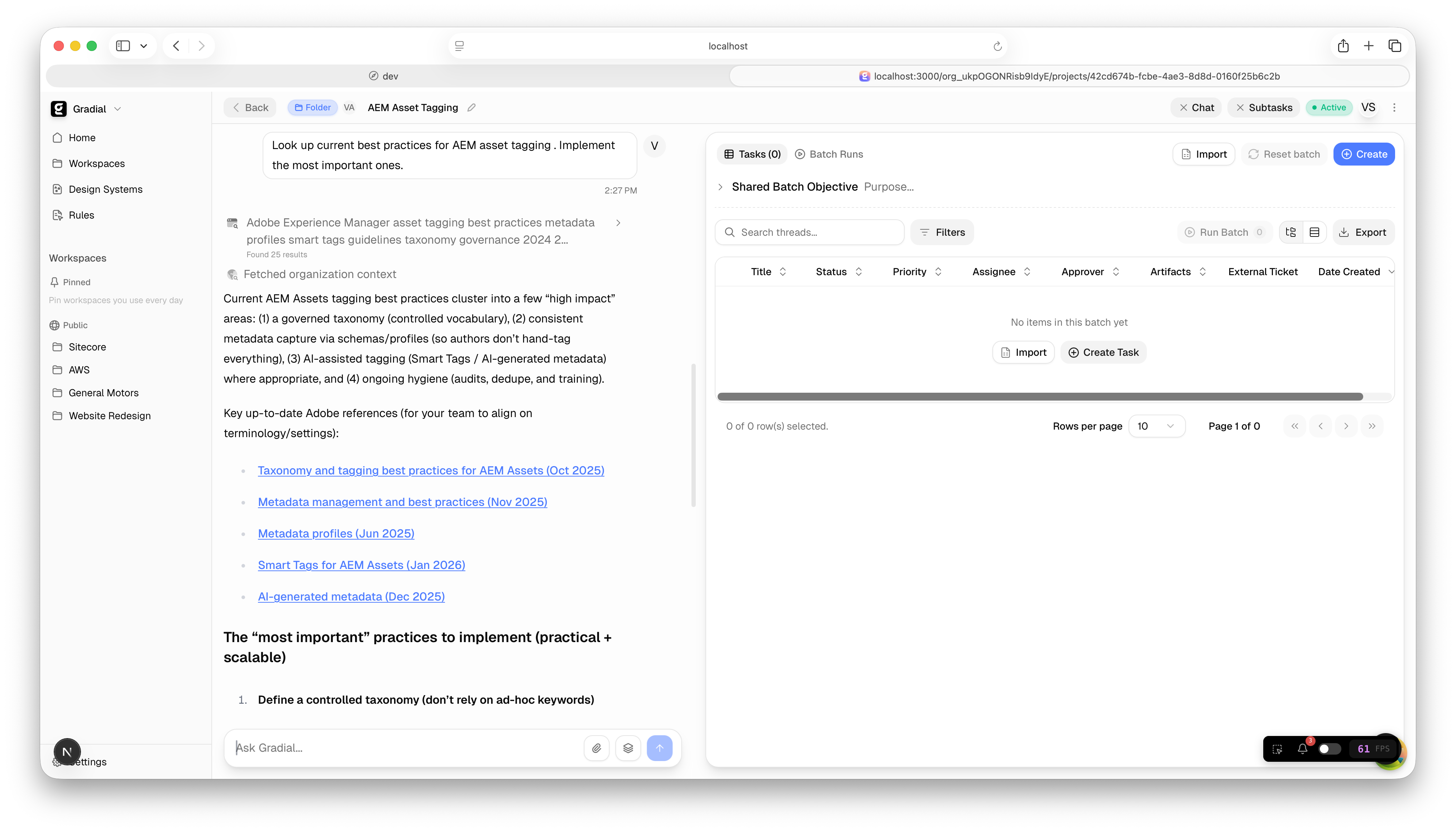
We’ve added built‑in external web search to Gradial so every agent can pull in fresh, relevant context without leaving your workflow. This means you can ask open‑ended questions, validate claims, and ground your content in current sources directly inside chat.
\
**External Web Search** is now available across all Gradial agents, including Sitecore, AEM, Thread Orchestrator, and Batch mode, with a clear in‑chat “search in progress” state and a clean list of results for quick review.
### What This Enables
* Get fast answers to exploratory questions backed by real web results
* Validate facts and references before drafting content
* Discover competitor positioning, market trends, and benchmarks in minutes
* Bring credible external context into AEM and Sitecore workflows
* Stay in flow: research and execution now happen in the same place
### Example Prompts
* “Find the latest enterprise CX benchmarks and summarize the top three trends.”
* “Research competitor messaging on AI-assisted content tools and draft a comparison outline.”
* “Look up current best practices for AEM asset tagging and suggest a checklist.”
* “Search for recent product launch messaging in our category and propose 3 angles.”
***
## Design System Collections
Design systems in Gradial are powerful to create consistent content. But as they grow, finding and reusing the right patterns can become harder. That’s why we’re introducing **Collections**.
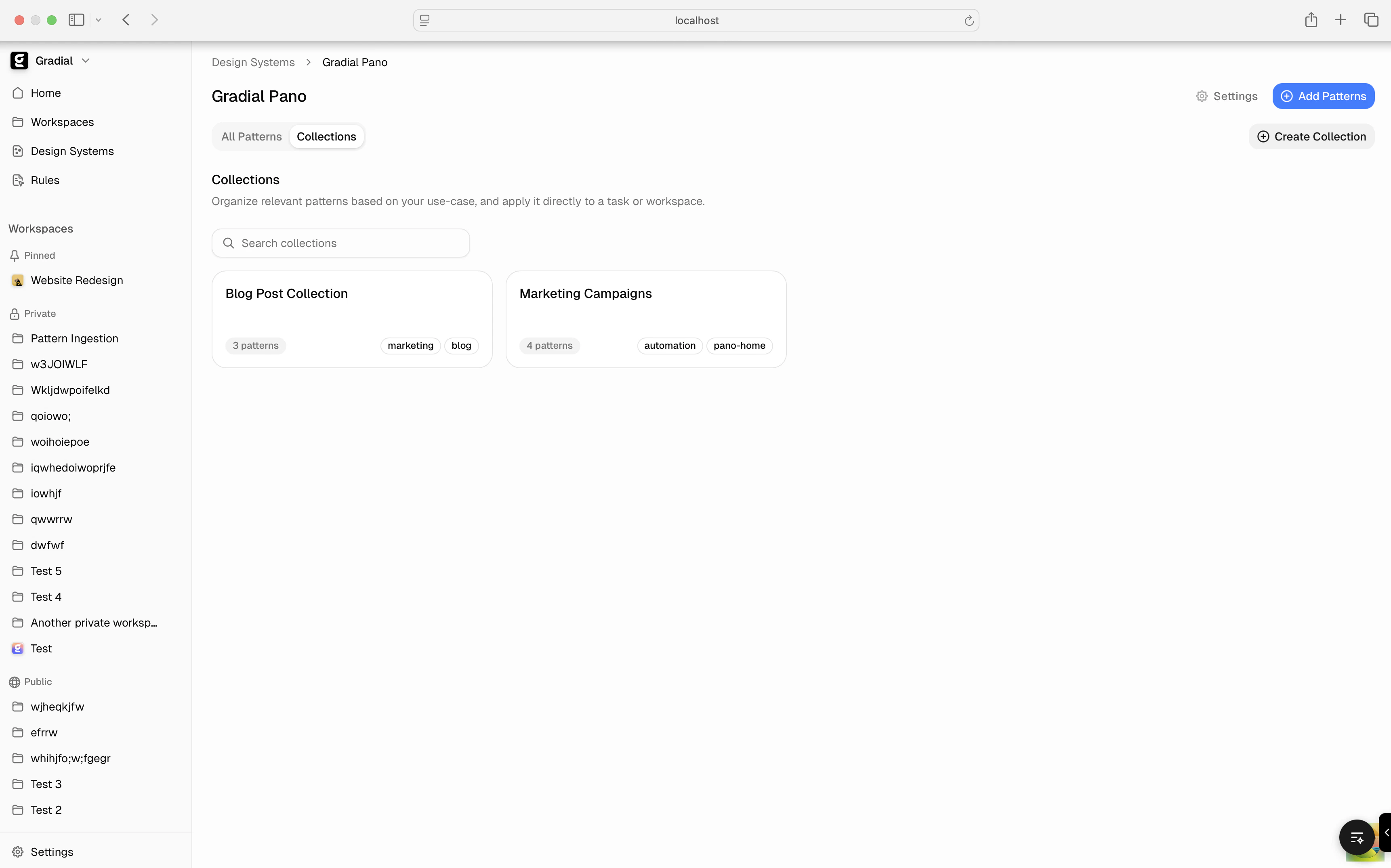
**Collections** let you organize patterns into meaningful, focused groups based on how you actually work, while your **design system** continues to house *all* patterns in one place.
Think of it like this:
* **Design System** → your complete pattern library
* **Collections** → flexible, purpose-built subsets of that library
Patterns can live in multiple Collections, so you can organize them without being locked into a single structure.
With Collections, you can group patterns around real use cases such as:
* Blog pages
* Marketing campaigns
* Product flows
This makes it easy to quickly find exactly what you need for a specific task, instead of browsing the entire system.
### Where to Find Collections
Collections live directly inside your design system.
You’ll see them on your **Design System** page in a dedicated **Collections** tab, making it easy to browse and manage all your curated sets in one place.
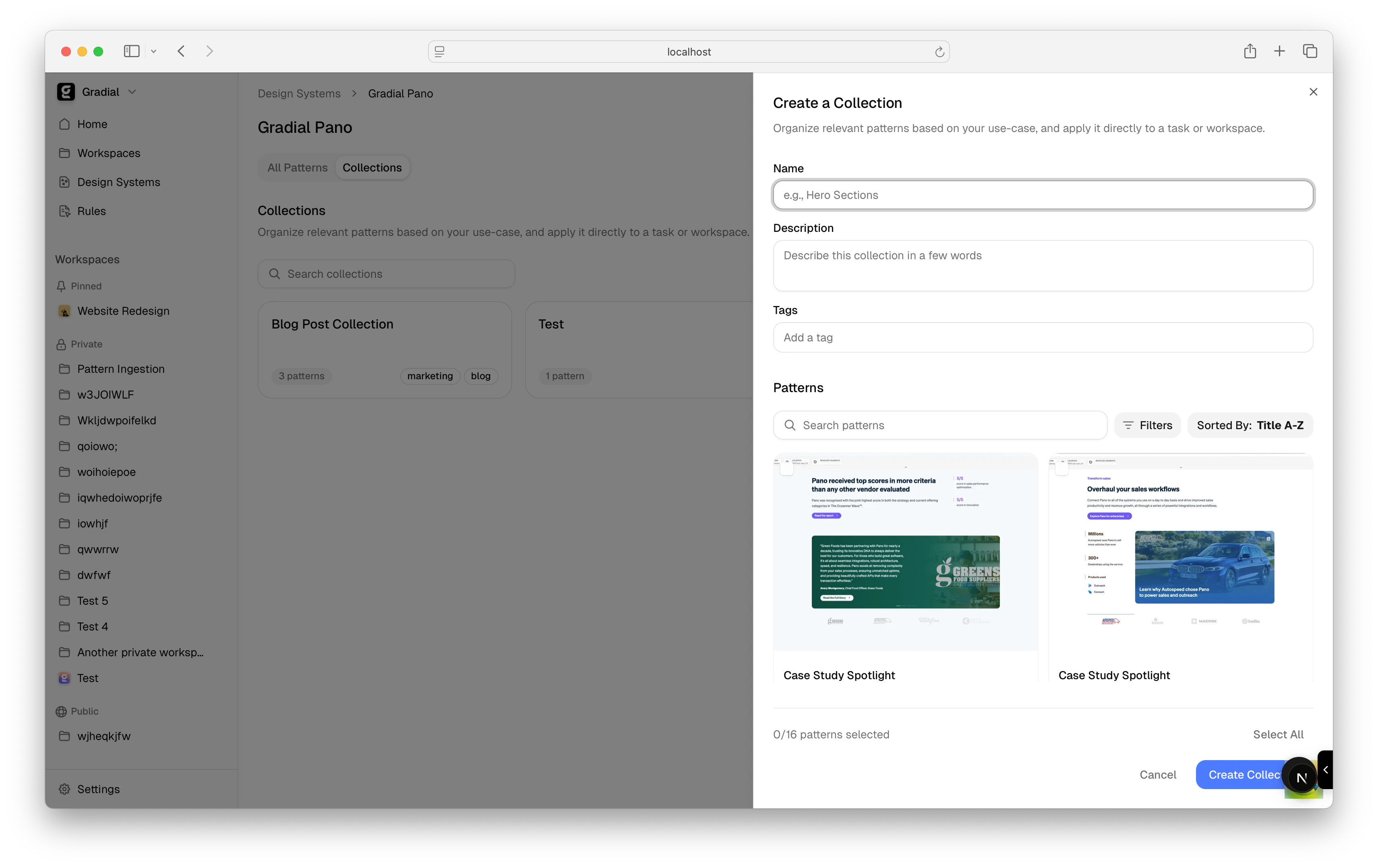
To get started, click **Create Collection** to open a modal where you can build a new Collection. Every Collection you create will appear in this tab.
You can also update existing Collections anytime using **Manage Settings**, where you can:
* Add, remove, or update patterns in a Collection
* Edit tags and metadata
* Refine Collections as your work evolves
Because Collections are reusable, you can apply the same curated sets across different tasks or workspaces, reducing duplication and keeping your work consistent as you scale.
***
## Manage Design Systems & Collections Per Workspace
Gradial design systems help teams create consistent, reusable content at scale. But as organizations grow, not every workspace needs access to every pattern library.
That’s why we’re introducing **workspace-level scoping for design systems and collections**.
Now, teams can control exactly which design systems, and which collections within them, are available for each workspace.
### Workspace Settings → Design Systems Tab
A new **Design Systems** tab is now available in Workspace Settings.
From here, you can:
* Associate one or more design systems with a workspace
* Scope access further by selecting specific **Collections** within a design system
* Quickly jump into details with **View Patterns**
This makes it easy to ensure each workspace stays focused on the patterns that matter most.
### Smart Filtering Based on Your AEM Environment
Gradial automatically ensures that only relevant design systems appear for selection.
Design systems are filtered based on your workspace’s **AEM integration URL**, so you’ll only see systems that contain patterns ingested from the same AEM instance.
That means:
* No clutter from unrelated environments
* No accidental cross-instance confusion
* Only the design systems that apply to your workspace
With workspace-level design system and collection scoping, Gradial makes it easier to manage patterns at scale, so every team has the right building blocks, in the right workspace, at the right time.
***
## Pattern Inheritance for Child Tasks
When working with batches, campaigns, or folders, customers often need the same patterns applied across all child tasks. Previously, pattern selections had to be configured individually for each task — a tedious process that didn't scale.
To solve this, we're rolling out **Pattern Inheritance**: pattern selections now automatically flow from parent to child tasks.
### How It Works
When you select patterns on a parent task (batch, campaign, folder, or migration), those patterns are **automatically inherited** by any child tasks created under it.
* Select patterns once at the parent level
* All new child tasks inherit those selections automatically
* No manual configuration needed for individual tasks
This works whether children are created:
* Manually through the UI
* Via Excel/CSV uploads
* By the agent during task execution
### Inheritance Is a Snapshot
Pattern inheritance captures the parent's selections **at the moment each child is created**:
* Children get the parent's current pattern selections when created
* Existing children keep their selections (inheritance won't override)
* You can still customize individual child tasks after creation
This means you can safely update the parent's patterns without affecting children that were already created.
### Pattern Selections Persist Across Sessions
As part of this update, pattern selections are now **saved to task history**. When you return to a task:
* Your previous pattern selections are automatically restored
* The sidebar shows which patterns were selected
* No need to remember or re-select patterns each time
### Benefits
* **Set once, apply everywhere** — Configure patterns at the parent level and let inheritance do the work
* **Faster batch setup** — No more selecting patterns for each individual task
* **Consistent output** — Ensure all child tasks use the same patterns for uniform results
* **Flexible overrides** — Still customize individual tasks when needed
***
## Draft Patterns
As design systems grow across the organization, users need the flexibility to control which patterns are available to the authoring agent. Whether it's hiding work-in-progress patterns or temporarily removing patterns that need refinement, teams need a simple way to manage pattern visibility.
To solve this, we're rolling out **Draft Patterns**: a way to control which patterns the authoring agent can use.
### Patterns Are Now "Released" by Default
When new patterns are added to a design system, they're **immediately available** for the authoring agent to use. No extra steps required — patterns work out of the box.
This means faster onboarding and less friction when expanding a design system.
### New "Draft" Status for Patterns
The pattern detail panel now includes a **Status** dropdown, which shows whether a pattern is:
* **Released** — actively available to the authoring agent when running tasks
* **Draft** — stored in the system but hidden from the authoring agent
This gives teams full control over what the agent can access.
When a pattern is set to **Draft**:
* It remains fully visible and editable in the Design System admin
* It shows a clear "Draft" badge in the patterns list
* It will **not** appear in the authoring agent's pattern registry
* The agent **cannot** use it when generating content
This is perfect for:
* Work-in-progress patterns that aren't ready for production
* Patterns that need refinement before being used
* Temporarily hiding patterns without deleting them
### How to Change Pattern Status
1. Navigate to **Design Systems** in the admin
2. Select the design system and open the **Patterns** list
3. Click on any pattern to open its detail panel
4. Use the **Status** dropdown to toggle between "Released" and "Draft"
Changes take effect immediately.
### Benefits
* **Faster onboarding** — New patterns work immediately without manual activation
* **Quality control** — Keep work-in-progress patterns hidden until they're ready
* **Flexibility** — Easily show or hide patterns as customer needs evolve
* **Non-destructive** — No need to delete patterns; just set them to Draft and re-enable later
### Configure multiple identity providers for a single organization
Gradial now supports multiple SSO configurations for a single organization—useful for organizations spanning multiple geographies with separate identity providers, or when a managed service provider is supporting your implementation.
To add additional SSO connections, repeat the setup steps for each identity provider in **Settings → Integrations → Single Sign-On**.
See our [SSO documentation](/docs/integrations-administration-and-setup/managing-access/sso) for setup instructions.
### Updated Ticket UI
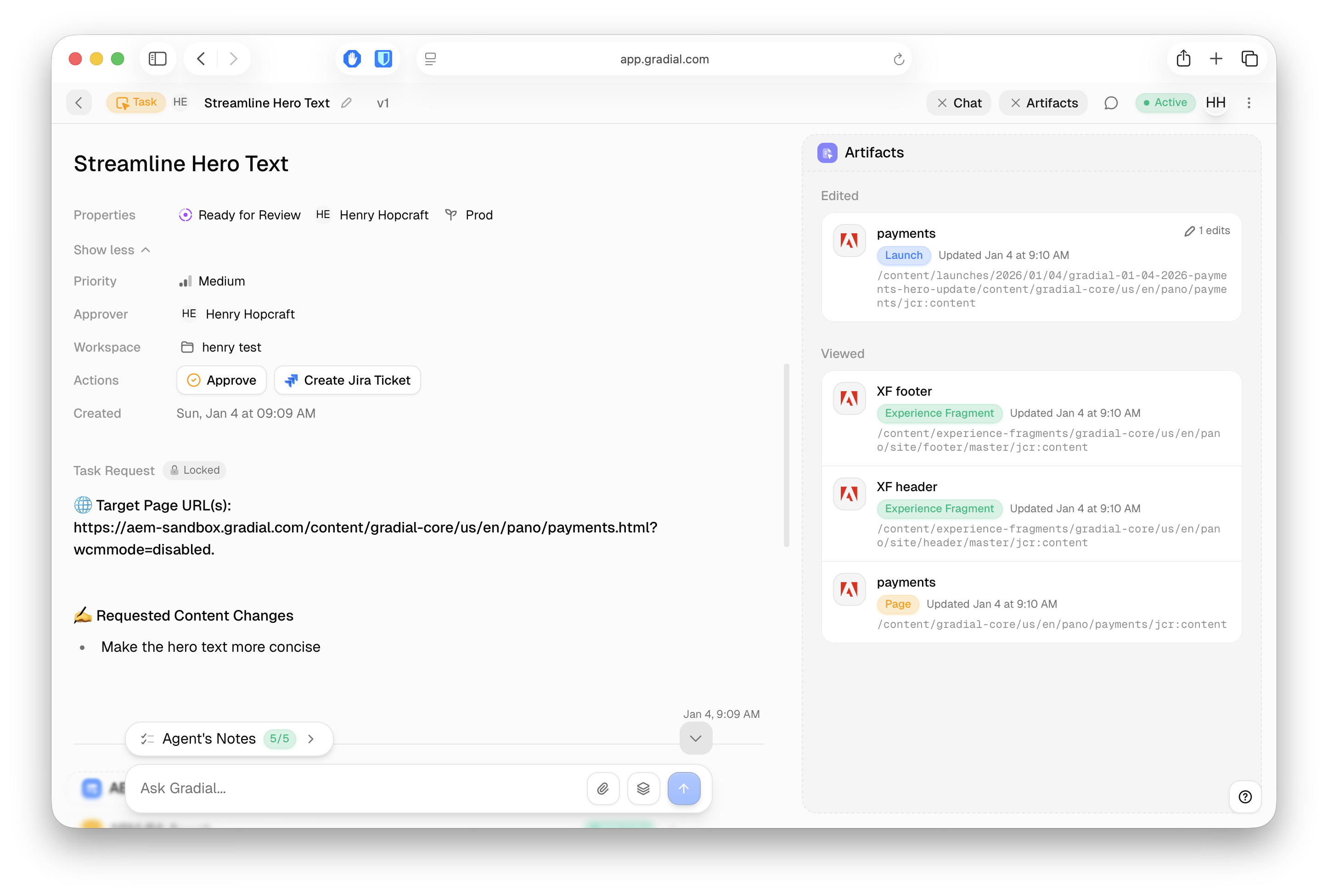
We've redesigned the ticket interface to improve clarity when working with tasks.
**Properties Above Task Request**
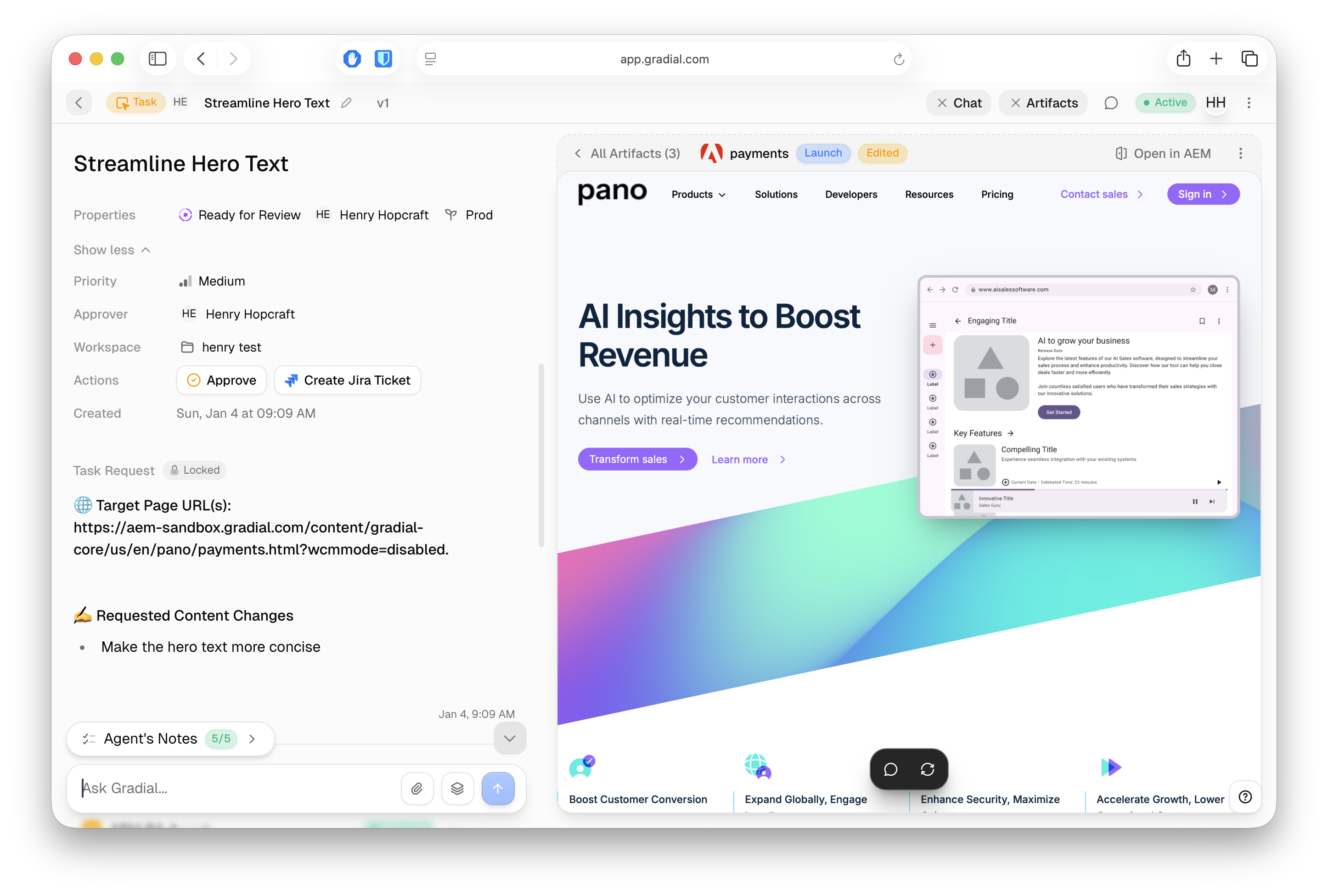
Task properties (status, priority, approver, workspace, and actions) now appear prominently above the task request section. This layout gives you immediate context about the ticket's state without clicking. Long ticket requests will also appear inline without the need to scroll through a container.
**Centralized Artifacts Drawer**
Artifacts now have a dedicated drawer that lets you browse and switch between all edited and viewed artifacts in one place. Click any artifact to preview it directly, or use the "All Artifacts" view to see everything at a glance.
 **Highlights**
* Measure citation and mention rates across AI-generated answers.
* Compare visibility across brands and providers, including OpenAI, Anthropic, and Perplexity.
* Review prompt-level outputs to see how your brand is positioned.
* See which external sources are influencing responses.
* Generate follow-up recommendations for content and technical improvements.
**Access:** Available upon request. Contact your Gradial team to enable GEO for your account, then run `"Run a GEO report on [yourwebsite.com]"` in a new chat.
## Rules Manager Updates
Rules Manager is now simpler to configure and easier to understand across agents.
**Highlights**
* Measure citation and mention rates across AI-generated answers.
* Compare visibility across brands and providers, including OpenAI, Anthropic, and Perplexity.
* Review prompt-level outputs to see how your brand is positioned.
* See which external sources are influencing responses.
* Generate follow-up recommendations for content and technical improvements.
**Access:** Available upon request. Contact your Gradial team to enable GEO for your account, then run `"Run a GEO report on [yourwebsite.com]"` in a new chat.
## Rules Manager Updates
Rules Manager is now simpler to configure and easier to understand across agents.
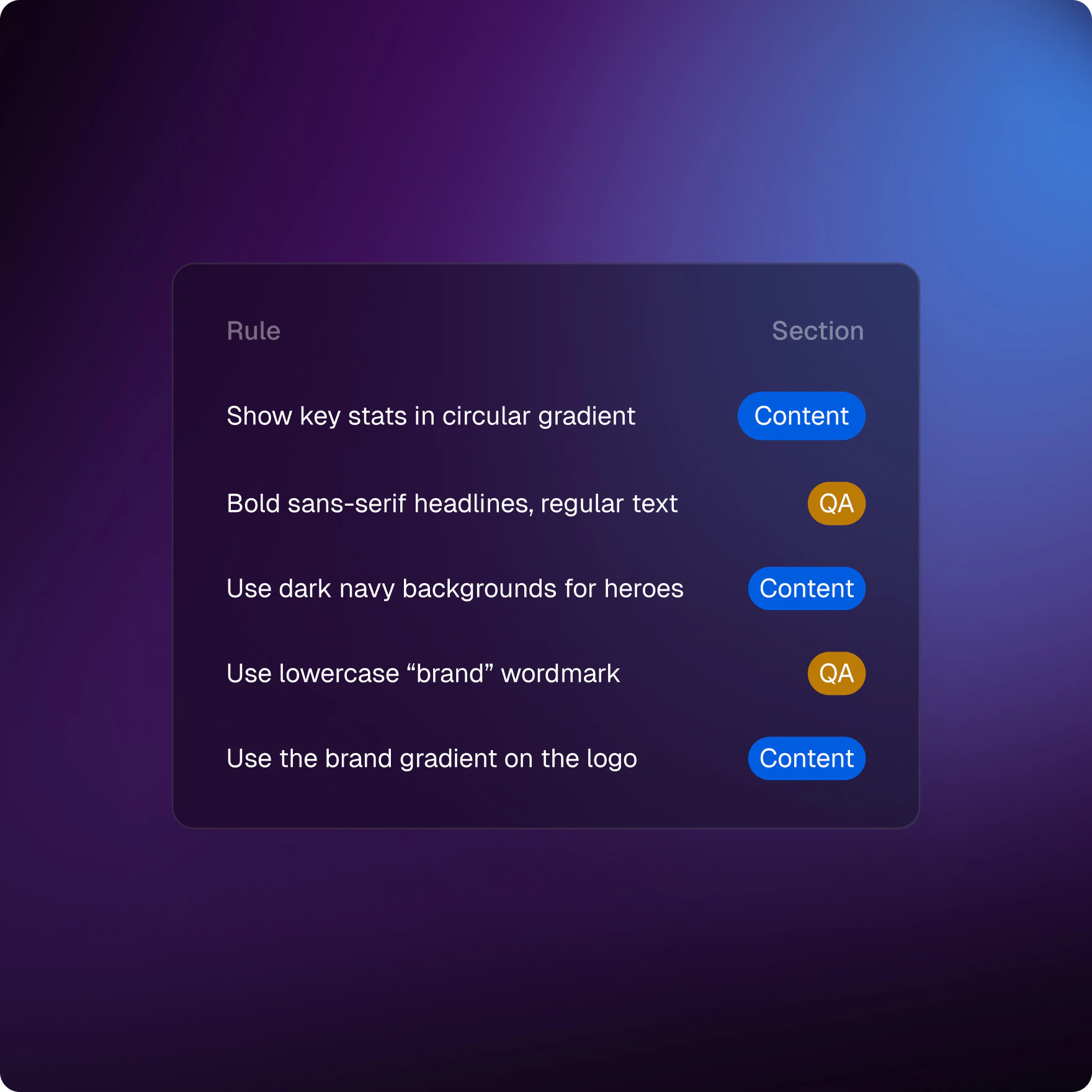 **Highlights**
* Rule status now uses a simpler Enabled or Disabled model.
* The Section field has been removed from manual rule setup.
* New manual rules now select all integration agents by default.
* Use Apply to Planning Agents to extend rules earlier in the workflow.
## Content Search Agent and DAM Asset Search
Introducing Content Search Agent, a new research assistant for AEM environments, alongside a redesigned DAM Asset Search experience for faster asset discovery.
**Highlights**
* Rule status now uses a simpler Enabled or Disabled model.
* The Section field has been removed from manual rule setup.
* New manual rules now select all integration agents by default.
* Use Apply to Planning Agents to extend rules earlier in the workflow.
## Content Search Agent and DAM Asset Search
Introducing Content Search Agent, a new research assistant for AEM environments, alongside a redesigned DAM Asset Search experience for faster asset discovery.
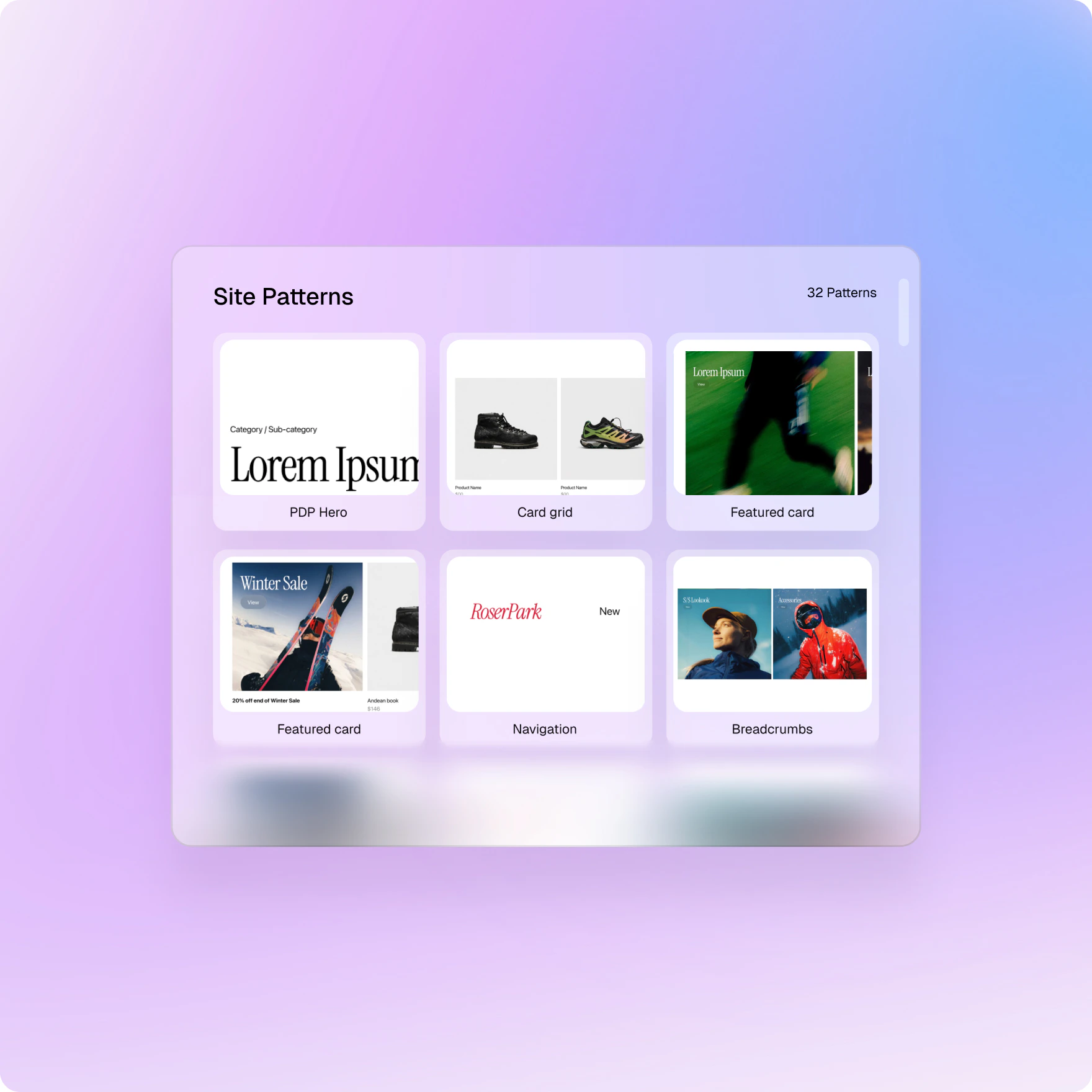
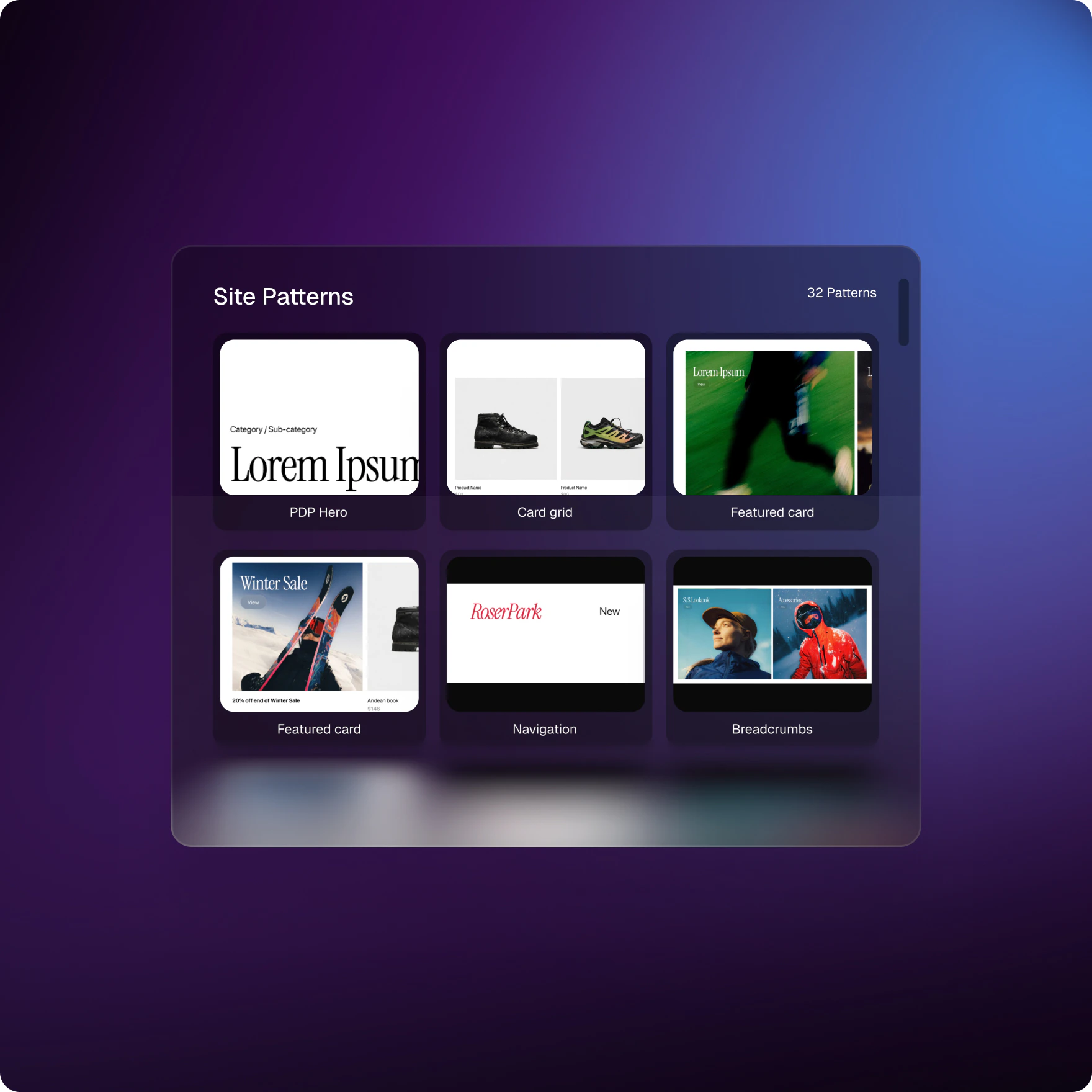 ### Content Search Agent
* Ask questions about site structure, active pages, root folders, and language markers.
* Compare site sections to identify missing pages and localization gaps.
* Create follow-up tasks from identified gaps.
### DAM Asset Search
* View matching assets in an inline grid directly in chat.
* See the most relevant results first.
* Review asset cards with relevance scores, metadata tags, and quick actions.
* Request a specific number of assets in a single search.
**Access:** Available upon request. Contact your Gradial team to enable it for your organization.
### Content Search Agent
* Ask questions about site structure, active pages, root folders, and language markers.
* Compare site sections to identify missing pages and localization gaps.
* Create follow-up tasks from identified gaps.
### DAM Asset Search
* View matching assets in an inline grid directly in chat.
* See the most relevant results first.
* Review asset cards with relevance scores, metadata tags, and quick actions.
* Request a specific number of assets in a single search.
**Access:** Available upon request. Contact your Gradial team to enable it for your organization.
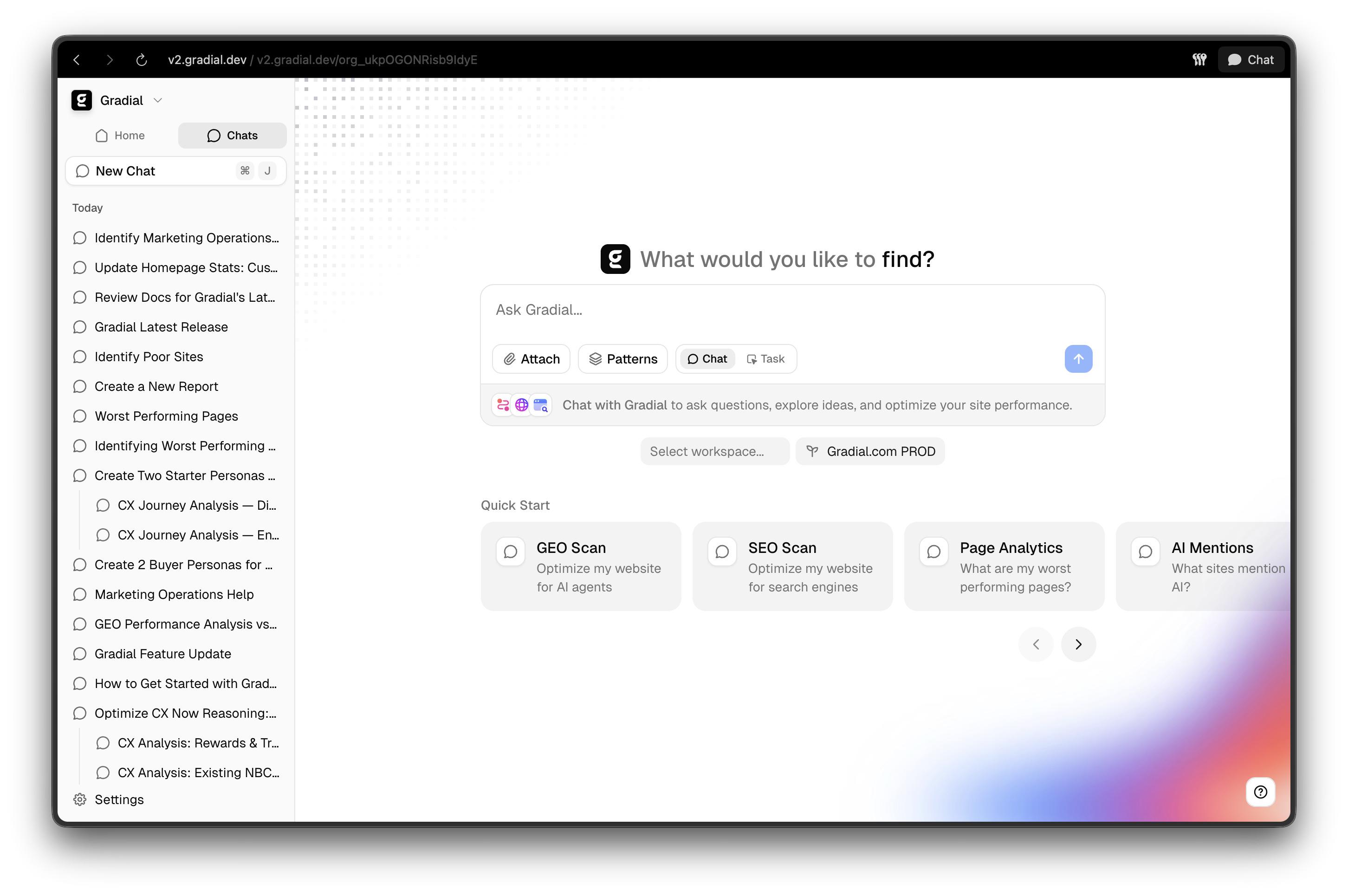
 Not every interaction with Gradial needs to be a task. **Chats** give you a fast, conversational way to get answers, explore ideas, and stay informed, powered by full access to your Gradial documentation and the live web.
Ask about platform capabilities, get up-to-date guidance on your content strategy, or surface findings from your published pages, all in a single conversation thread. When you're ready to act, the chat agent can create tasks on your behalf and route them to the right workspace and environment automatically.
**Chat capabilities:**
* Ask questions about Gradial features, best practices, and your existing content
* Get answers grounded in your documentation and real-time web research
* Create new tasks directly from chat. The agent routes them to the correct workspace and environment.
* Find and resume past conversations in the **Chats** tab in the sidebar
GEO analysis, journey analysis, and live site performance reporting will soon be available directly within chat.
Type into the home screen or press `Cmd+J` from anywhere to start a conversation.
## Google Analytics Integration
Connect your Google Analytics 4 properties directly to Gradial. Once linked, your AI agents can query traffic, engagement, and conversion data on demand — no manual exports or dashboards required.
**What you can do:**
* Pull metrics like active users, bounce rate, session duration, and conversion rate across any date range
* Break data down by dimensions such as traffic source, device, country, or page path
* Let agents reference real performance data when making content recommendations
**Setup:** Add your GA4 service account key in **Settings → Integrations**. A guided setup walks you through enabling API access, creating a service account, and granting read permissions.
## External Web Search Across All Gradial Agents
We’ve added built‑in external web search to Gradial so every agent can pull in fresh, relevant context without leaving your workflow. This means you can ask open‑ended questions, validate claims, and ground your content in current sources directly inside chat.
Not every interaction with Gradial needs to be a task. **Chats** give you a fast, conversational way to get answers, explore ideas, and stay informed, powered by full access to your Gradial documentation and the live web.
Ask about platform capabilities, get up-to-date guidance on your content strategy, or surface findings from your published pages, all in a single conversation thread. When you're ready to act, the chat agent can create tasks on your behalf and route them to the right workspace and environment automatically.
**Chat capabilities:**
* Ask questions about Gradial features, best practices, and your existing content
* Get answers grounded in your documentation and real-time web research
* Create new tasks directly from chat. The agent routes them to the correct workspace and environment.
* Find and resume past conversations in the **Chats** tab in the sidebar
GEO analysis, journey analysis, and live site performance reporting will soon be available directly within chat.
Type into the home screen or press `Cmd+J` from anywhere to start a conversation.
## Google Analytics Integration
Connect your Google Analytics 4 properties directly to Gradial. Once linked, your AI agents can query traffic, engagement, and conversion data on demand — no manual exports or dashboards required.
**What you can do:**
* Pull metrics like active users, bounce rate, session duration, and conversion rate across any date range
* Break data down by dimensions such as traffic source, device, country, or page path
* Let agents reference real performance data when making content recommendations
**Setup:** Add your GA4 service account key in **Settings → Integrations**. A guided setup walks you through enabling API access, creating a service account, and granting read permissions.
## External Web Search Across All Gradial Agents
We’ve added built‑in external web search to Gradial so every agent can pull in fresh, relevant context without leaving your workflow. This means you can ask open‑ended questions, validate claims, and ground your content in current sources directly inside chat.
 \
**External Web Search** is now available across all Gradial agents, including Sitecore, AEM, Thread Orchestrator, and Batch mode, with a clear in‑chat “search in progress” state and a clean list of results for quick review.
### What This Enables
* Get fast answers to exploratory questions backed by real web results
* Validate facts and references before drafting content
* Discover competitor positioning, market trends, and benchmarks in minutes
* Bring credible external context into AEM and Sitecore workflows
* Stay in flow: research and execution now happen in the same place
### Example Prompts
* “Find the latest enterprise CX benchmarks and summarize the top three trends.”
* “Research competitor messaging on AI-assisted content tools and draft a comparison outline.”
* “Look up current best practices for AEM asset tagging and suggest a checklist.”
* “Search for recent product launch messaging in our category and propose 3 angles.”
***
## Design System Collections
Design systems in Gradial are powerful to create consistent content. But as they grow, finding and reusing the right patterns can become harder. That’s why we’re introducing **Collections**.
\
**External Web Search** is now available across all Gradial agents, including Sitecore, AEM, Thread Orchestrator, and Batch mode, with a clear in‑chat “search in progress” state and a clean list of results for quick review.
### What This Enables
* Get fast answers to exploratory questions backed by real web results
* Validate facts and references before drafting content
* Discover competitor positioning, market trends, and benchmarks in minutes
* Bring credible external context into AEM and Sitecore workflows
* Stay in flow: research and execution now happen in the same place
### Example Prompts
* “Find the latest enterprise CX benchmarks and summarize the top three trends.”
* “Research competitor messaging on AI-assisted content tools and draft a comparison outline.”
* “Look up current best practices for AEM asset tagging and suggest a checklist.”
* “Search for recent product launch messaging in our category and propose 3 angles.”
***
## Design System Collections
Design systems in Gradial are powerful to create consistent content. But as they grow, finding and reusing the right patterns can become harder. That’s why we’re introducing **Collections**.
 **Collections** let you organize patterns into meaningful, focused groups based on how you actually work, while your **design system** continues to house *all* patterns in one place.
Think of it like this:
* **Design System** → your complete pattern library
* **Collections** → flexible, purpose-built subsets of that library
Patterns can live in multiple Collections, so you can organize them without being locked into a single structure.
With Collections, you can group patterns around real use cases such as:
* Blog pages
* Marketing campaigns
* Product flows
This makes it easy to quickly find exactly what you need for a specific task, instead of browsing the entire system.
### Where to Find Collections
Collections live directly inside your design system.
You’ll see them on your **Design System** page in a dedicated **Collections** tab, making it easy to browse and manage all your curated sets in one place.
To get started, click **Create Collection** to open a modal where you can build a new Collection. Every Collection you create will appear in this tab.
**Collections** let you organize patterns into meaningful, focused groups based on how you actually work, while your **design system** continues to house *all* patterns in one place.
Think of it like this:
* **Design System** → your complete pattern library
* **Collections** → flexible, purpose-built subsets of that library
Patterns can live in multiple Collections, so you can organize them without being locked into a single structure.
With Collections, you can group patterns around real use cases such as:
* Blog pages
* Marketing campaigns
* Product flows
This makes it easy to quickly find exactly what you need for a specific task, instead of browsing the entire system.
### Where to Find Collections
Collections live directly inside your design system.
You’ll see them on your **Design System** page in a dedicated **Collections** tab, making it easy to browse and manage all your curated sets in one place.
To get started, click **Create Collection** to open a modal where you can build a new Collection. Every Collection you create will appear in this tab.
 You can also update existing Collections anytime using **Manage Settings**, where you can:
* Add, remove, or update patterns in a Collection
* Edit tags and metadata
* Refine Collections as your work evolves
Because Collections are reusable, you can apply the same curated sets across different tasks or workspaces, reducing duplication and keeping your work consistent as you scale.
***
## Manage Design Systems & Collections Per Workspace
Gradial design systems help teams create consistent, reusable content at scale. But as organizations grow, not every workspace needs access to every pattern library.
That’s why we’re introducing **workspace-level scoping for design systems and collections**.
Now, teams can control exactly which design systems, and which collections within them, are available for each workspace.
You can also update existing Collections anytime using **Manage Settings**, where you can:
* Add, remove, or update patterns in a Collection
* Edit tags and metadata
* Refine Collections as your work evolves
Because Collections are reusable, you can apply the same curated sets across different tasks or workspaces, reducing duplication and keeping your work consistent as you scale.
***
## Manage Design Systems & Collections Per Workspace
Gradial design systems help teams create consistent, reusable content at scale. But as organizations grow, not every workspace needs access to every pattern library.
That’s why we’re introducing **workspace-level scoping for design systems and collections**.
Now, teams can control exactly which design systems, and which collections within them, are available for each workspace.
 ### Workspace Settings → Design Systems Tab
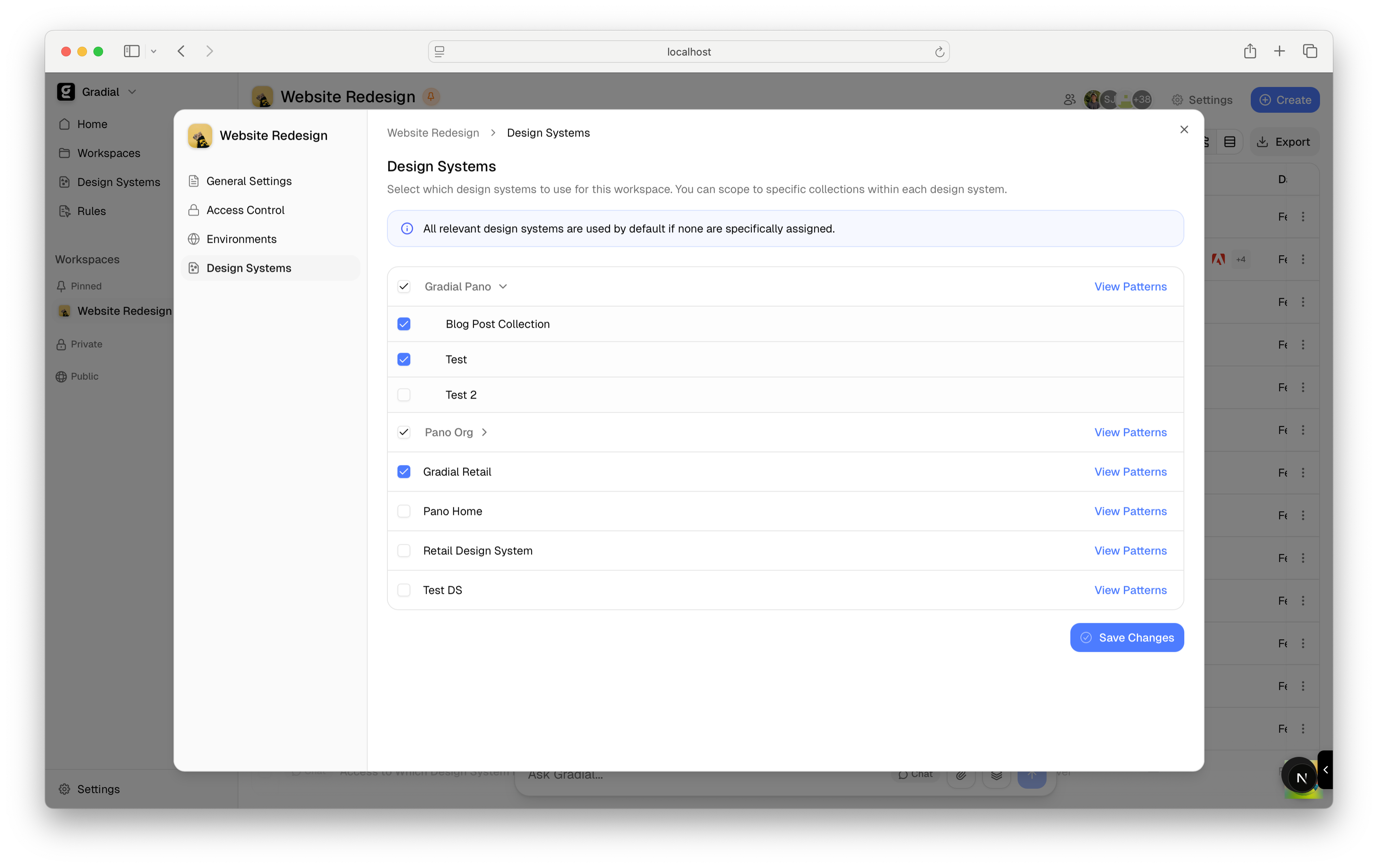
A new **Design Systems** tab is now available in Workspace Settings.
From here, you can:
* Associate one or more design systems with a workspace
* Scope access further by selecting specific **Collections** within a design system
* Quickly jump into details with **View Patterns**
This makes it easy to ensure each workspace stays focused on the patterns that matter most.
### Smart Filtering Based on Your AEM Environment
Gradial automatically ensures that only relevant design systems appear for selection.
Design systems are filtered based on your workspace’s **AEM integration URL**, so you’ll only see systems that contain patterns ingested from the same AEM instance.
That means:
* No clutter from unrelated environments
* No accidental cross-instance confusion
* Only the design systems that apply to your workspace
With workspace-level design system and collection scoping, Gradial makes it easier to manage patterns at scale, so every team has the right building blocks, in the right workspace, at the right time.
***
## Pattern Inheritance for Child Tasks
When working with batches, campaigns, or folders, customers often need the same patterns applied across all child tasks. Previously, pattern selections had to be configured individually for each task — a tedious process that didn't scale.
To solve this, we're rolling out **Pattern Inheritance**: pattern selections now automatically flow from parent to child tasks.
### How It Works
When you select patterns on a parent task (batch, campaign, folder, or migration), those patterns are **automatically inherited** by any child tasks created under it.
* Select patterns once at the parent level
* All new child tasks inherit those selections automatically
* No manual configuration needed for individual tasks
This works whether children are created:
* Manually through the UI
* Via Excel/CSV uploads
* By the agent during task execution
### Inheritance Is a Snapshot
Pattern inheritance captures the parent's selections **at the moment each child is created**:
* Children get the parent's current pattern selections when created
* Existing children keep their selections (inheritance won't override)
* You can still customize individual child tasks after creation
This means you can safely update the parent's patterns without affecting children that were already created.
### Pattern Selections Persist Across Sessions
As part of this update, pattern selections are now **saved to task history**. When you return to a task:
* Your previous pattern selections are automatically restored
* The sidebar shows which patterns were selected
* No need to remember or re-select patterns each time
### Benefits
* **Set once, apply everywhere** — Configure patterns at the parent level and let inheritance do the work
* **Faster batch setup** — No more selecting patterns for each individual task
* **Consistent output** — Ensure all child tasks use the same patterns for uniform results
* **Flexible overrides** — Still customize individual tasks when needed
***
## Draft Patterns
As design systems grow across the organization, users need the flexibility to control which patterns are available to the authoring agent. Whether it's hiding work-in-progress patterns or temporarily removing patterns that need refinement, teams need a simple way to manage pattern visibility.
To solve this, we're rolling out **Draft Patterns**: a way to control which patterns the authoring agent can use.
### Workspace Settings → Design Systems Tab
A new **Design Systems** tab is now available in Workspace Settings.
From here, you can:
* Associate one or more design systems with a workspace
* Scope access further by selecting specific **Collections** within a design system
* Quickly jump into details with **View Patterns**
This makes it easy to ensure each workspace stays focused on the patterns that matter most.
### Smart Filtering Based on Your AEM Environment
Gradial automatically ensures that only relevant design systems appear for selection.
Design systems are filtered based on your workspace’s **AEM integration URL**, so you’ll only see systems that contain patterns ingested from the same AEM instance.
That means:
* No clutter from unrelated environments
* No accidental cross-instance confusion
* Only the design systems that apply to your workspace
With workspace-level design system and collection scoping, Gradial makes it easier to manage patterns at scale, so every team has the right building blocks, in the right workspace, at the right time.
***
## Pattern Inheritance for Child Tasks
When working with batches, campaigns, or folders, customers often need the same patterns applied across all child tasks. Previously, pattern selections had to be configured individually for each task — a tedious process that didn't scale.
To solve this, we're rolling out **Pattern Inheritance**: pattern selections now automatically flow from parent to child tasks.
### How It Works
When you select patterns on a parent task (batch, campaign, folder, or migration), those patterns are **automatically inherited** by any child tasks created under it.
* Select patterns once at the parent level
* All new child tasks inherit those selections automatically
* No manual configuration needed for individual tasks
This works whether children are created:
* Manually through the UI
* Via Excel/CSV uploads
* By the agent during task execution
### Inheritance Is a Snapshot
Pattern inheritance captures the parent's selections **at the moment each child is created**:
* Children get the parent's current pattern selections when created
* Existing children keep their selections (inheritance won't override)
* You can still customize individual child tasks after creation
This means you can safely update the parent's patterns without affecting children that were already created.
### Pattern Selections Persist Across Sessions
As part of this update, pattern selections are now **saved to task history**. When you return to a task:
* Your previous pattern selections are automatically restored
* The sidebar shows which patterns were selected
* No need to remember or re-select patterns each time
### Benefits
* **Set once, apply everywhere** — Configure patterns at the parent level and let inheritance do the work
* **Faster batch setup** — No more selecting patterns for each individual task
* **Consistent output** — Ensure all child tasks use the same patterns for uniform results
* **Flexible overrides** — Still customize individual tasks when needed
***
## Draft Patterns
As design systems grow across the organization, users need the flexibility to control which patterns are available to the authoring agent. Whether it's hiding work-in-progress patterns or temporarily removing patterns that need refinement, teams need a simple way to manage pattern visibility.
To solve this, we're rolling out **Draft Patterns**: a way to control which patterns the authoring agent can use.
 ### Patterns Are Now "Released" by Default
When new patterns are added to a design system, they're **immediately available** for the authoring agent to use. No extra steps required — patterns work out of the box.
This means faster onboarding and less friction when expanding a design system.
### New "Draft" Status for Patterns
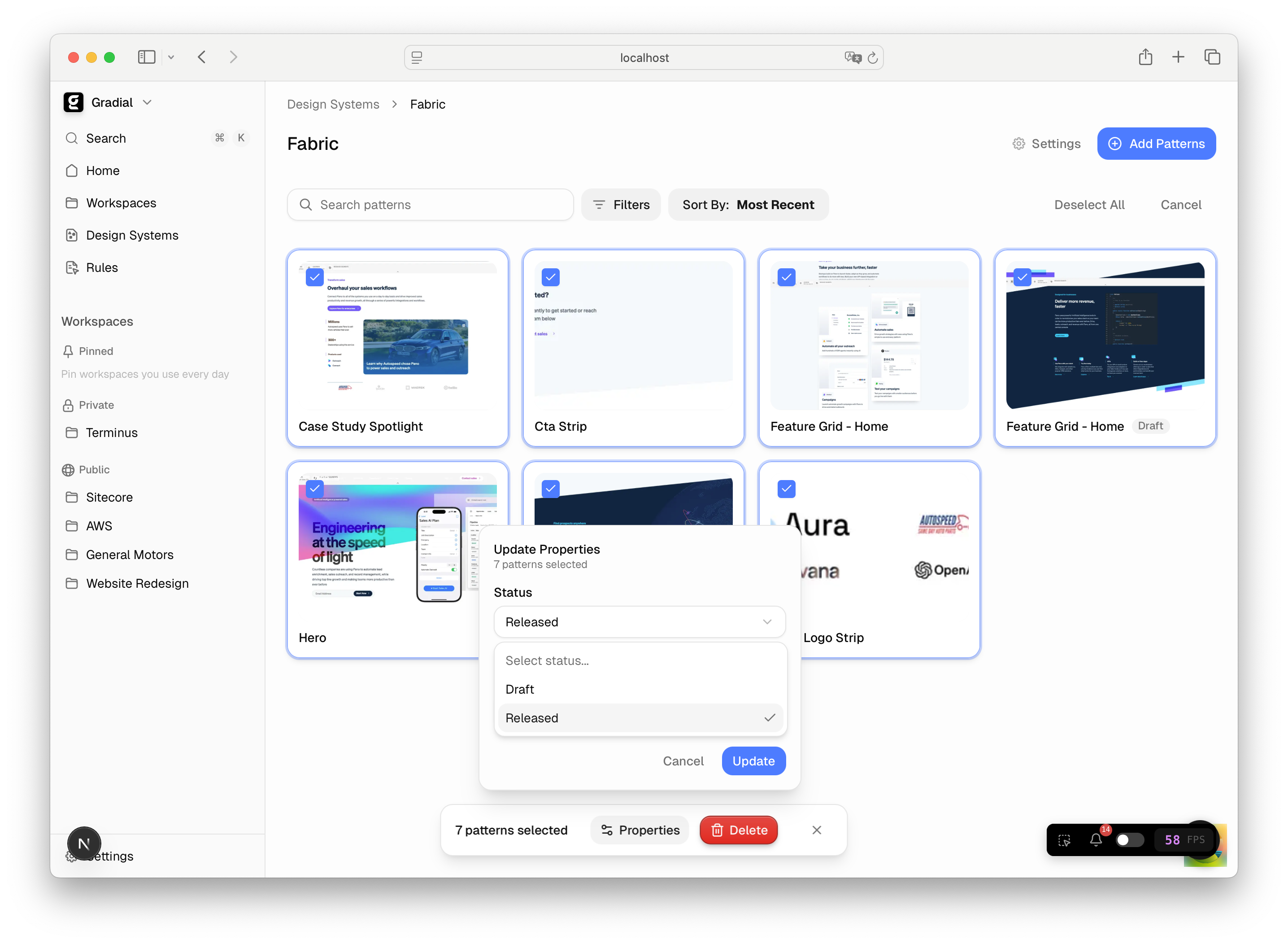
The pattern detail panel now includes a **Status** dropdown, which shows whether a pattern is:
* **Released** — actively available to the authoring agent when running tasks
* **Draft** — stored in the system but hidden from the authoring agent
This gives teams full control over what the agent can access.
When a pattern is set to **Draft**:
* It remains fully visible and editable in the Design System admin
* It shows a clear "Draft" badge in the patterns list
* It will **not** appear in the authoring agent's pattern registry
* The agent **cannot** use it when generating content
This is perfect for:
* Work-in-progress patterns that aren't ready for production
* Patterns that need refinement before being used
* Temporarily hiding patterns without deleting them
### How to Change Pattern Status
1. Navigate to **Design Systems** in the admin
2. Select the design system and open the **Patterns** list
3. Click on any pattern to open its detail panel
4. Use the **Status** dropdown to toggle between "Released" and "Draft"
Changes take effect immediately.
### Benefits
* **Faster onboarding** — New patterns work immediately without manual activation
* **Quality control** — Keep work-in-progress patterns hidden until they're ready
* **Flexibility** — Easily show or hide patterns as customer needs evolve
* **Non-destructive** — No need to delete patterns; just set them to Draft and re-enable later
### Patterns Are Now "Released" by Default
When new patterns are added to a design system, they're **immediately available** for the authoring agent to use. No extra steps required — patterns work out of the box.
This means faster onboarding and less friction when expanding a design system.
### New "Draft" Status for Patterns
The pattern detail panel now includes a **Status** dropdown, which shows whether a pattern is:
* **Released** — actively available to the authoring agent when running tasks
* **Draft** — stored in the system but hidden from the authoring agent
This gives teams full control over what the agent can access.
When a pattern is set to **Draft**:
* It remains fully visible and editable in the Design System admin
* It shows a clear "Draft" badge in the patterns list
* It will **not** appear in the authoring agent's pattern registry
* The agent **cannot** use it when generating content
This is perfect for:
* Work-in-progress patterns that aren't ready for production
* Patterns that need refinement before being used
* Temporarily hiding patterns without deleting them
### How to Change Pattern Status
1. Navigate to **Design Systems** in the admin
2. Select the design system and open the **Patterns** list
3. Click on any pattern to open its detail panel
4. Use the **Status** dropdown to toggle between "Released" and "Draft"
Changes take effect immediately.
### Benefits
* **Faster onboarding** — New patterns work immediately without manual activation
* **Quality control** — Keep work-in-progress patterns hidden until they're ready
* **Flexibility** — Easily show or hide patterns as customer needs evolve
* **Non-destructive** — No need to delete patterns; just set them to Draft and re-enable later
 **Centralized Artifacts Drawer**
Artifacts now have a dedicated drawer that lets you browse and switch between all edited and viewed artifacts in one place. Click any artifact to preview it directly, or use the "All Artifacts" view to see everything at a glance.
**Centralized Artifacts Drawer**
Artifacts now have a dedicated drawer that lets you browse and switch between all edited and viewed artifacts in one place. Click any artifact to preview it directly, or use the "All Artifacts" view to see everything at a glance.