Redesigned Task Experience, Now Available to Everyone
The redesigned task experience is now available to all customers. It’s built for campaigns, batch work, and multi-step projects, so you can follow a large piece of work without inspecting every item one at a time. Here’s a quick tour.Start from Home
Home is your starting point. Chat with Grady, or choose Create as Task to turn your request into a task. Below that, jump back into recently visited workspaces and see your tasks under My Tasks. Switch between All Tasks, Assigned, and Approvals to find what needs you.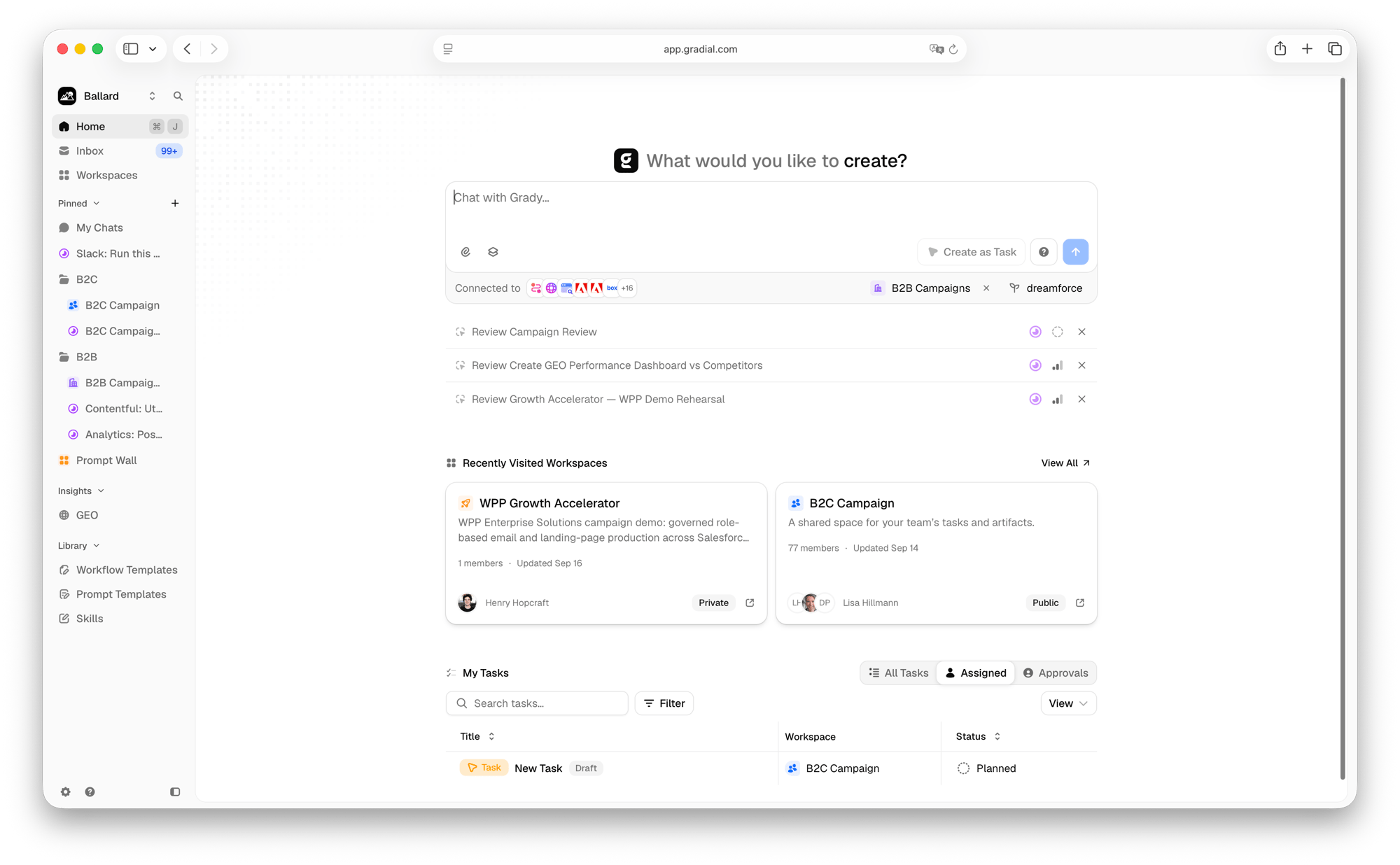
Browse tasks in a workspace
Each workspace lists its tasks with status, priority, assignee, approver, and artifact thumbnails at a glance. Workflows and batches show how many subtasks they contain. Expand a row to see them without leaving the list. Use the Tasks, Artifacts, and My Chats tabs to switch what you’re viewing, or Create Task to start something new.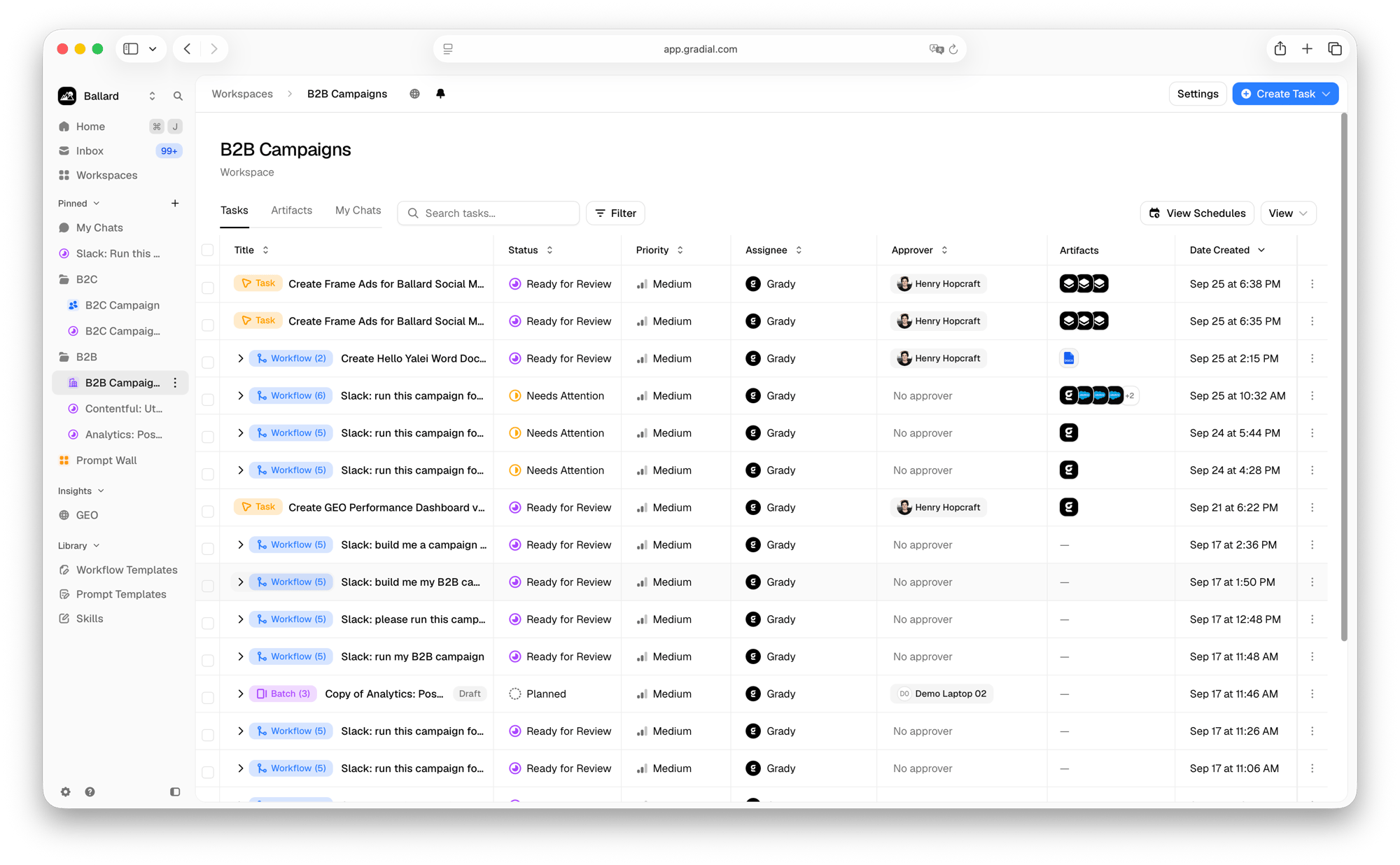
Open a task
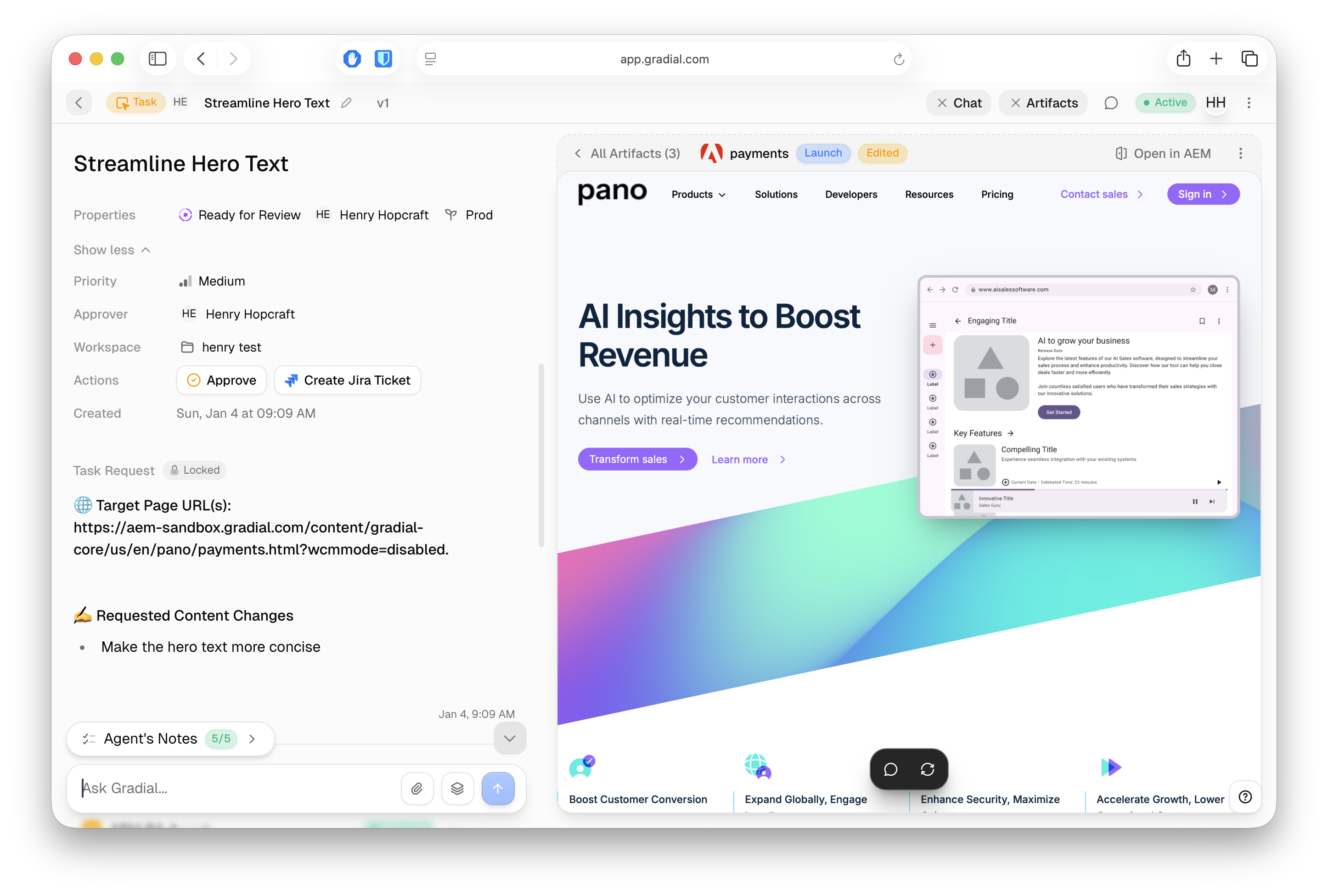
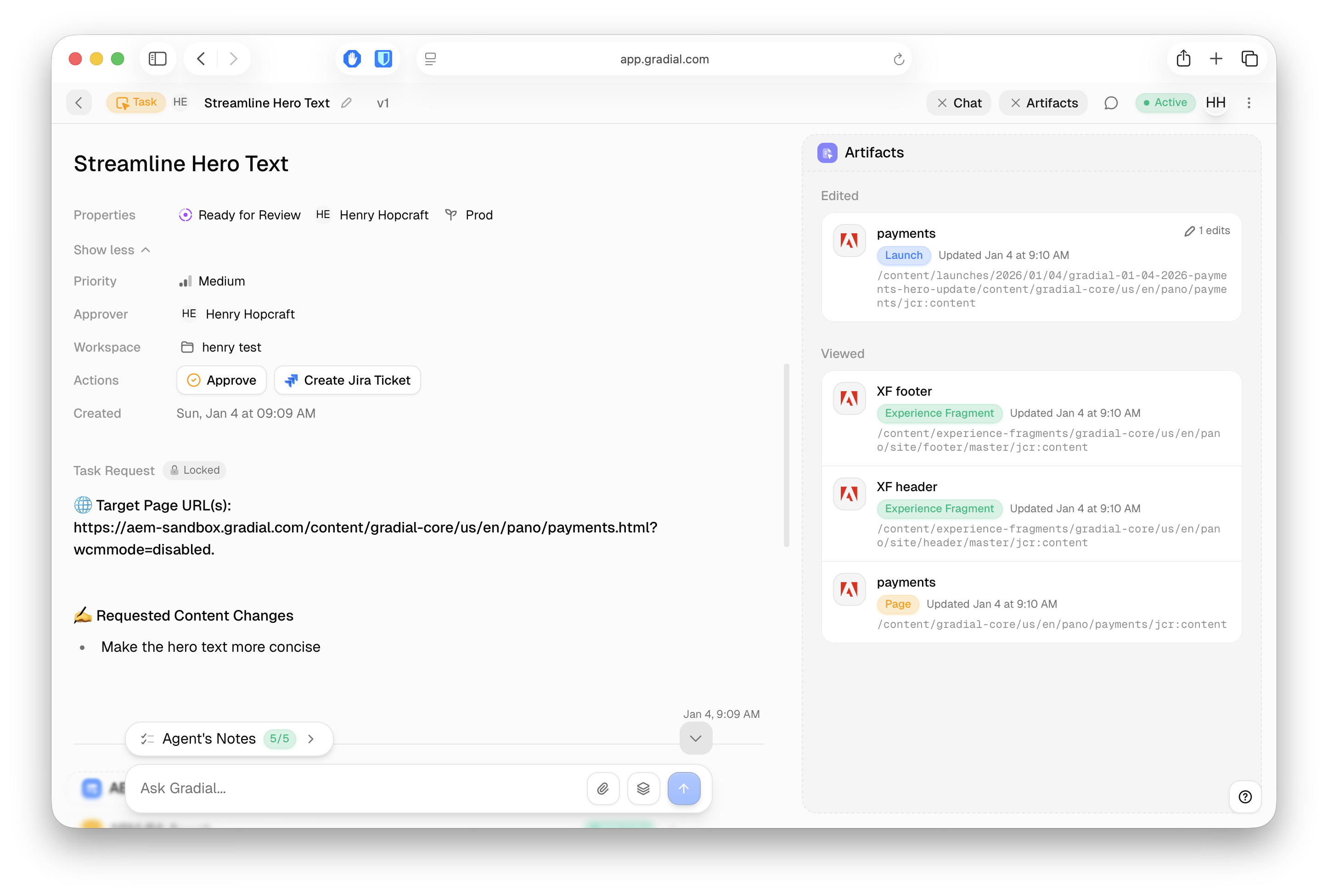
A task opens into two sides.- Left side: the task home. See where the task came from (for example, Slack), its properties and approvers, the original request with any attached files, and a running activity feed of what Grady has done. The agent’s to-do list sits at the bottom and expands when you want the detail. Ask Grady questions or give follow-up instructions from the chat box below it.
- Right side: Subtasks and Artifacts tabs for everything the task produces.
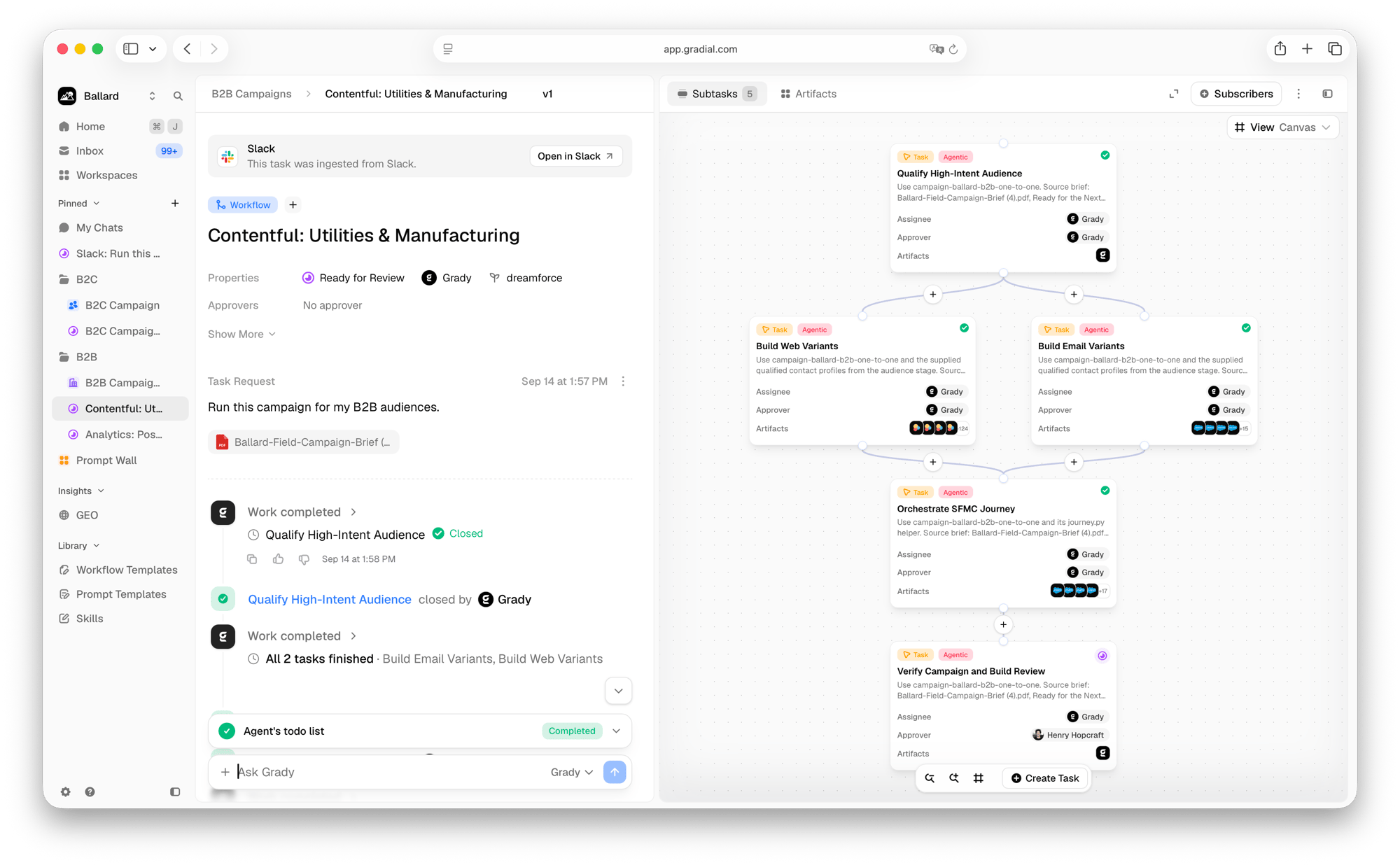
Manage subtasks your way
Use the View menu on the Subtasks tab to pick the layout that fits the work.- Canvas: see the whole workflow as a diagram, with each step’s assignee, approver, and artifacts. Click + between steps to add one, or use Create Task in the toolbar.
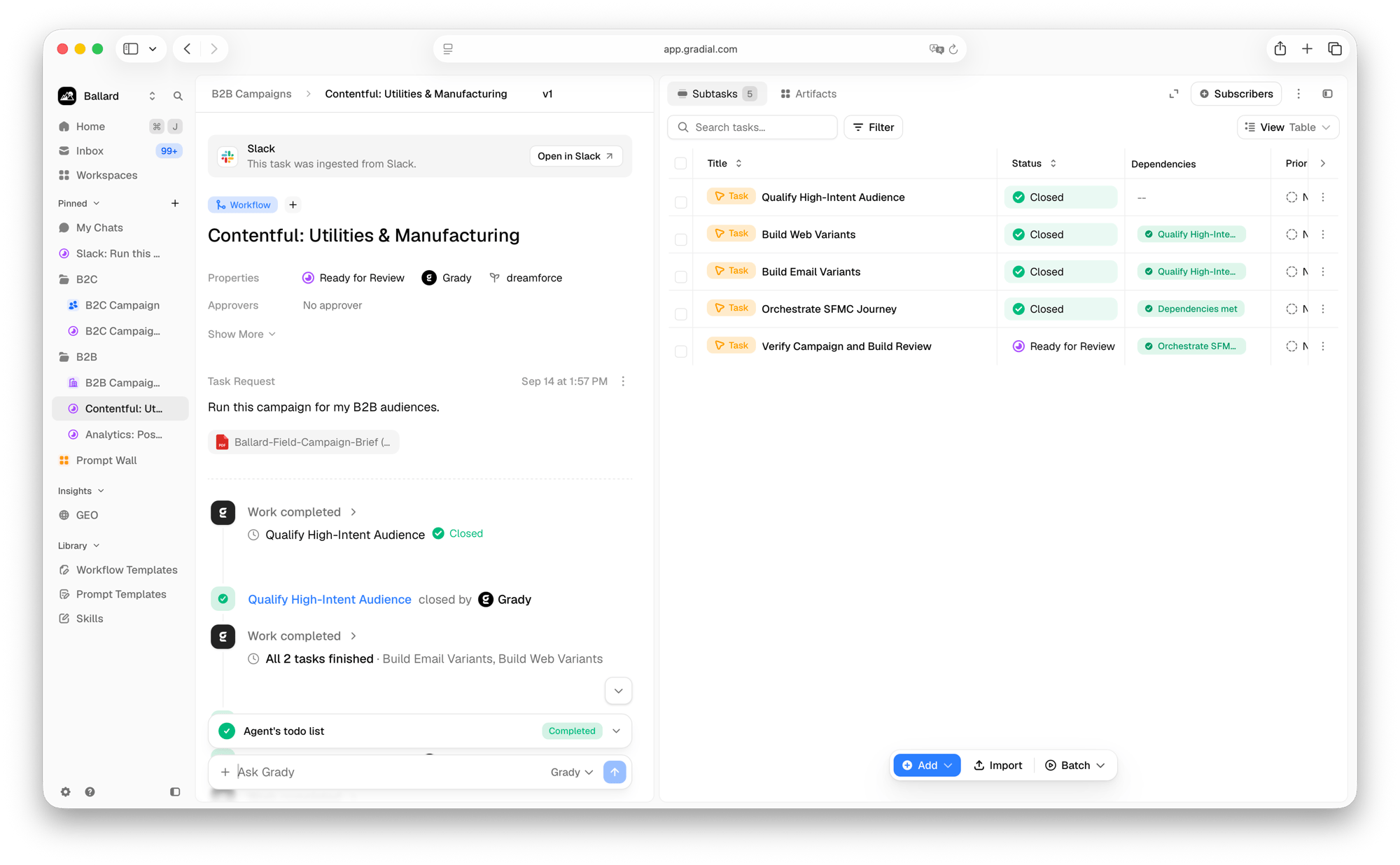
- Table: scan every subtask in rows. The Dependencies column shows what each step is waiting on and whether it’s blocked. Use Add, Import, or Batch to bring in more work.
- Kanban: drag cards between columns to update status.
- Calendar: see due dates and milestones over time.
Review artifacts
The Artifacts tab shows every output as a thumbnail, grouped by type, with badges for items that were created or edited. Click any artifact to open a full preview right away, with no page reload. Use the arrows at the top to move through artifacts one by one, and the back arrow to return to the grid.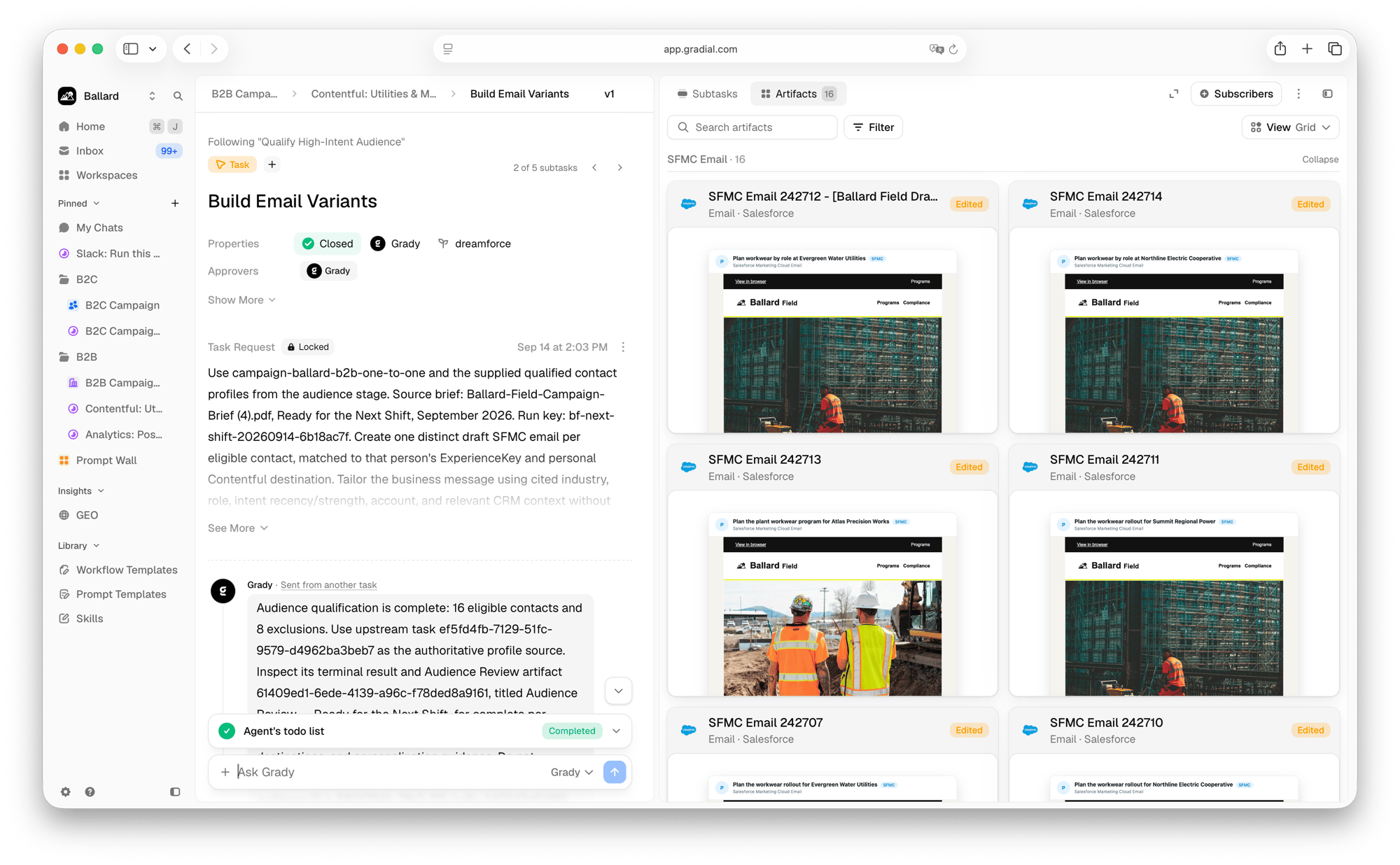
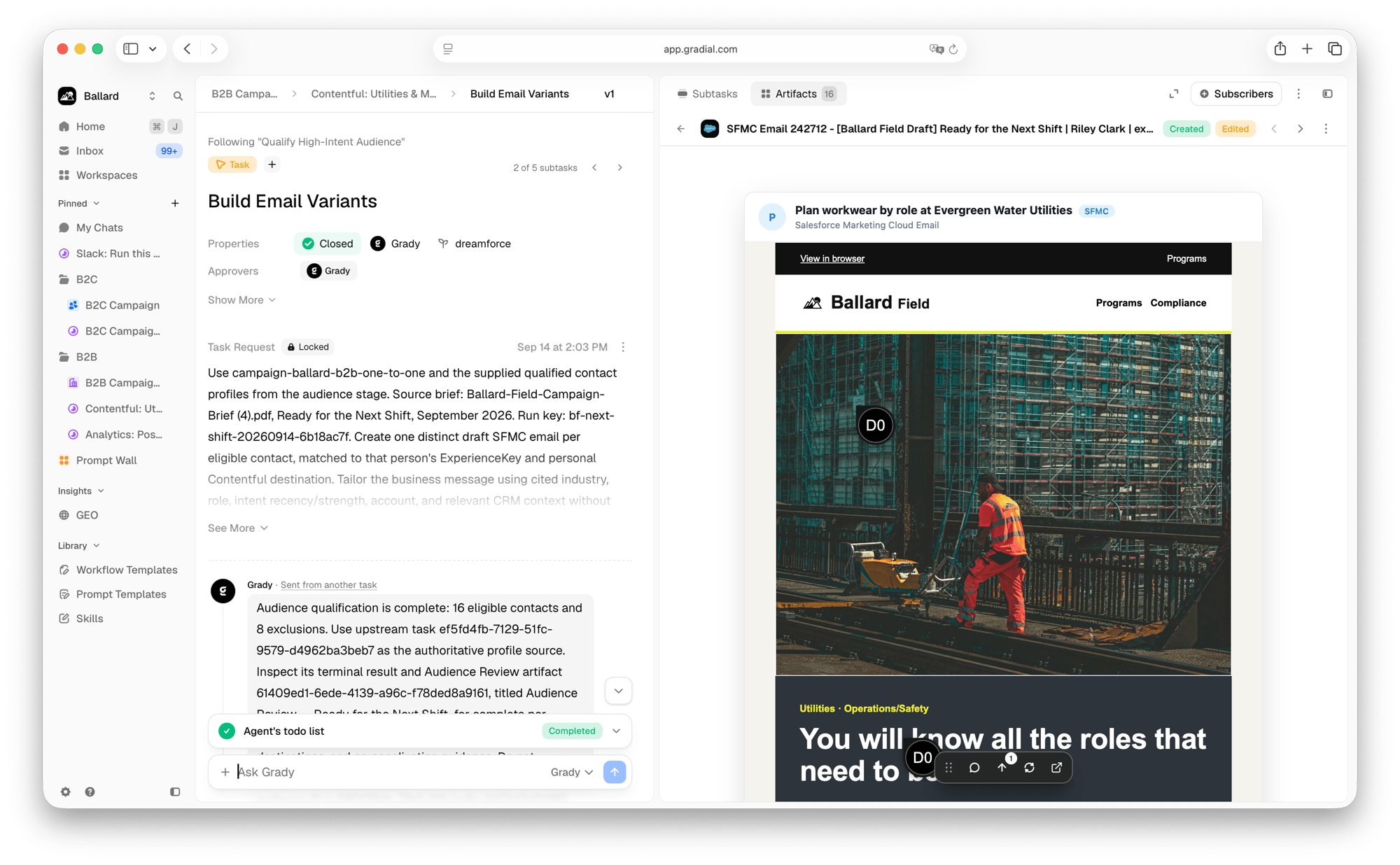
Work with Grady your way
Resize the Grady panel, close it to focus on the task, expand it into a full-screen chat, or move it to either side of the screen.See Inside a Task.Skill Version Comparisons
View diffs between skill versions to see exactly what changed.Key capabilities:- Content and metadata diffs — see changes to a skill’s content alongside changes to its enablement status, owner, and workspace scope.
- Child file changes included — files added, edited, or deleted under a skill are shown in the parent skill’s version comparison.
Workspace Access Through Custom Groups
Custom groups can now grant workspace access. When the same people need to work across several workspaces, build a group once and assign it to each workspace, instead of adding people one at a time.Key capabilities:- Assign one group to many workspaces — attach a custom group to one or more standard workspaces, or leave it unassigned until you need it.
- Predictable access — an assigned group gives its members Workspace Member access immediately. It never grants Admin, Owner, or Viewer access, and never changes anyone’s organization role.
- Clean membership changes — adding someone to a group grants its workspace access right away; removing them, detaching the group, or deleting it removes only that access path and never removes anyone from the organization.
- Admin-managed — only Organization Owners and Admins can create, edit, delete, or assign custom groups.
Custom Apps Built on Your Gradial Data
Grady-built custom apps can now combine live data with interactive forms. Turn a prompt into a governed dashboard or operational report that refreshes against current data — from Gradial and from your connected systems — collects attributed input from your team, and hands that work back to Grady, without leaving the task.Teams are using them for image QA dashboards over a connected DAM, custom intake forms for creative requests, reporting against a connected ticketing system, and single views of campaign progress spanning web, email, and social.Key capabilities:- Live, governed data — apps query tasks, artifacts, activity, and shared records, plus data from any system Gradial is integrated with, such as an external DAM or ticketing system. Queries are read-only, scoped to the viewer’s permissions, and audited. Refreshing re-runs them against current data.
- Rich generated interfaces — Grady builds dashboards and reports with metric strips, responsive tables, charts, and proper loading and error states from a single prompt.
- Forms and actions — apps can collect structured input through forms and store submissions as attributed shared records, which Grady can then read and act on.
Redesigned Task Experience
Tasks now support campaigns, batch work, and larger multi-step projects without the interface becoming crowded — and without project managers having to inspect work one item at a time. Each task is organized into three focused areas — Task, Subtasks, and Artifacts — alongside new project-management views that make dependencies, progress, and milestones easier to read and update.Key capabilities:- Focused task home — the request, its inputs, primary artifact previews, and associated subtasks in one place, with outputs opening directly in a full-screen preview.
- Four ways to manage subtasks — switch between a workflow canvas, a table with interactive dependency and blocker controls, a Kanban board with drag-and-drop status updates, and a calendar of due dates and milestones.
- Faster artifact review — preview the two most recent outputs from the task home, or open the full artifact grid with inline thumbnails and instant expansion, without waiting for a page reload.
- Flexible Grady panel — work with Grady in a resizable side panel, close it to focus on the task, expand it into a full-screen chat, or move it to either side of the screen.
- Cleaner activity display — the activity and to-do list is expandable and handles long histories without stretching or text-wrapping problems.
Ask Grady About Your Gradial Data
Grady can now answer questions about your own work in Gradial. Until now it could do the work but couldn’t see its own record of it — anything spanning more than one task (“what’s waiting on my team?”, “who changed this page?”) meant opening tasks one at a time.Now you just ask, and Grady answers right in the conversation, drawing on your tasks, artifacts, comments, activity history, and connected systems.Key capabilities:- Ask about your work in plain language — what’s waiting for approval, who’s assigned, what’s been sitting longest.
- Trace what happened — which task changed a page, who ran it, and whether anything failed.
- Act on what it finds — Grady doesn’t just report; it can continue the work, for example locating an environment that already has your CMS configured and switching to it.
- Read-only by design — answering a question never changes your data.
- Permission-aware — answers only ever include what everyone in that task can already see.
GEO Insights in Grady
Grady can now work with your GEO monitoring data directly inside a task. Previously everything you could learn about how your brand shows up in AI answers lived in the GEO dashboard — a fixed set of views in a fixed shape. Now you can ask for the cut you actually want, in the format you actually need.Key capabilities:- Ask about your GEO data in plain language — across whichever brand and time window you care about.
- Get the output you need — a quick comparison table in the chat, a chart, or a boardroom-ready PowerPoint built from the same numbers.
- Adjust monitoring from the conversation — create or change a monitored brand without going into GEO settings.
- Governed changes, protected data — configuration changes go through an approval step and are recorded, and editing configuration remains an admin capability. Collected runs, responses, mentions, and citations can never be modified.
- Turn an insight into work — ask what to act on next, and Grady ranks your open recommendations and hands you the top one as a task card you can launch in one click.
Box: Organize, Clean Up, and File Content
The Box integration now goes beyond finding and reading files. Grady can help your team structure Box content, file work back into it, and remove content that’s no longer needed — with deletions always gated behind human approval.Key capabilities:- Organize Box content — ask Grady to create folders and help structure your files.
- Find and use existing assets — search Box, download relevant files, and use them in your Gradial work.
- Send artifacts to Box — upload Gradial artifacts directly into the appropriate folder.
- Clean up outdated content — ask Grady to remove files you no longer need. Every deletion requires explicit human approval before it proceeds.
Video Translation
Gradial can now generate videos from a written prompt and localize existing talking-head videos into another language. Ask Grady to translate the spoken audio, preserve the original speaker’s voice and timing, synchronize visible mouth movement, translate eligible static text in the picture, and deliver the result as one playable video file.Grady coordinates the separate voice, visual synchronization, on-screen text, and final assembly steps within the same task. Teams no longer need to move a source video manually between separate dubbing, lip-sync, design, and editing tools or reassemble the provider outputs themselves.Key capabilities:- Prompt-based video generation — Grady can create a new video from a written creative prompt.
- Voice-preserving dubbing — existing speech can be translated while retaining the original speaker’s voice, delivery, and overall timing.
- Visual speech synchronization — Grady can adjust a visible speaker’s mouth movement to match translated or user-supplied audio.
- Static on-screen text localization — full-screen title cards, presentation slides, and clean static text panels can be translated while preserving their layout and branding.
- Complete video assembly — translated audio, synchronized footage, and localized static text are combined into one broadly compatible video file.
- Reliable long-running processing — Grady tracks provider jobs through completion and safely reuses matching submissions when a task is retried.
- Validated delivery — final videos are checked for readable picture, supported encoding, expected duration, and non-silent audio before they are delivered.
- Downloadable task artifacts — completed videos are published directly in the task for playback or download.
Memory
Gradial can now carry useful workspace knowledge from completed threads into later work. Your team’s previous daily work contributes automatically to a structured memory bank that Grady can draw on as reference, so teams don’t have to restate the same decisions and approaches in every new thread — and can point back to earlier work, decisions, or workarounds to speed up new runs.When Grady uses a memory from another thread, the References panel on the right shows a clickable link back to the thread that generated the finding, so you can always check the source yourself.Key capabilities:- Continuity across threads — Grady can use relevant knowledge from earlier work in later requests within the workspace.
- Structured workspace memory — per-thread summaries are consolidated into a workspace-level memory rather than relying on raw chat history alone.
- Human attribution — memory records can preserve the name of the person whose work produced the remembered context.
- Source-thread provenance — the References panel shows a flat, deduplicated list of visible source-thread names behind memory citations.
- Permission-aware links — source threads are surfaced only when the current user is allowed to see them.
- Resilient recall — if memory hydration is unavailable, the turn continues without memory instead of failing the thread.
Thread Outcome Feedback
Gradial now lets you give lightweight feedback on completed work directly within a thread, creating a clear, first-hand signal about which agent behaviors worked well and which need improvement. Positive feedback helps teams identify reusable patterns; negative feedback provides concrete examples for future evaluations, product improvements, and better agent behavior.Key capabilities:- Post-thread outcome feedback — mark a completed thread as good or bad and add optional context about what worked or what missed the mark.
- Customer-labeled outcomes — feedback is tied to the thread itself, making it easier to distinguish technically completed work from customer-approved work.
- Learning-system signal — positive feedback helps identify successful patterns that may be reused or saved; negative feedback creates examples for evaluation and improvement.
- Traceable feedback history — feedback is append-only and records the thread version it judged, so teams can review outcome quality alongside the work that produced it.
- Agent recovery loop — when feedback is negative, the agent can re-engage with a concrete plan to address the issue rather than leaving the thread as a dead end.
HubSpot Integration
Gradial now gives marketing teams a single conversational interface for HubSpot email operations. Turn a campaign brief into a branded marketing email, review the result, and coordinate the work through Grady while HubSpot continues to operate underneath as the connected system of record.Key capabilities:- Campaign brief to email draft — give Grady an approved brief and create a new HubSpot marketing email without manually translating the brief across multiple applications.
- Branded template reuse — clone an existing HubSpot email to preserve approved structure, styling, sender configuration, and branding.
- Designed-email editing — update supported text, buttons, images, and image links while verifying that the requested changes were applied correctly.
- Reviewable email artifacts — open a rendered email preview directly from the Grady thread, with clear warnings when exact final review in HubSpot is needed.
- Optional audience support — find or create a HubSpot contact list and attach it to the email when the workflow includes audience preparation.
- Controlled publishing — publishing remains a separate action that requires explicit human approval and validation against the final email content.
Marketo Authoring
Grady can now build and edit Marketo assets directly, so campaign teams can go from a request to a working landing page or form without hand-building it in Marketo Design Studio. Landing pages, forms, landing page templates, and email templates are all supported for both creation and editing.Key capabilities:- Landing page creation and editing — create new Marketo landing pages and update existing ones from a conversational request.
- Form creation and editing — build new forms and adjust existing ones without leaving Gradial.
- Template authoring — create and edit both landing page templates and email templates to keep new assets on an approved structure.
- Guarded deletes — deleting any Marketo resource Grady can work with requires explicit human approval first.
User Groups Enhancements
Manage access at scale with reusable user groups. Build a group of people once — even before the workspace exists — assign it to one or many workspaces, and administer each workspace’s access through dedicated Members, Roles, and Groups views, all without changing anyone’s organization-level role.Key capabilities:- Reusable groups — create a group of people once and reuse it across every workspace that needs it; new groups start unassigned and can be scoped later without redoing membership.
- Assign to workspaces — add an existing group to a workspace to grant its members access, with a confirmation step, and remove group access when it’s no longer needed.
- Members, Roles, and Groups views — manage workspace access from clearly separated tabs, each with its own search, filters, and export.
- Access without side effects — granting workspace access through a group never changes a person’s organization-level role.
- Ownership transfer — workspace admins can hand off ownership to an eligible member with the Make Owner action.
Home Page Recommendations
The Gradial home page now surfaces a short list of relevant next actions directly below the composer. Recommendations are drawn from your recent work, how your organization is actually using Gradial, your onboarding state, and Gradial-curated highlights — and every suggestion respects your permissions and visible data.Key capabilities:- Up to three focused suggestions — concise, full-width action rows appear under the home composer, with Quick Start left unchanged below them.
- One-click follow-through — suggestions either populate the composer with a ready-to-run prompt or route directly to the relevant page.
- Follow-ups on recent work — threads and tasks that need attention or are ready for review can resurface as recommended next steps.
- Adoption-aware feature suggestions — when an organization uses a capability but an individual user has not, that feature can be surfaced to that user, including onboarding and setup prerequisites.
- Gradial-curated highlights — Gradial can promote timed recommendations, such as new releases, with priority and expiration so they appear while relevant and then retire on their own.
- Permission- and readiness-safe — recommendations are filtered by permissions, feature availability, required integrations, and setup prerequisites, so users never see actions they cannot take.
- Stable daily rotation — the list stays consistent throughout the day and refreshes over time, so suggestions stay fresh without shifting mid-session.
- Dismissible and respectful — dismissing a suggestion removes it permanently for that user and cycles in the next best candidate; clicking a suggestion does not hide it.
Slack Integration
Bring Gradial into Slack so teams can start and manage agent work where conversations already happen. Mention Gradial in a channel to hand a request into a tracked Gradial task, follow progress in the Slack thread, and receive the completed response without switching tools.Key capabilities:- Slack to Gradial handoff — mention Gradial in a channel to start a tracked task, with the request and Slack thread context carried into Gradial.
- Live progress in Slack — follow a rich working message with current task progress while Gradial completes the request.
- In-thread controls — open the task in Gradial or cancel the active run directly from Slack; cancellation stops the workflow at its next safe checkpoint.
- Clear final responses — when the work finishes, the live progress panel is replaced with a clean, durable response card in the same Slack thread.
- Connected follow-up work — continue the conversation in the Slack thread while keeping the work tied to the same Gradial task.
- Reliable status updates — cancellations, timeouts, duplicate requests, and processing failures are shown with clear outcome states so teams know what happened and what to do next.
User Groups
Organize your team into groups and work with them as a unit. Mention an entire squad on a ticket or assign a whole team as an approver — no more tagging five people one at a time and hoping you didn’t miss anyone.Key capabilities:- Default groups out of the box — Owners, Admins, Brand Managers, Designers, Members, and Viewers groups are created automatically at the organization and workspace level, and stay in sync as roles change.
- Custom groups — build your own groups (squads, regional teams, agency partners) at the organization level or scoped to a single workspace, managed from Organization Settings → People → Groups.
- Group mentions — @-mention a group anywhere mentions work; every member with access to the ticket is notified in one action.
- Group approvers — assign a workspace group as a ticket’s approver; any member of the group can complete the approval, so reviews never wait on one person’s availability.
GEO Brand Sentiment
GEO Monitoring now helps you understand not just whether AI systems mention or cite your brand, but how they describe it. The Brand Sentiment dashboard section summarizes favorability, recurring perception themes, and supporting quotes so teams can see how their brand is being presented relative to the narratives customers encounter in AI-generated answers.Key capabilities:- Favorability breakdown — see favorable, neutral, and unfavorable share for monitored brand mentions.
- Perception summary — get a concise narrative of how AI systems are currently describing the brand.
- Recurring themes — review the topics and themes that repeatedly show up across monitored responses.
- Evidence drilldown — open supporting quotes and examples behind each theme.
- Trend view — monitor net favorability over time when the trend view is enabled.
Brand-Level Tracking for GEO
Track how a specific brand shows up in AI answers — not just your top-level company. GEO Monitoring can now follow a product, sub-brand, or business unit as its own entity, so brands that sit under a larger parent company get accurate mention and citation numbers instead of a misleading 0%.Key capabilities:- Track any brand at its own level — monitor a specific product, sub-brand, or business unit independently of your parent company.
- Accurate numbers for product brands — a brand tracked separately from its parent now shows its real performance instead of reading 0%.
- Brand hierarchies — group brands under a parent company and view each brand on its own or rolled up together.
- Include child brands on demand — toggle a parent’s dashboard to blend in its child brands, then switch back to see the parent alone.
- Honest citation reporting — a brand with no domain configured shows ”—” for citations instead of a false 0%.
Also in This Release
Faster AEM asset sync with journaling. Gradial can now keep its asset index in sync with AEM using Adobe’s I/O Events Journaling API — asset changes show up in Gradial search within minutes instead of waiting for the next full re-scan. Add your Adobe journaling credentials in the AEM onboarding wizard or integration settings to enable it; see AEM Advanced Configurations.Skills
Great marketing teams don’t just follow instructions, they learn. The best ones build up institutional knowledge over time: what your brand sounds like, how your workflows run, what actually converts. That expertise lives in your people — and it gets lost every time someone’s out, switches teams, or leaves. Skills fixes that, giving Grady a “marketing brain” so your team can get measurably better over time.SkillsGrady now draws on a library of reusable capabilities — proven processes and workflows, brand and compliance rules — and pulls in the right ones automatically for each task. Think of it as your marketing brain, encoded: the institutional knowledge your best team members carry in their heads, made available to every agent, every run, every time.For teams who’ve been using Rules: Skills is the evolution of that foundation. Rules gave you guardrails. Skills give you expertise: structured, versioned, improvable capabilities that go far beyond what to avoid and into how to excel.Skill BuilderCreate and edit skills in a rich, document-style editor, or let Grady build and refine its own skills from real work (agentic skill development). Skills are scoped to your workspace by default and promotable org-wide, with full version history so you always know what changed and why.Access: Skills must be activated for your organization. Contact your Gradial account team to get started. See Rules & Skills.Scheduled Tasks
Set a cadence once — daily, weekly, monthly, or any custom interval — and Grady automatically creates and executes a new run at each interval, without anyone needing to trigger it manually.Key capabilities:
- Recurring schedules on any task — schedule any existing task, including ones with file attachments; Grady includes the attachments on every run.
- Enhanced scheduling — choose from a curated timezone list, preview upcoming fire dates in a calendar, see when a run-limited schedule will naturally end, and confirm Run Now counts toward the run limit.
- Scheduled Tasks page — view all your schedules in the same familiar layout as your main tasks, with status (Active, Paused, Failed, Stopped, Ended), next run time, and inline expandable run history. Each org can have up to 50 active schedules at a time.
- Auto-pause on errors. If a schedule fails 5 times in a row, it pauses automatically to prevent runaway activity.
- Stop or delete a schedule. Stop permanently ends future runs while keeping history intact; Delete removes the schedule and all its runs at once.
- Bulk Stop. Stop multiple schedules at once — already-stopped schedules are skipped automatically.
- Run history. Every run links back to its parent schedule so you always know where it came from.
Notifications
Gradial now keeps the right people informed when task statuses change — through an in-app inbox, real-time banners, or email, based on each person’s preferences.Key capabilities:
- Task notification inbox. A dedicated sidebar tab collects all your task notifications in one place. Mark read/unread, archive, and filter to find what matters.
- Real-time banners. Status changes surface instantly in the app — no refresh needed.
- Email notifications. Get notified when a task is ready for review, needs attention, or gets unblocked, with a direct link back to the task.
- Per-event channel control. Choose email, banner, or nothing for each of the five task events. Org admins set team-wide defaults; individuals can tune their own preferences.
- Subscriber model. Assignees and approvers are auto-subscribed; additional subscribers can be added from the task header.
Quick Starts
Org admins can now tailor the Gradial home screen for their teams. With Quick Starts, admins set up one-click prompts that surface the most common pathways into the app, so marketers land on a home screen built around the work they actually do — instead of staring at a blank prompt wondering where to begin.Each Quick Start is a ready-to-run prompt that drops the user straight into a high-value workflow. For example: Run a GEO analysis, Run a brand audit, or Help me launch a campaign.Key capabilities:
- Admin-customized home screen — org admins curate the set of Quick Starts their users see, aligning Gradial’s entry points with the team’s priorities and approved workflows.
- Common pathways, one click away — surface the workflows marketers reach for most (GEO analysis, brand audits, campaign launches, and more) as prompts users can launch instantly.
- Faster activation and onboarding — new and occasional users get guided into proven workflows from the moment they open Gradial, reducing the blank-prompt learning curve.
Also in This Release
Create SFMC campaigns and journeys from Gradial. Marketers can now build Salesforce Marketing Cloud campaigns, multi-email sequences, and Journey Builder automations directly from a Gradial prompt — collapsing what normally takes hours of manual work in SFMC into a single conversation.Rules page improvements. All rules are now in one unified table — no more switching between org and workspace tabs. Use the Scope filter to narrow the view, and hover over any rule title to preview its content without opening it.GEO Monitoring Dashboard
Gradial now runs your GEO queries on a schedule and tracks your brand and competitor visibility across the AI answer engines Gradial monitors, including ChatGPT, Claude, and Perplexity. Take action on recommendations immediately without leaving Gradial by creating and executing tasks to improve visibility. Over time, you’ll see movement or regressions in an easy-to-use dashboard view.Key capabilities:
- Trends, not snapshots. Brand and competitor mention and citation rates show over a rolling time series. Overlay a persona filter to segment any trend chart with one click.
- Cross-model coverage on one axis. Major providers are monitored on the same cadence and charted together.
- Citation rankings and competitor breakdown. Domain-level aggregates show who else is being cited in the same answer sets, ranked by frequency.
- Recommendations that name pages. Gradial analyzes target pages and generates recommendations against your brand URLs. One click turns a recommendation into a task you can execute inside Gradial.
- Full run history. Every scheduled run is preserved with underlying data, so any point on the trend line is auditable.
Artifact Tabs
The right panel of your workspace now has tabs so your artifacts, sources, and subtasks are organized and reachable in one place. Each artifact can be opened into its own dedicated tab so you can keep better track of your outputs.What are subtasks? When you give Grady a complex task, it sometimes breaks it into smaller parallel steps and handles them independently — those are subtasks.Here’s more about what is included:
- Home tab. A permanent landing panel showing artifacts, sources, and subtasks in collapsible cards whenever you open a thread. See every subtask Grady created and its status, or open a new table or workflow view for more complex tasks.
- Dedicated artifact tabs. Open any artifact into its own named tab and keep it open while you continue chatting or reviewing other outputs. No more hunting back through the conversation.
- Batch and context tabs. Dedicated views for monitoring batch progress and reviewing batch objectives without leaving the thread.
- Searchable tab picker. Add new views via the + button; the tab bar stays uncluttered by default.
- Your layout is saved. Tab layout, ordering, and pane width are saved per thread and restored every time you return.
Sites & Assets Search
Asset Search is the indexing and retrieval foundation that lets Grady act on your enterprise sites and DAMs at scale. Once your AEM sites and asset libraries are indexed, Grady can answer “what’s in it?” exhaustively — and turn that answer into bulk action.Site Search — Site-Wide Find & ReplaceSwap a brand name, product name, legal phrase, or regulated wording across your entire site. Grady searches indexed page snapshots, fans out one task per matched page, edits each on a safe launch copy, and reports results independently.Asset Search — Brand-Matched Asset PacksDrop in a campaign brief, pick your audiences, and Grady fills the full audience × treatment × channel matrix with imagery pulled from your indexed DAM. Different audiences get different visuals, every cell stays on brand.Asset Search — Visual Duplicate DetectionGrady groups every visual duplicate and near-duplicate in your DAM into a single cluster — including re-exports, re-crops, and color edits a file-hash check would miss. Pick a canonical version and replace stale variants across every site that references them.Site Search docs · Asset Search docsAudience Manager
Define and manage the audience segments Gradial uses across all workflows. Audiences power persona simulation in CX Optimizer, drive content targeting in content update tasks, and determine which visuals are assigned to which cells in Asset Pack matrices. See Audience Manager.Make & Edit Office Documents
Gradial can now create and edit Microsoft Office documents as part of your content workflows. Use Grady to build campaign briefs, pull copy from live pages into Word documents, produce QA analyses, and assemble Excel trackers — all from Gradial Chat or as part of a larger workflow. See Make & Edit Office Documents.Gradial Workflows
Gradial Workflows orchestrate and execute enterprise marketing work end-to-end. Upload a strategy doc or brief, and Gradial breaks it into subtasks, assigns work to agents and teammates, tracks dependencies, and ships through the systems your team already uses.Key capabilities:- Intelligent task breakdown from briefs and process documents
- Dynamic role assignment to agents or named teammates
- Dual-track approvals — AI reviewers for speed, human reviewers for judgment
- Real artifacts: copy docs, Excel trackers, formatted briefs, staged pages
- Jira ticket creation and status-based workflow gating
- Visual workflow graph showing every task, dependency, and blocker
AEM Guides Integration
Gradial’s AI agents now integrate with Adobe Experience Manager Guides for structured DITA-based content authoring and publishing. Automate content creation, updates, translation tasks, and QA across your DITA content libraries. See AEM Guides.Audiences for CX Optimizer
Audiences add a targeting layer on top of personas for CX Optimizer. Instead of selecting personas one by one for every run, teams can now save named groups — such asEnterprise Buying Committee, Healthcare Prospects, or Trial-to-Paid Evaluators — and reference them directly from chat when launching a CX Optimizer flow.Key capabilities:- Named audience groups — Combine existing personas into a saved audience at the org level or scoped to a specific workspace.
- Segment filtering — Layer segment or tag filters on top of an audience to narrow the run without rebuilding the saved group.
- Chat integration — Reference an audience by name in chat; the Journey Agent resolves it to the matching personas before the run starts.
- Persona sampling — Audiences with 5 or fewer personas run in full; larger audiences are sampled to up to 5 personas per run.
See the Audiences documentation for full details and use cases.
Workspace Categories
Categories make it easy to organize and navigate a large number of workspaces. Admins define a reusable label catalog at the org level — such asBrand: ACME, Region: EMEA, or Q2 Launch — and anyone on the team can filter, sort, and search the Workspaces page using those labels.Key capabilities:- Org-scoped catalog — Categories are defined once and reused across every workspace; no per-workspace catalog to maintain.
- Inline creation — Workspace Owners and Admins can create new categories directly from the Categories cell on their workspace row.
- Filter and sort — Filter the Workspaces page by one or more categories and sort the table by the Categories column.
- Composable filters — Combine category filters with the existing search box and
Pinned/Public/Privatestatus filters to narrow a long list quickly.
See the Workspace Categories documentation for full details and use cases.
CX Optimizer
CX Optimizer is now available as an opt-in feature. It uses agent-simulated personas to evaluate the customer experience as users journey through your website — surfacing content issues, UX bugs, and strategic gaps before they affect real customers.Key capabilities:- Personas — In Audience Manager, create individual simulated buyers and users representing your key customer segments. Personas are the foundation for all CX Optimizer analysis.
- Audiences — Group personas into saved, reusable sets — e.g. “Enterprise Buying Committee” or “Healthcare Prospects” — and call them directly from chat when launching a CX Optimizer run. Audiences can be shared across your organization or scoped to a specific workspace. Add segments or tags when you want to filter within audiences.
- Scope — Choose what CX Optimizer analyzes before a run — e.g. evaluating overall content quality, or checking for specific UX/UI bugs — and select up to 5 personas for each run.
- CX research report — Each run produces:
- An overall journey health score (0–10)
- Actionable insights — Recommendations can be converted into tasks and immediately executed using the Create Task button, organized into four categories:
- Quick Wins — Quick wins and content tweaks
- Bug Fixes — Broken functionality and UX issues
- New Content — Net-new pages, sections, or copy the site is missing
- New Ideas — Strategic, higher-effort improvements
- Per-persona breakdown including CX score, goal completion rate, sentiment, and session replay
- Download Report — Export the report to PDF for easy sharing
- Validate changes — Run CX Optimizer to validate the effect of site changes on the customer experience.
- Preflight / Pre-Launch Mode — Run a CX analysis on a single page before a full campaign goes live. Works with published and unpublished AEM pages via direct browser authentication, so you can catch issues before they reach customers.
GEO PDF Export
GEO reports can now be exported as a branded PDF directly from Gradial. Observations flow naturally across overflow pages with branded headers and footers, making reports easy to share outside the platform.Rules Workspace Mapping
A single rule can now be mapped to multiple workspaces at once. Define a rule once in the Rules Manager and apply it to as many workspaces as needed — no more re-creating the same rule across teams.Universal Thread Search
Search and jump to any thread from anywhere in the app. Use the thread search to quickly locate conversations across all your workspaces without navigating away from your current context.GEO Agent
Introducing GEO, a new way to understand how your brand appears in AI-generated answers across platforms such as ChatGPT, Perplexity, and Claude.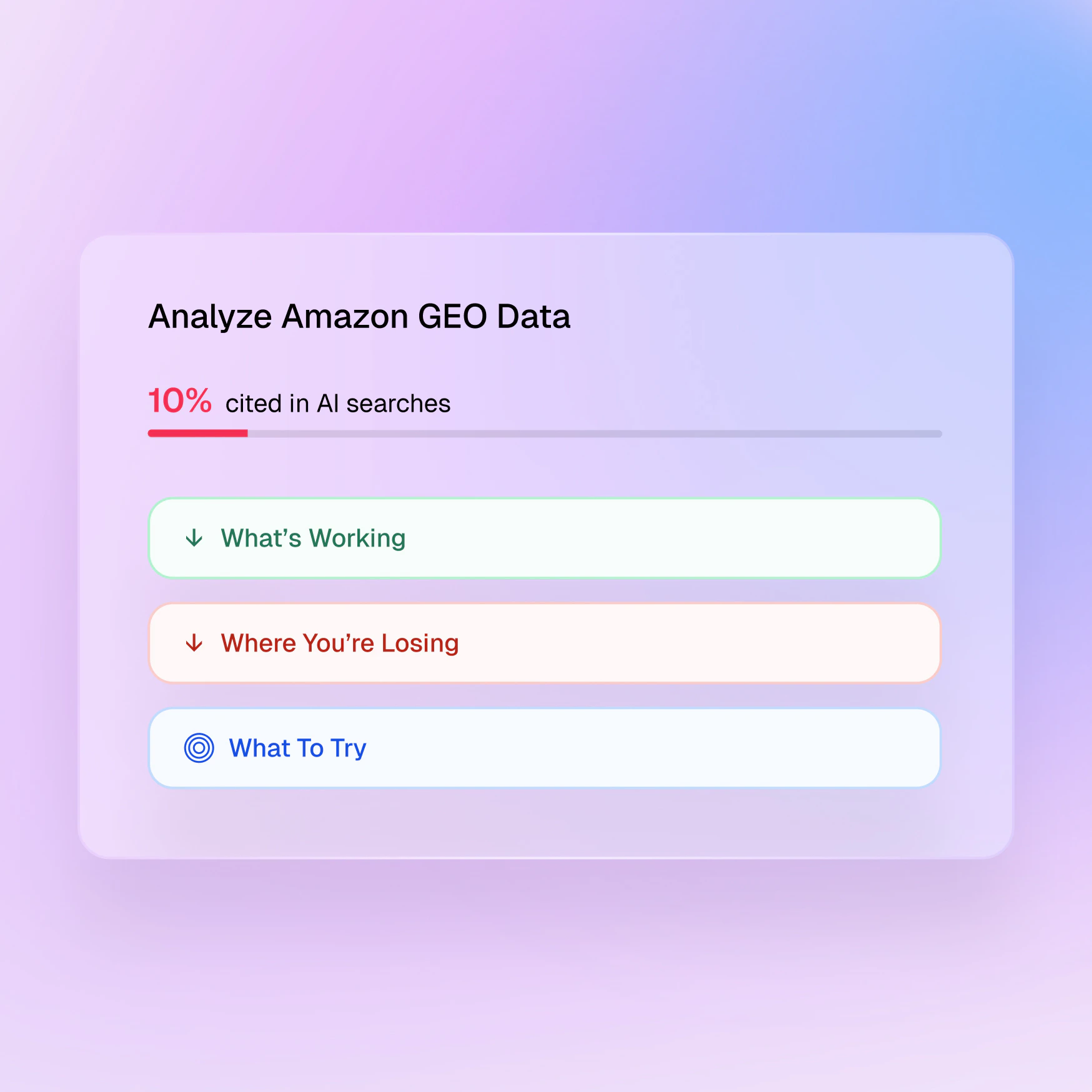
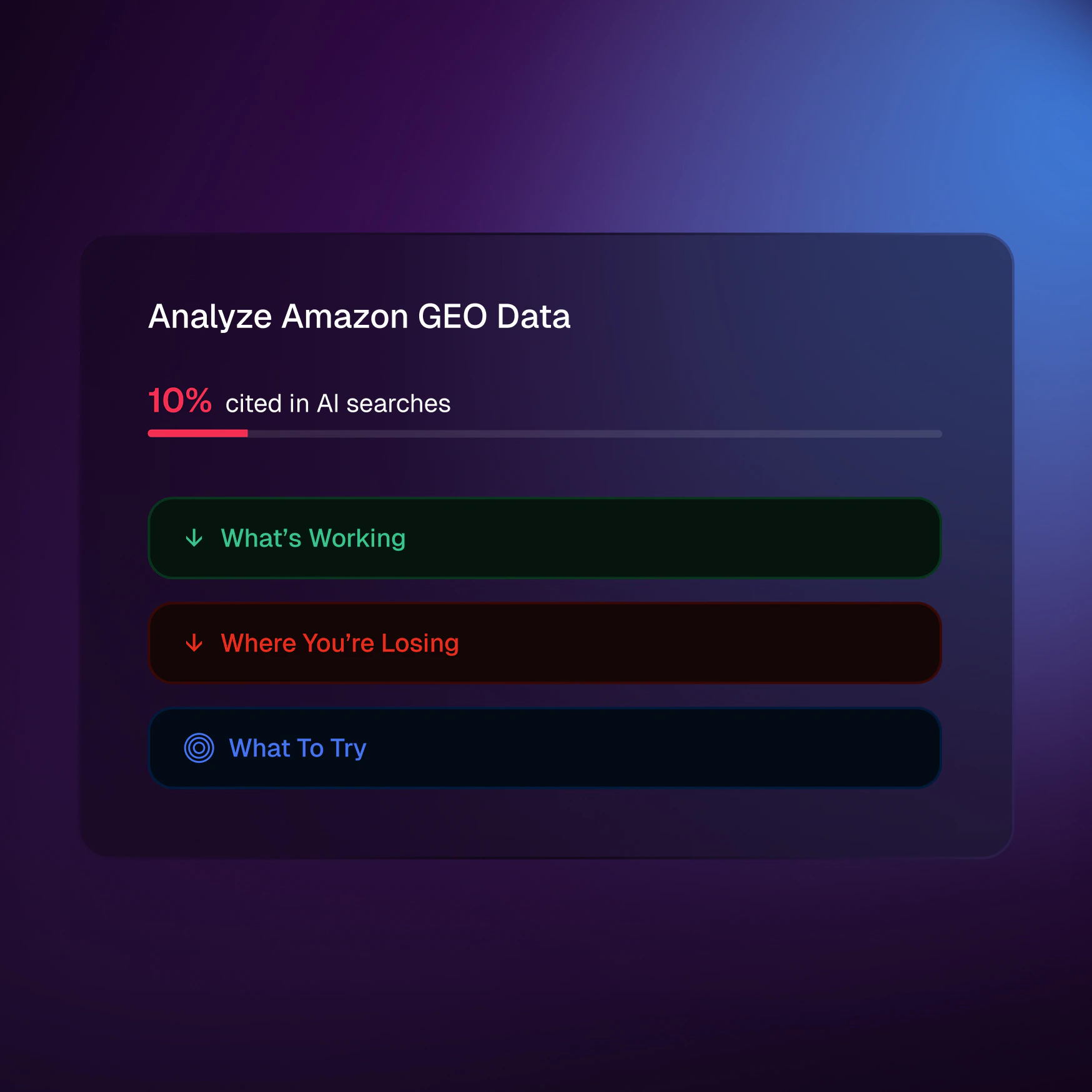
- Measure citation and mention rates across AI-generated answers.
- Compare visibility across brands and providers, including OpenAI, Anthropic, and Perplexity.
- Review prompt-level outputs to see how your brand is positioned.
- See which external sources are influencing responses.
- Generate follow-up recommendations for content and technical improvements.
"Run a GEO report on [yourwebsite.com]" in a new chat.Rules Manager Updates
Rules Manager is now simpler to configure and easier to understand across agents.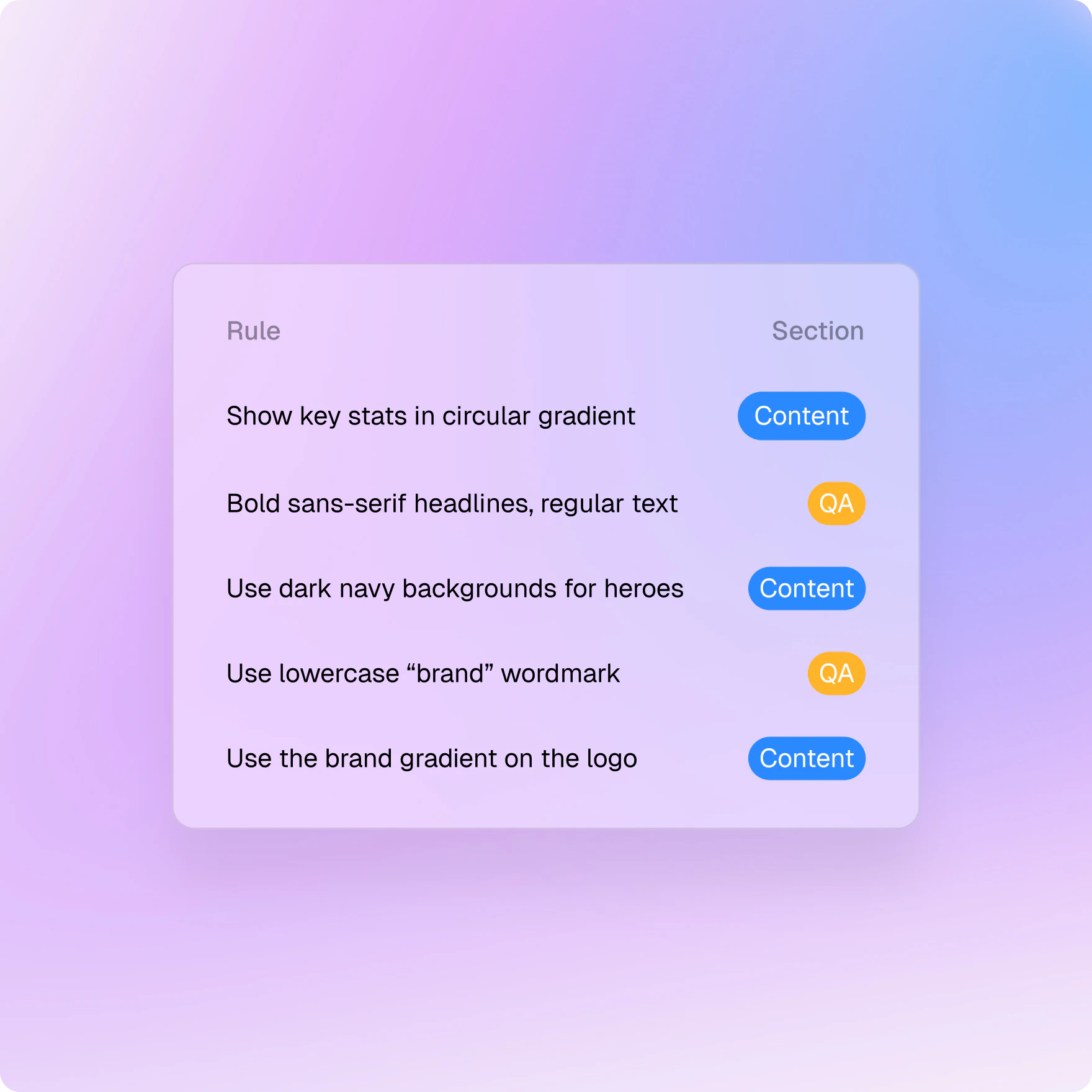
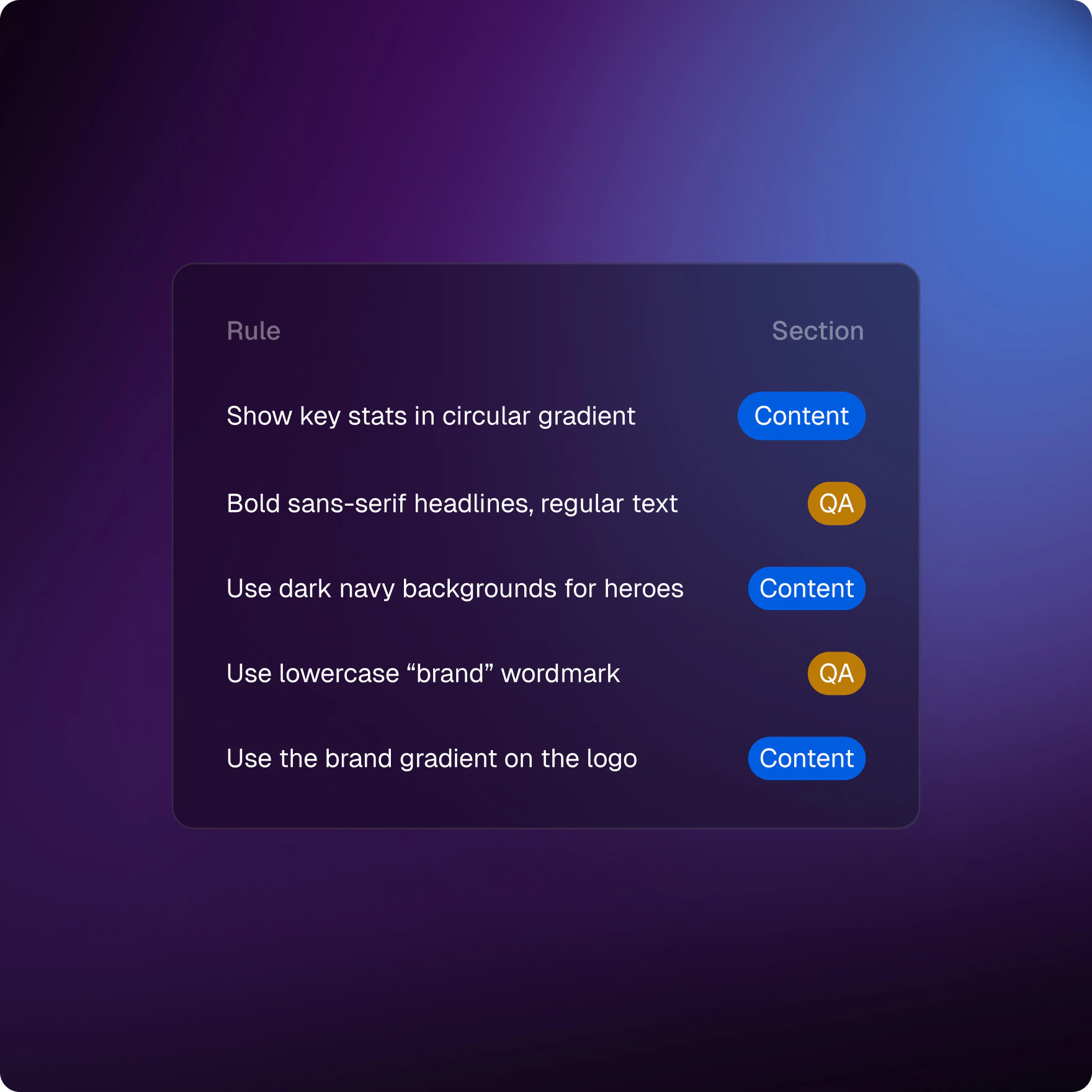
- Rule status now uses a simpler Enabled or Disabled model.
- The Section field has been removed from manual rule setup.
- New manual rules now select all integration agents by default.
- Use Apply to Planning Agents to extend rules earlier in the workflow.
Content Search Agent and DAM Asset Search
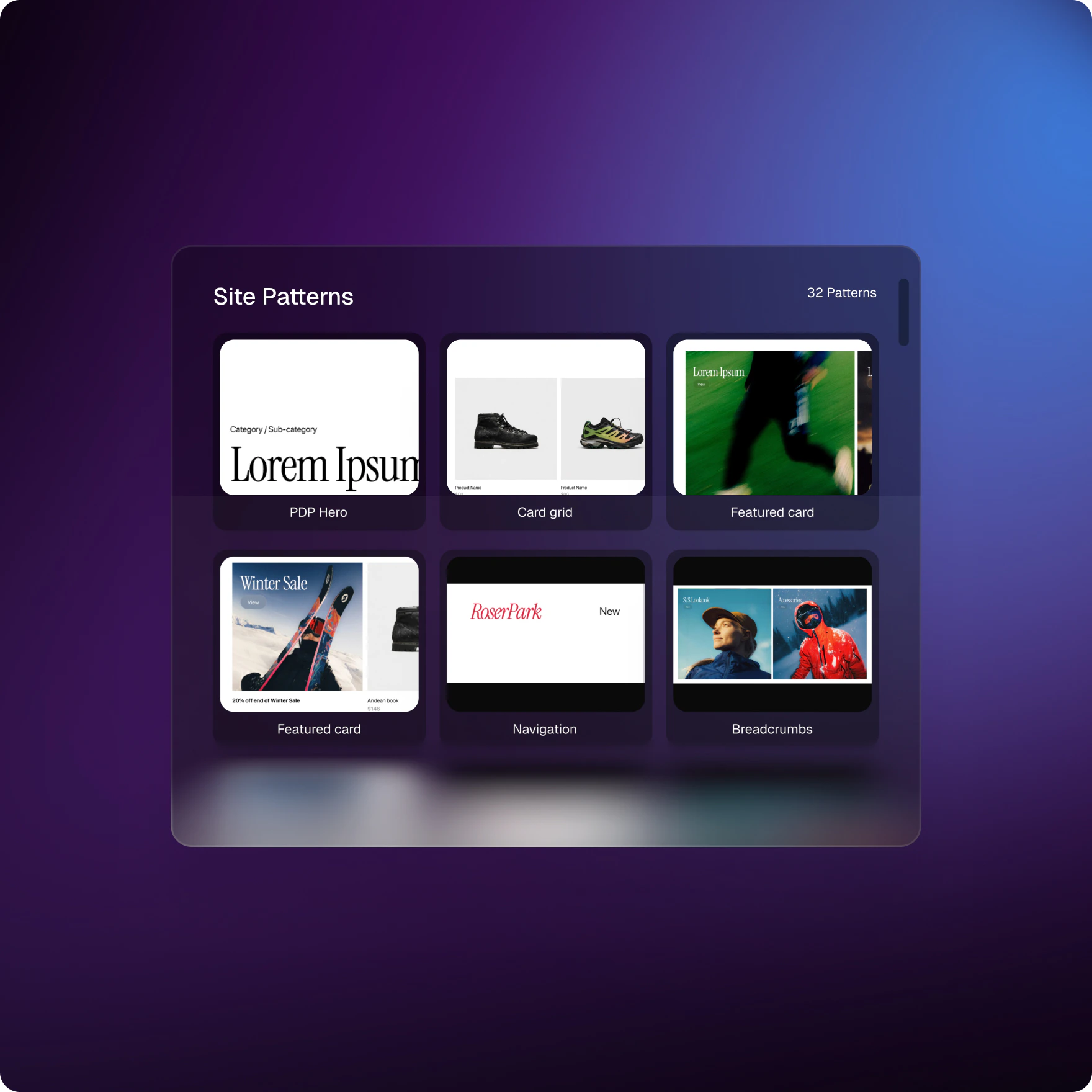
Introducing Content Search Agent, a new research assistant for AEM environments, alongside a redesigned DAM Asset Search experience for faster asset discovery.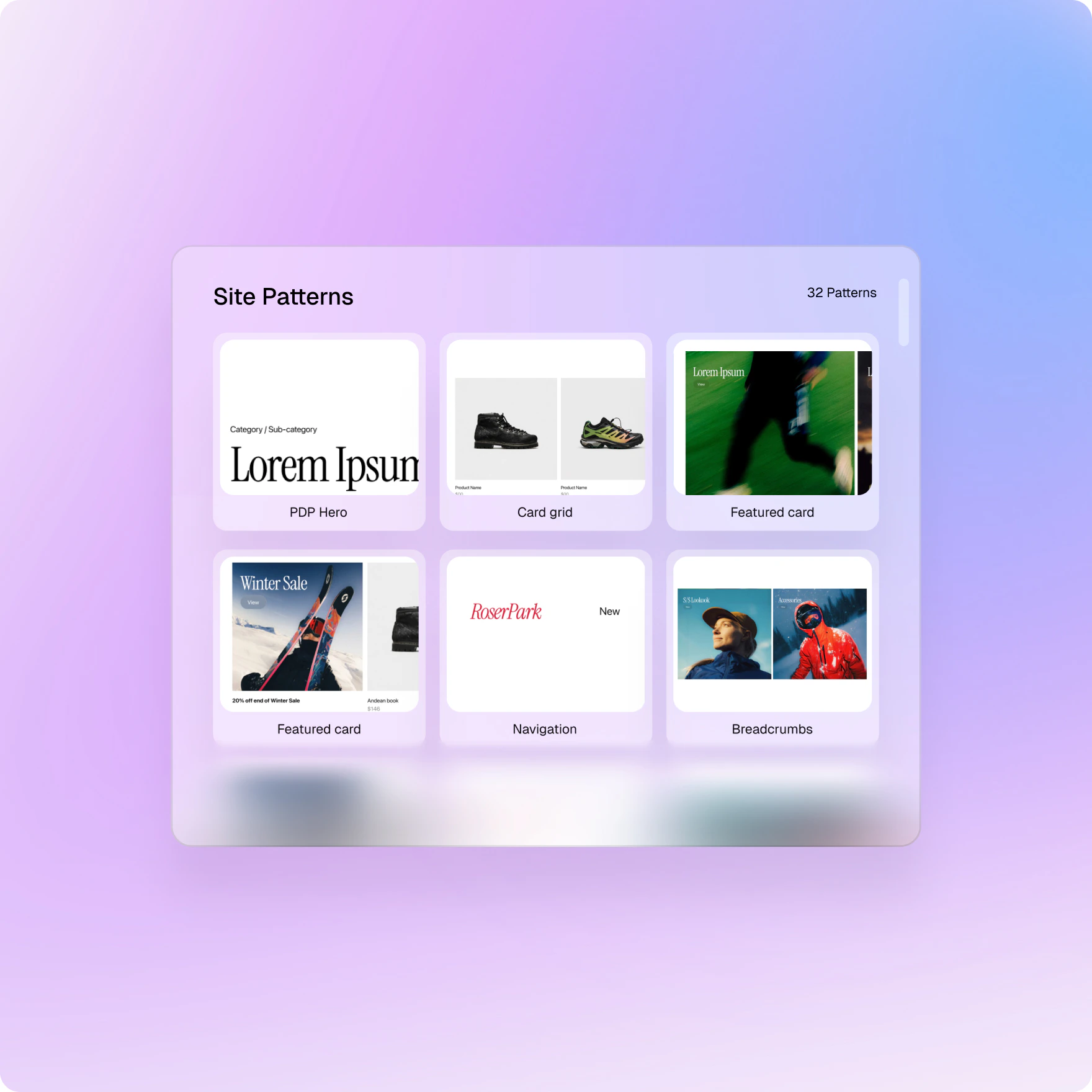
Content Search Agent
- Ask questions about site structure, active pages, root folders, and language markers.
- Compare site sections to identify missing pages and localization gaps.
- Create follow-up tasks from identified gaps.
DAM Asset Search
- View matching assets in an inline grid directly in chat.
- See the most relevant results first.
- Review asset cards with relevance scores, metadata tags, and quick actions.
- Request a specific number of assets in a single search.
Chats
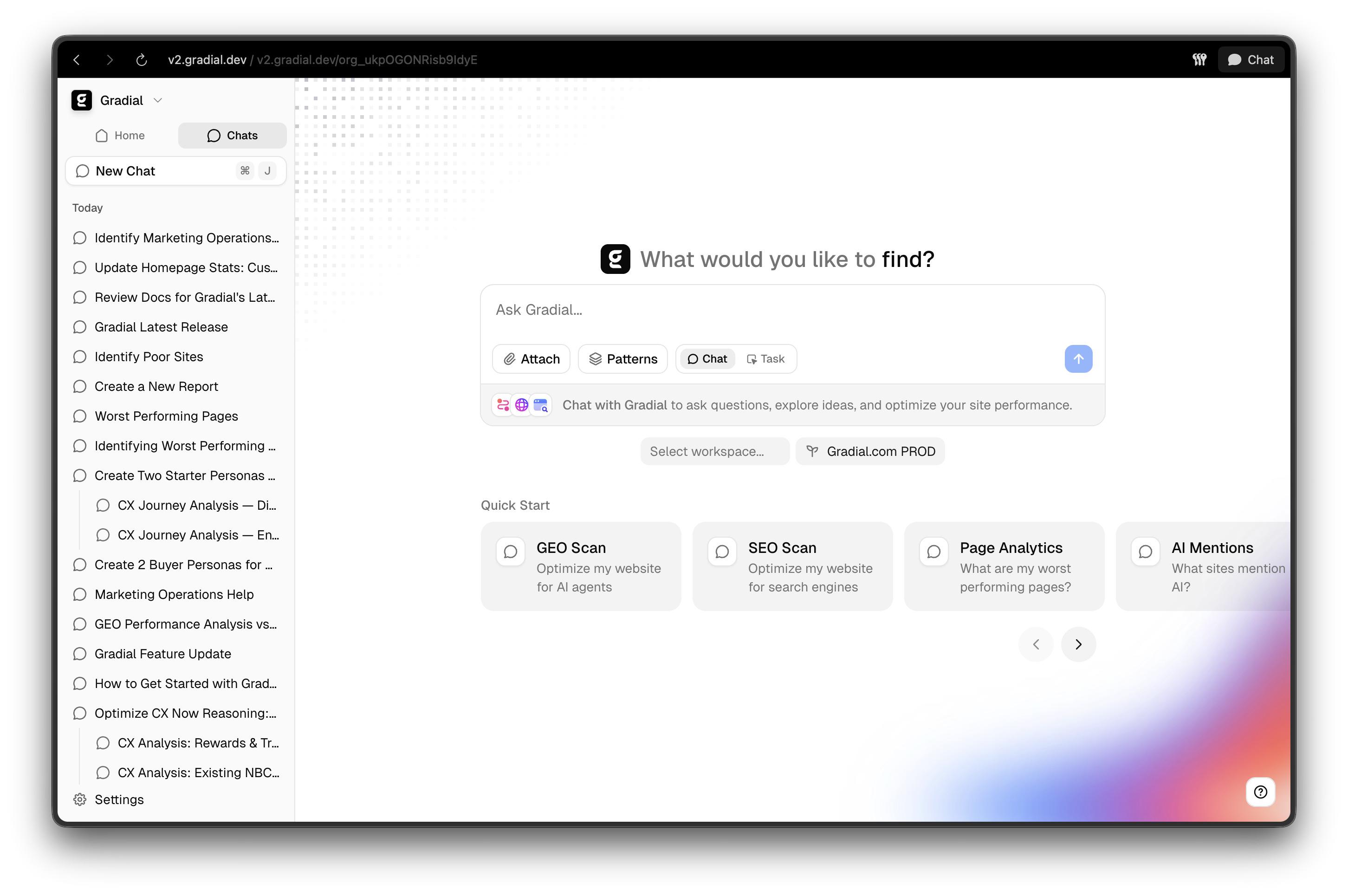
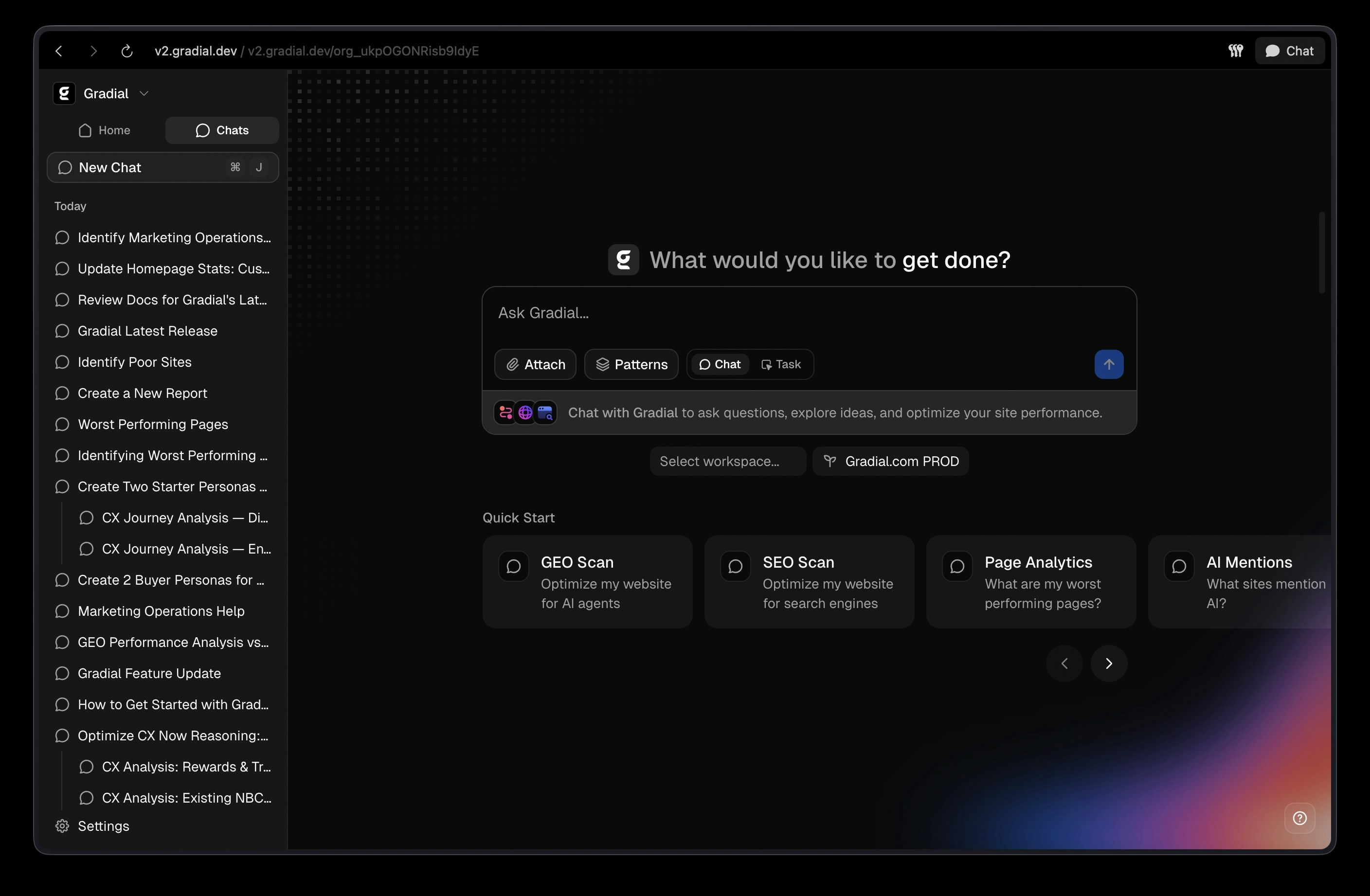
- Ask questions about Gradial features, best practices, and your existing content
- Get answers grounded in your documentation and real-time web research
- Create new tasks directly from chat. The agent routes them to the correct workspace and environment.
- Find and resume past conversations in the Chats tab in the sidebar
Cmd+J from anywhere to start a conversation.Google Analytics Integration
Connect your Google Analytics 4 properties directly to Gradial. Once linked, your AI agents can query traffic, engagement, and conversion data on demand — no manual exports or dashboards required.What you can do:- Pull metrics like active users, bounce rate, session duration, and conversion rate across any date range
- Break data down by dimensions such as traffic source, device, country, or page path
- Let agents reference real performance data when making content recommendations
External Web Search Across All Gradial Agents
We’ve added built‑in external web search to Gradial so every agent can pull in fresh, relevant context without leaving your workflow. This means you can ask open‑ended questions, validate claims, and ground your content in current sources directly inside chat.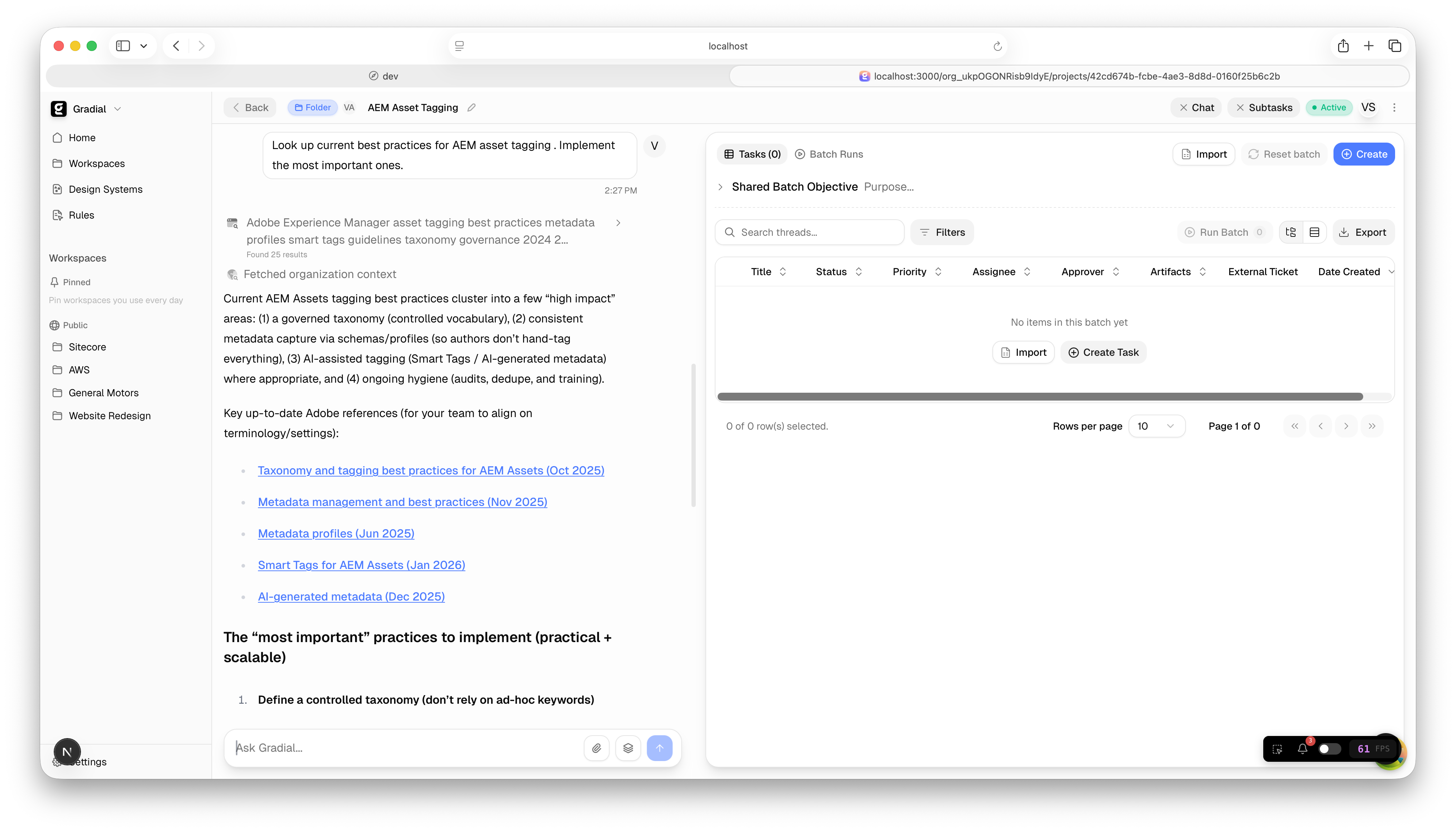
External Web Search is now available across all Gradial agents, including Sitecore, AEM, Thread Orchestrator, and Batch mode, with a clear in‑chat “search in progress” state and a clean list of results for quick review.
What This Enables
- Get fast answers to exploratory questions backed by real web results
- Validate facts and references before drafting content
- Discover competitor positioning, market trends, and benchmarks in minutes
- Bring credible external context into AEM and Sitecore workflows
- Stay in flow: research and execution now happen in the same place
Example Prompts
- “Find the latest enterprise CX benchmarks and summarize the top three trends.”
- “Research competitor messaging on AI-assisted content tools and draft a comparison outline.”
- “Look up current best practices for AEM asset tagging and suggest a checklist.”
- “Search for recent product launch messaging in our category and propose 3 angles.”
Design System Collections
Design systems in Gradial are powerful to create consistent content. But as they grow, finding and reusing the right patterns can become harder. That’s why we’re introducing Collections.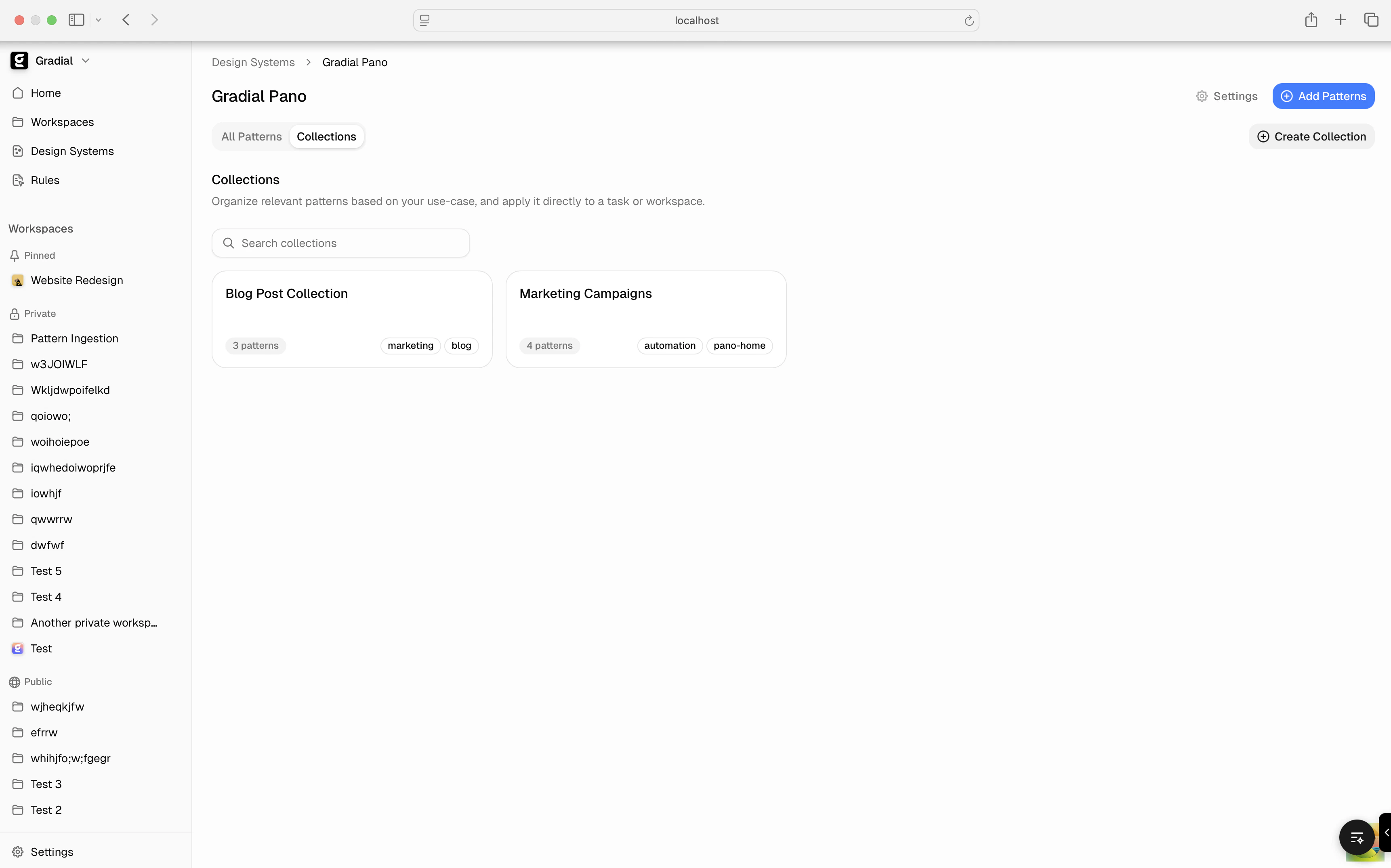
- Design System → your complete pattern library
- Collections → flexible, purpose-built subsets of that library
- Blog pages
- Marketing campaigns
- Product flows
Where to Find Collections
Collections live directly inside your design system.You’ll see them on your Design System page in a dedicated Collections tab, making it easy to browse and manage all your curated sets in one place.To get started, click Create Collection to open a modal where you can build a new Collection. Every Collection you create will appear in this tab.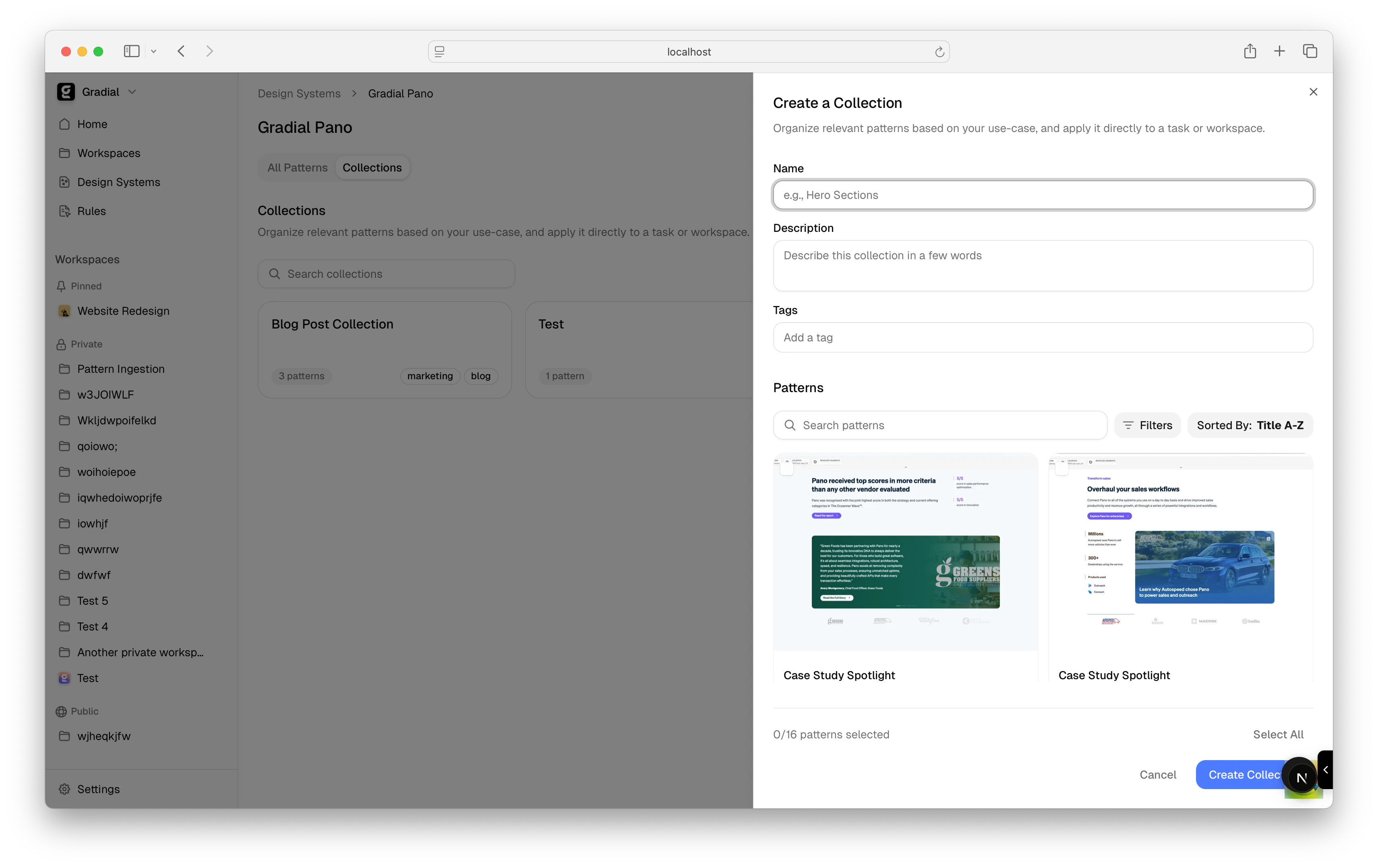
- Add, remove, or update patterns in a Collection
- Edit tags and metadata
- Refine Collections as your work evolves
Manage Design Systems & Collections Per Workspace
Gradial design systems help teams create consistent, reusable content at scale. But as organizations grow, not every workspace needs access to every pattern library.That’s why we’re introducing workspace-level scoping for design systems and collections.Now, teams can control exactly which design systems, and which collections within them, are available for each workspace.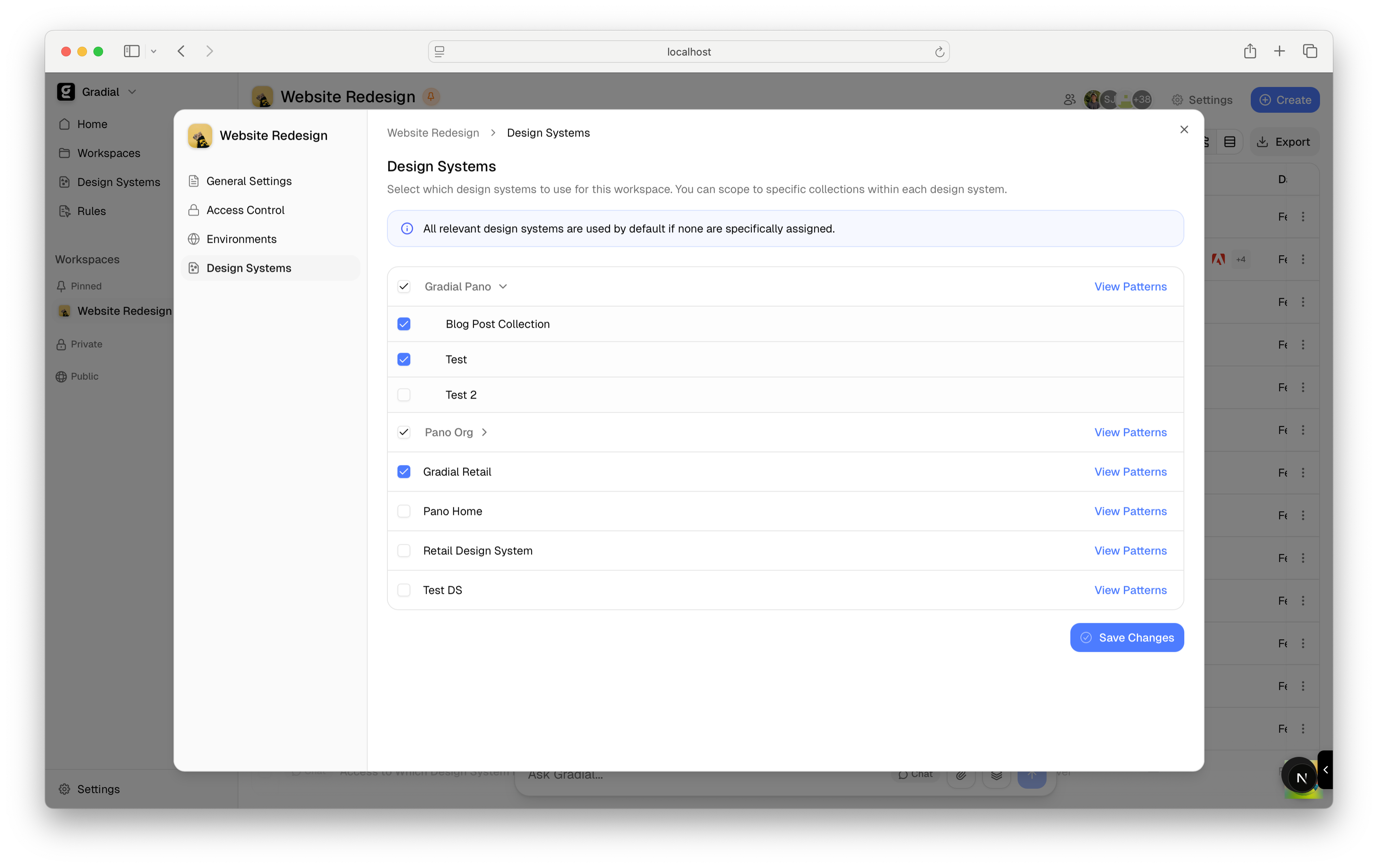
Workspace Settings → Design Systems Tab
A new Design Systems tab is now available in Workspace Settings.From here, you can:- Associate one or more design systems with a workspace
- Scope access further by selecting specific Collections within a design system
- Quickly jump into details with View Patterns
Smart Filtering Based on Your AEM Environment
Gradial automatically ensures that only relevant design systems appear for selection.Design systems are filtered based on your workspace’s AEM integration URL, so you’ll only see systems that contain patterns ingested from the same AEM instance.That means:- No clutter from unrelated environments
- No accidental cross-instance confusion
- Only the design systems that apply to your workspace
Pattern Inheritance for Child Tasks
When working with batches, campaigns, or folders, customers often need the same patterns applied across all child tasks. Previously, pattern selections had to be configured individually for each task — a tedious process that didn’t scale.To solve this, we’re rolling out Pattern Inheritance: pattern selections now automatically flow from parent to child tasks.How It Works
When you select patterns on a parent task (batch, campaign, folder, or migration), those patterns are automatically inherited by any child tasks created under it.- Select patterns once at the parent level
- All new child tasks inherit those selections automatically
- No manual configuration needed for individual tasks
- Manually through the UI
- Via Excel/CSV uploads
- By the agent during task execution
Inheritance Is a Snapshot
Pattern inheritance captures the parent’s selections at the moment each child is created:- Children get the parent’s current pattern selections when created
- Existing children keep their selections (inheritance won’t override)
- You can still customize individual child tasks after creation
Pattern Selections Persist Across Sessions
As part of this update, pattern selections are now saved to task history. When you return to a task:- Your previous pattern selections are automatically restored
- The sidebar shows which patterns were selected
- No need to remember or re-select patterns each time
Benefits
- Set once, apply everywhere — Configure patterns at the parent level and let inheritance do the work
- Faster batch setup — No more selecting patterns for each individual task
- Consistent output — Ensure all child tasks use the same patterns for uniform results
- Flexible overrides — Still customize individual tasks when needed
Draft Patterns
As design systems grow across the organization, users need the flexibility to control which patterns are available to the authoring agent. Whether it’s hiding work-in-progress patterns or temporarily removing patterns that need refinement, teams need a simple way to manage pattern visibility.To solve this, we’re rolling out Draft Patterns: a way to control which patterns the authoring agent can use.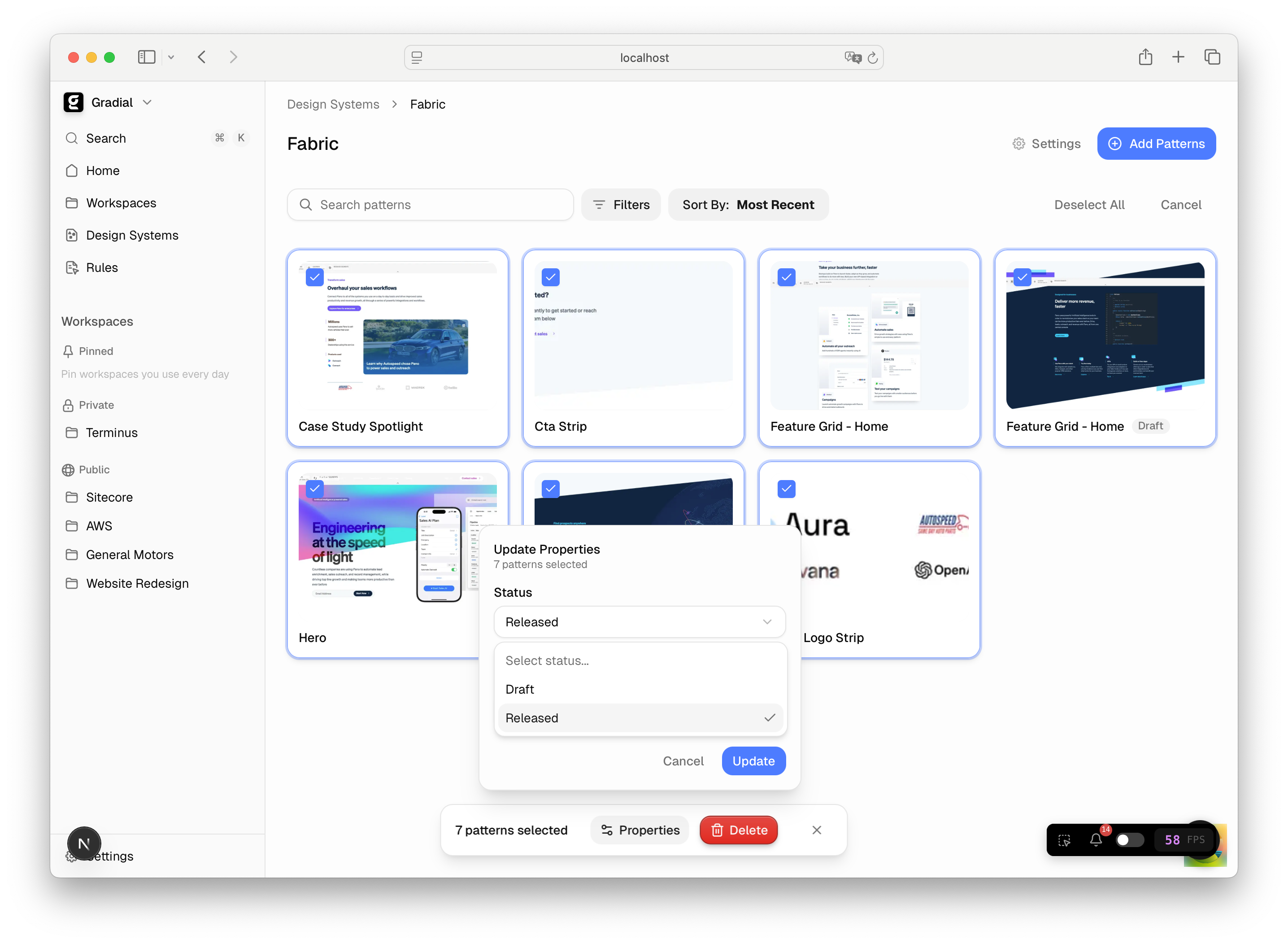
Patterns Are Now “Released” by Default
When new patterns are added to a design system, they’re immediately available for the authoring agent to use. No extra steps required — patterns work out of the box.This means faster onboarding and less friction when expanding a design system.New “Draft” Status for Patterns
The pattern detail panel now includes a Status dropdown, which shows whether a pattern is:- Released — actively available to the authoring agent when running tasks
- Draft — stored in the system but hidden from the authoring agent
- It remains fully visible and editable in the Design System admin
- It shows a clear “Draft” badge in the patterns list
- It will not appear in the authoring agent’s pattern registry
- The agent cannot use it when generating content
- Work-in-progress patterns that aren’t ready for production
- Patterns that need refinement before being used
- Temporarily hiding patterns without deleting them
How to Change Pattern Status
- Navigate to Design Systems in the admin
- Select the design system and open the Patterns list
- Click on any pattern to open its detail panel
- Use the Status dropdown to toggle between “Released” and “Draft”
Benefits
- Faster onboarding — New patterns work immediately without manual activation
- Quality control — Keep work-in-progress patterns hidden until they’re ready
- Flexibility — Easily show or hide patterns as customer needs evolve
- Non-destructive — No need to delete patterns; just set them to Draft and re-enable later
Configure multiple identity providers for a single organization
Gradial now supports multiple SSO configurations for a single organization—useful for organizations spanning multiple geographies with separate identity providers, or when a managed service provider is supporting your implementation.To add additional SSO connections, repeat the setup steps for each identity provider in Settings → Integrations → Single Sign-On.See our SSO documentation for setup instructions.
Updated Ticket UI
We’ve redesigned the ticket interface to improve clarity when working with tasks.Properties Above Task RequestTask properties (status, priority, approver, workspace, and actions) now appear prominently above the task request section. This layout gives you immediate context about the ticket’s state without clicking. Long ticket requests will also appear inline without the need to scroll through a container.