

Overview
Gradial integrates with Marketo Engage to enable content synchronization, personalization token management, and email asset operations at scale. You can build and update email templates, manage programs, smart campaigns and smart lists, maintain landing pages and forms, and keep reusable content items — including Snippets and Tokens — current within your Marketo instance.Authentication Method
Marketo uses OAuth 2.0 Client Credentials for API authentication. This server-to-server authentication method is ideal for automated integrations as it doesn’t require user interaction after initial setup.OAuth 2.0 Client Credentials
Required for all Marketo integrations. This authentication method uses a Client ID and Client Secret to obtain access tokens directly from Marketo’s identity service. Tokens are automatically refreshed by Gradial as needed.Prerequisites
Before starting the integration, ensure you have:- Admin access to your Marketo instance
- Permission to create API-only users and custom services
- Your Marketo Base URL (typically
https://[instance-id].mktoweb.com)
Integration Steps
Step 1: Create an API-Only User in Marketo
What this step does: Creates a dedicated user account that Gradial will use to authenticate with Marketo’s REST API.- Log in to your Marketo instance
- Navigate to Admin → Users & Roles
- Click the Roles tab
- Click New Role and create a role with the following permissions:
- Access API (required)
- Read-Write Assets (for landing pages and emails)
- Read-Only Lead Database (if personalization features are needed)
- Click the Users tab
- Click Invite New User
- Fill in the user details:
- Email: Use a service account email (e.g.,
[email protected]) - First Name:
Gradial - Last Name:
Integration
- Email: Use a service account email (e.g.,
- On the permissions step, check API Only
- Assign the role you created in step 4
- Click Send to create the user
Note: API-Only users do not consume a Marketo user license and cannot log in to the Marketo UI.
Step 2: Create a Custom Service (LaunchPoint)
What this step does: Creates the OAuth client application that generates the Client ID and Client Secret needed for authentication.- Navigate to Admin → Integration → LaunchPoint
- Click New → New Service
- Configure the service with the following values:
- Display Name:
Gradial - Service: Select Custom
- Description:
Gradial CMS Integration - API Only User: Select the user created in Step 1
- Display Name:
- Click Create
Step 3: Retrieve OAuth Credentials
What this step does: Obtains the Client ID and Client Secret that Gradial needs to authenticate.- In the LaunchPoint services list, find the Gradial service you just created
- Click View Details
- Note the following values:
- Client ID
- Client Secret
Important: Keep the Client Secret secure. This credential provides access to your Marketo instance and should be treated as a sensitive security credential. If compromised, you can regenerate the secret from the LaunchPoint service details.
Step 4: Find Your Marketo Base URL and Identity URL
What this step does: Retrieves the endpoint URLs needed for API authentication.- Navigate to Admin → Integration → Web Services
- Under the REST API section, note:
- Endpoint URL: This is your Marketo Base URL (e.g.,
https://123-ABC-456.mktoweb.com) - Identity URL: This is used for token generation (e.g.,
https://123-ABC-456.mktorest.com/identity)
- Endpoint URL: This is your Marketo Base URL (e.g.,
Note: The Identity URL is used as the Token URL Override if your Marketo instance uses a non-standard configuration.
Step 5: Configure the Integration in Gradial
What this step does: Connects Gradial to your Marketo instance using the credentials obtained in previous steps.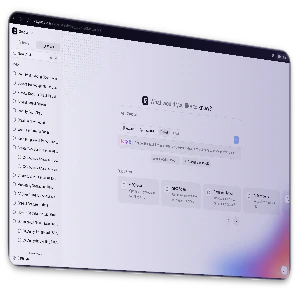
- In Gradial, navigate to Settings → Integrations
- Click on Marketo under Add Integration
- Fill in the integration form:
- Integration Name: A friendly name to identify this connection (e.g.,
My Marketo InstanceorProduction Marketo) - Marketo Base URL: Enter your Endpoint URL from Step 4 (e.g.,
https://123-ABC-456.mktoweb.com) - Authentication Type: Select OAuth 2.0 Client Credentials
- Client ID: Enter the Client ID from Step 3
- Client Secret: Enter the Client Secret from Step 3
- Token URL Override (Optional): Leave empty unless your Marketo instance uses a custom identity endpoint. If needed, enter your Identity URL from Step 4
- Integration Name: A friendly name to identify this connection (e.g.,
- Click Save
Testing the Integration
After saving the integration, Gradial will automatically attempt to authenticate with your Marketo instance. You can verify the connection status in the Integrations list.Expected Behavior
- Success: The integration shows a “Connected” status with a green indicator
- Authentication Error: Verify your Client ID and Client Secret are correct
- Connection Error: Verify your Marketo Base URL is correct and accessible