

Overview
GEO Monitoring Dashboard gives enterprise marketing and SEO teams continuous visibility into how their brand and competitors are performing across the live monitoring set: ChatGPT, Anthropic Claude, Perplexity, Microsoft Copilot, Google Gemini, Google AI Mode, xAI Grok and DeepSeek. Instead of running one-off GEO audits manually, teams configure queries once and the dashboard populates with trend data automatically, surfacing regressions and content opportunities as they happen. Google AI Overviews is a distinct Google surface from AI Mode and is on the roadmap for Q3 2026. You.com is available with a custom integration request. This feature is for enterprise accounts with active GEO programs who need ongoing brand performance tracking, not just point-in-time snapshots.How to Use
Step 1: Configure a dashboard view
Select the brand and URLs you would like to monitor GEO for. The URLs you provide will be scanned for page-health recommendations so include multiple page families. A brand automatically covers its root domain and every subdomain beneath it — see Domain and Brand Coverage for what a single brand does and doesn’t include.Step 2: Load your prompts
From the GEO Monitoring Dashboard, assemble the prompts you want tracked over time. Prompts can be bulk-uploaded in the dashboard interface and will need to have a topic in addition to the prompt itself. By default, we will run your prompts against all providers supported in Gradial. To bulk-upload, open a brand on the GEO dashboard — either Edit an existing brand or create a New Brand — then open the Prompts tab and click Bulk Import. The Bulk Import dialog includes a link to download the upload template to fill in your prompts. You can assign each prompt to a topic and specific personas, then upload your spreadsheet through the same dialog. You can also add prompts one at a time with Add prompt. Every prompt has one topic, and prompts can also carry tags — see Topics and Tags for how the two differ and when to use each. Not sure what to monitor? See Example monitoring prompts for a starter set of 20+ prompts you can adapt, plus a downloadable template.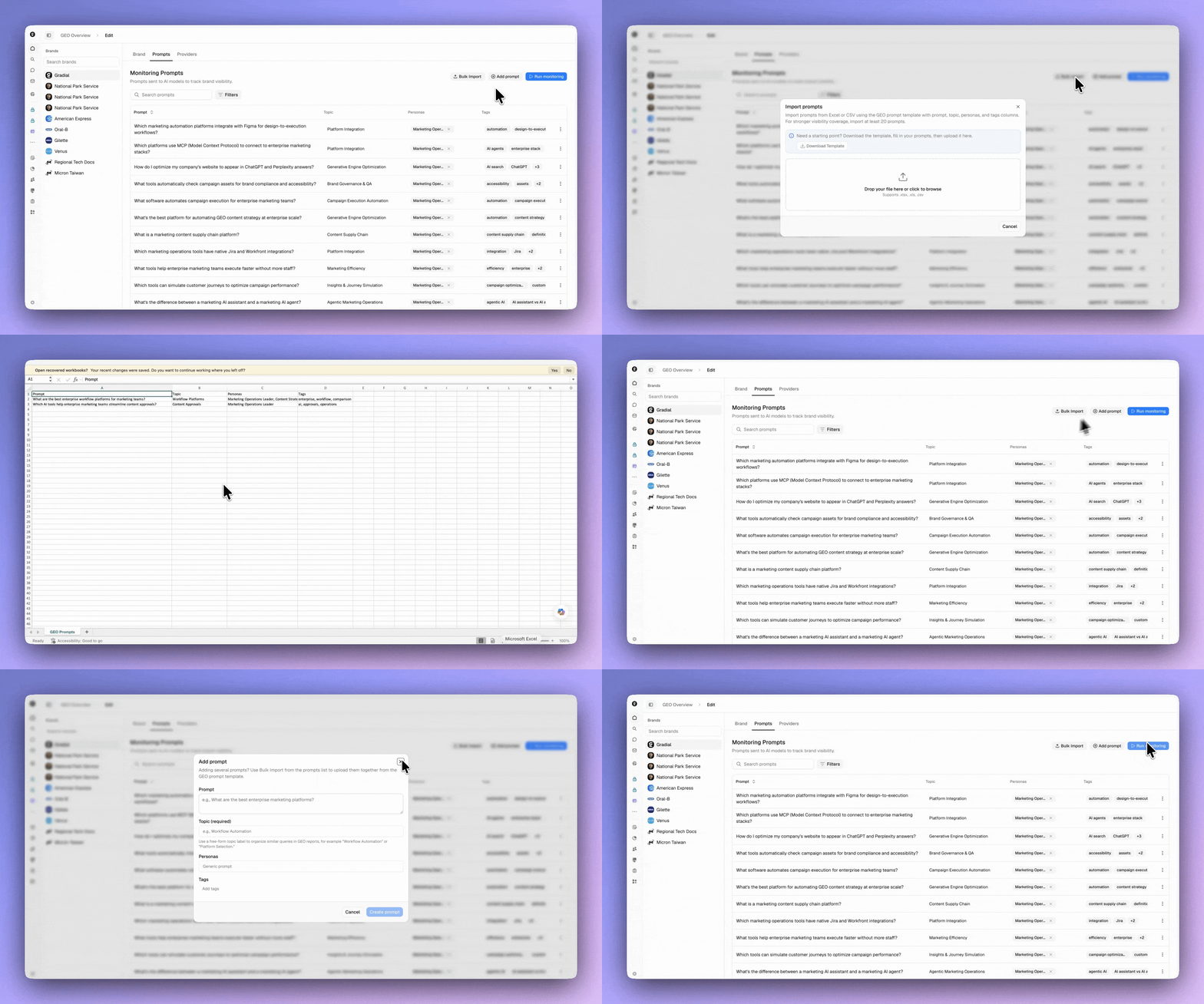
Step 3: Run monitoring
Once your brand is set up for recurring monitoring, GEO runs automatically every day in the background — there’s nothing to schedule on the user end. From the Prompts tab you can also click Run monitoring to trigger a run on demand.It may still take up to a day for results to appear after triggering a run.
Step 4: Let the dashboard build over time
The dashboard populates as runs accumulate. Trends sharpen as history builds — the longer you let monitoring run, the richer your trend view becomes.Step 5: Open Insights → GEO
Review trend lines, drill into individual responses, and convert page-health recommendations into tasks with one click.Domain and Brand Coverage
Adding a root domain covers all of its subdomains
When you add a root domain such asexample.com, the brand automatically covers everything ending in .example.com — including non-English subdomains like in.example.com. Language doesn’t matter: those pages count toward the brand automatically, and you don’t need to list each subdomain individually.
These pages always count toward your brand — never as a competitor — and they roll up into the brand’s overall report.
Subdomain pages are counted when an AI answer cites them — GEO measures your brand’s presence in AI responses. They roll up into the brand’s combined score rather than being broken out by subdomain. There is no per-subdomain or per-region breakdown within a single brand report today.
A different web address is not covered automatically
Coverage applies only to true subdomains of the domain you added. A separate web address that does not end in your root domain is a different site and must be added on its own.Structuring Brands by Region
For brands with distinct regional sites, set up one GEO Monitoring configuration per region — a separate brand run for each — and switch between them with the brand dropdown. For example:- Brand US —
example.com - Brand India —
in.example.com - Brand China —
example.cn
This is a recommended workaround for today. First-class support for tracking multiple regions within a single brand configuration is on the roadmap; this section will be updated when it lands.
Brand-Level Tracking and Hierarchies
GEO Monitoring can track any brand at its own level — a specific product, sub-brand, division, or business unit — independently of its parent company. Previously, mentions were attributed to the top-level corporate parent, so a product tracked separately from its manufacturer could read a misleading 0% mention rate even when it was clearly named in AI answers. Brand-level tracking fixes that attribution.Access: Brand-level tracking must be enabled for your organization. Contact your Gradial team to get access.
What it enables
Setting up a brand hierarchy
Creating and editing monitored brands is an admin capability.- In GEO settings, create the brand as its own monitored entity: brand name, optional domain(s), and any aliases it’s known by.
- Optionally assign a parent brand from the same organization — for example, a drug brand under its pharmaceutical parent, or a product line under the corporate name.
- On the parent’s dashboard, use the Include child brands toggle to view the parent blended with its direct children or on its own.
Things to know
- Hierarchies are one level deep — a parent and its direct children. Arbitrary-depth nesting isn’t supported.
- Citation rate requires a domain. A brand without a configured domain shows ”—” for citations; add the brand’s own domain (e.g., a product site) to get citation attribution against the right property.
- Short brand names match precisely. Alias matching uses word boundaries, so short names like “EA” or “3M” don’t produce false matches inside longer words.
- Corrected attribution applies going forward. Results reflect brand-level attribution from the point it’s enabled; historical rates for a product brand may understate until backfilled.
Brand Sentiment
GEO Monitoring now surfaces not just whether AI systems mention your brand, but how they describe it. The Brand Sentiment section of the dashboard summarizes favorability, recurring perception themes, and supporting evidence so teams can see how their brand is being presented in AI-generated answers.Access: Brand Sentiment must be enabled for your organization. Contact your Gradial team to get access.
What Brand Sentiment shows
How to use Brand Sentiment
Brand Sentiment is part of the GEO Monitoring Dashboard — no separate configuration is needed beyond your existing brand and prompt setup. Once enabled for your organization, the section appears automatically and updates as your monitoring runs accumulate. Use favorability trends alongside your citation and mention data to get a fuller picture: a brand that is frequently cited but mostly described unfavorably faces a different challenge than one that is rarely cited at all.Working with GEO data in Grady
Everything you can learn from GEO monitoring used to live in the dashboard — a fixed set of views in a fixed shape. Grady can now read your GEO monitoring data directly inside a task, so you can ask for the cut you actually want, in the format you actually need.Access: Must be enabled for your organization, and your organization needs GEO monitoring already configured with collected data. Contact your Gradial team to get access.
Ask for any cut of your data
Ask in plain language, across whichever brand and time window you care about:Change monitoring configuration from the conversation
Grady can also set up and adjust monitoring configurations — creating or changing a monitored brand — without you going into GEO settings. Configuration changes go through an approval step and are recorded, and editing a monitoring configuration remains an admin capability. Your collected GEO data is never at risk: runs, responses, mentions, and citations cannot be modified by Grady under any circumstances. The worst a configuration change can do is alter what gets monitored going forward.Turn an insight into work
Ask Grady what to act on next and it ranks your open page-health recommendations, then hands you the highest-value one as a task card you can launch in one click — closing the gap between noticing a regression and starting the fix.Example monitoring prompts
GEO Monitoring works best with a broad set of prompts — typically 20 or more — that cover the different ways buyers ask AI search engines about your category, your brand, and your competitors. A single prompt only tells you about one question; the value comes from the spread. The examples below are a starter set you can adapt. Replace[Your Brand] and [Competitor A] / [Competitor B] with real names, and reshape the topics around your market.
Personas: The Personas column should be filled in with personas that already exist in your organization. Populate it with the names of your pre-existing personas so prompts are attributed to the right audiences — don’t invent new persona names in the spreadsheet.
Download the example prompt set (XLSX)
20+ example prompts with topics, personas, and tags — formatted for Bulk Import.
Topics and Tags
Every monitoring prompt has a topic, and prompts can also carry tags. They serve different purposes — topics describe what a prompt is about and shape the report, while tags are a flexible way to organize and filter your prompts.When to use each
- Topic — set the one thing each prompt is about. It names the prompt, appears in the report, and gives Grady context for interpreting results.
- Tags — group and slice prompts however your team works: by audience (
enterprise), intent (competitive), campaign (Q2-launch), funnel stage (top-of-funnel), and so on. In Settings you can then filter to, say, every prompt taggedenterpriseacross all topics.
Can a prompt be in more than one topic?
No — a prompt has exactly one topic (the topic is a single field that also names the prompt). For example, “What are the best AI agents for automating marketing campaigns?” can beAgentic Marketing Platforms or Marketing Automation, but not both.
When you want a prompt to belong to more than one group, that’s what tags are for: add both agentic-marketing and marketing-automation as tags, and the prompt surfaces when you filter by either in Settings. Keep in mind that tag filtering happens in Settings — the report groups by topic, so you can’t break the report itself down by tag.