

Create a new Content Hub integration
1
Create or configure a Content Hub user
Open the Content Hub Admin Console, typically located at: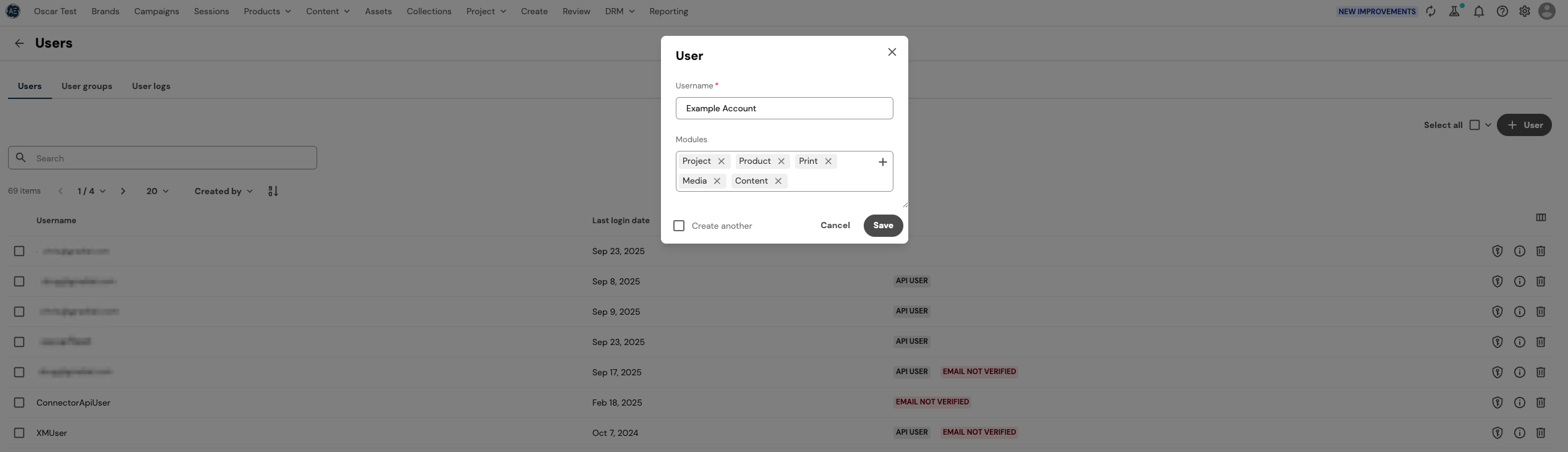
https://{your-hostname}/{your-locale}/adminFrom the Users page, select New User to add an account with access to the necessary modules.2
Grant API access
Enable the user account to interact with the Content Hub APIs by making it an API User: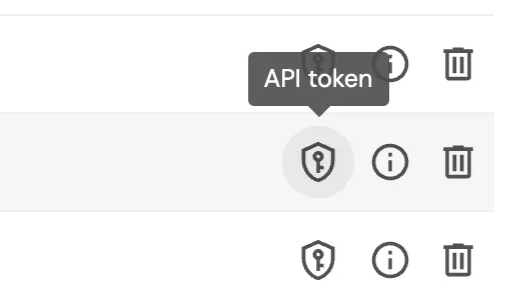
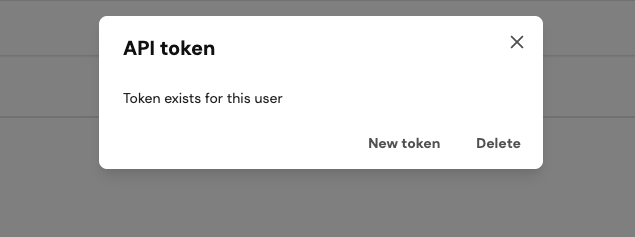
- In the Users dashboard, click the key shield icon on the right-hand side.
- In the modal that appears, select New Token.
3
Configure permissions and password
Ensure that the user account has a configured password and the correct permissions: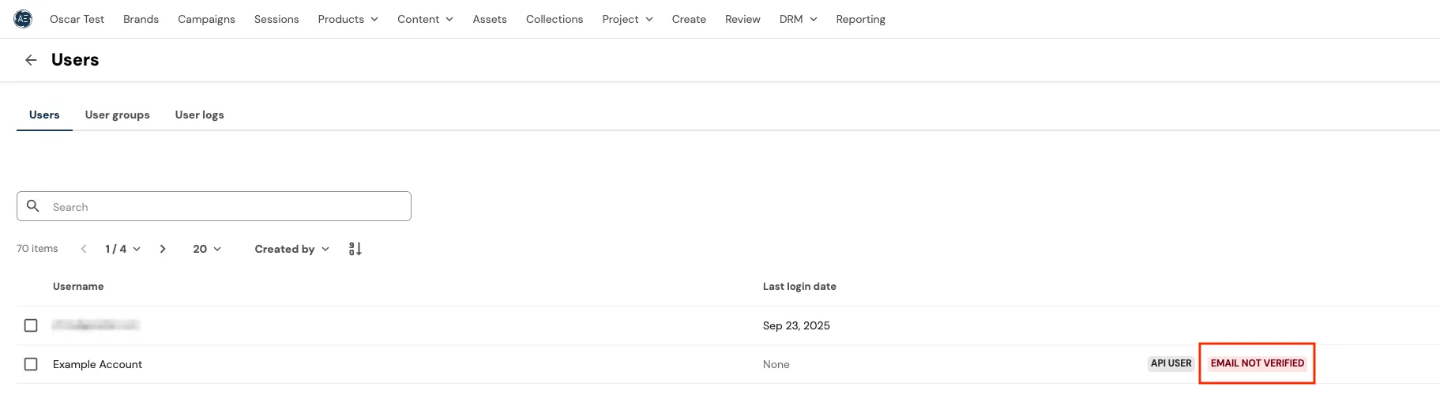
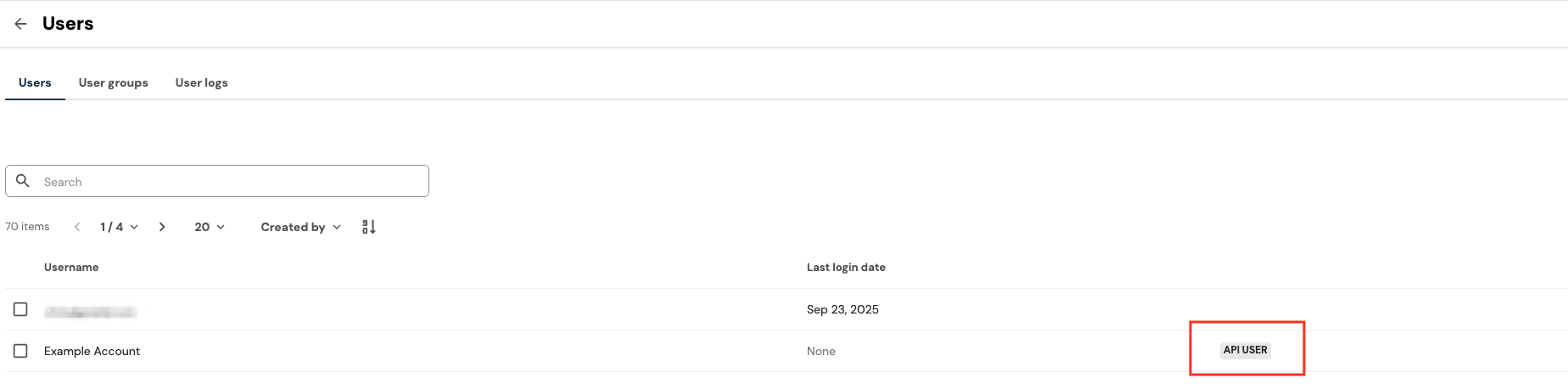
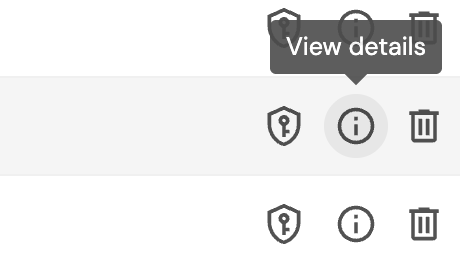
- Click the information icon on the right-hand side of the Users dashboard.
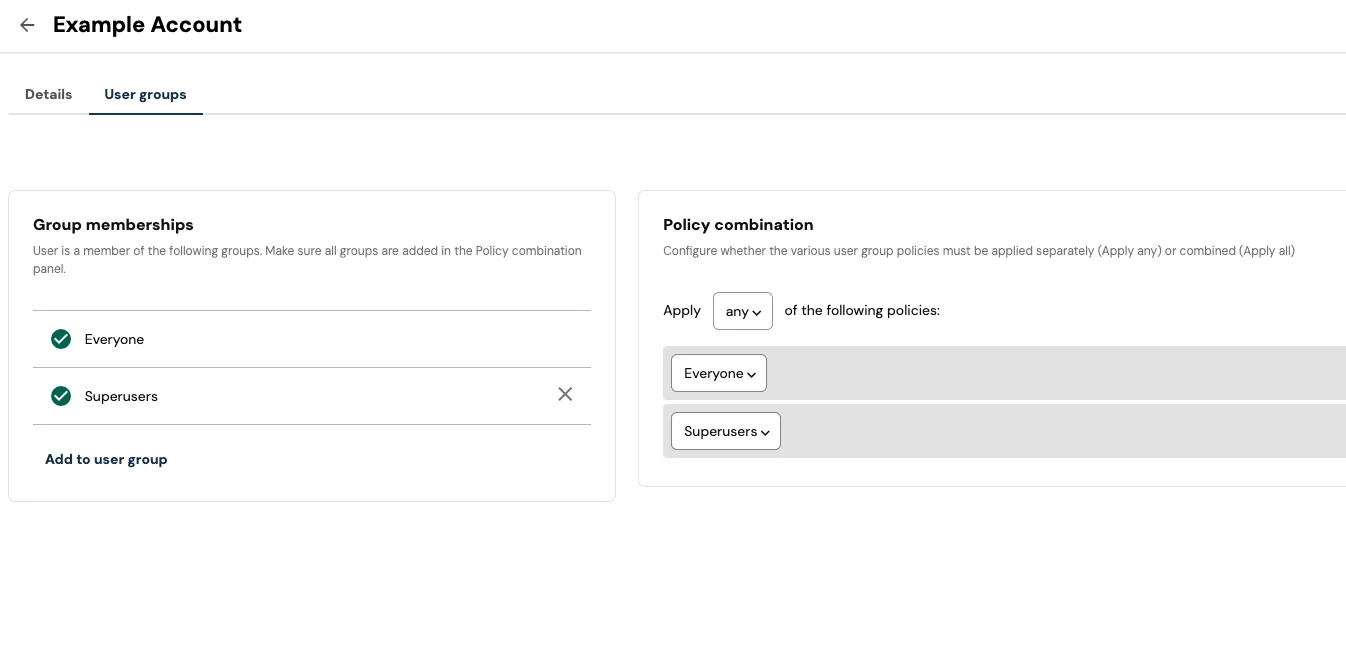
- Under the User Groups tab, verify the account’s permissions for creating, reading, updating, and deleting entities. Typically, the Superusers Group and Policy encompass these permissions.
-
In the Details tab, assign a valid email address to the account. This step is required to configure a password.
4
Connect Content Hub to Gradial
In Gradial: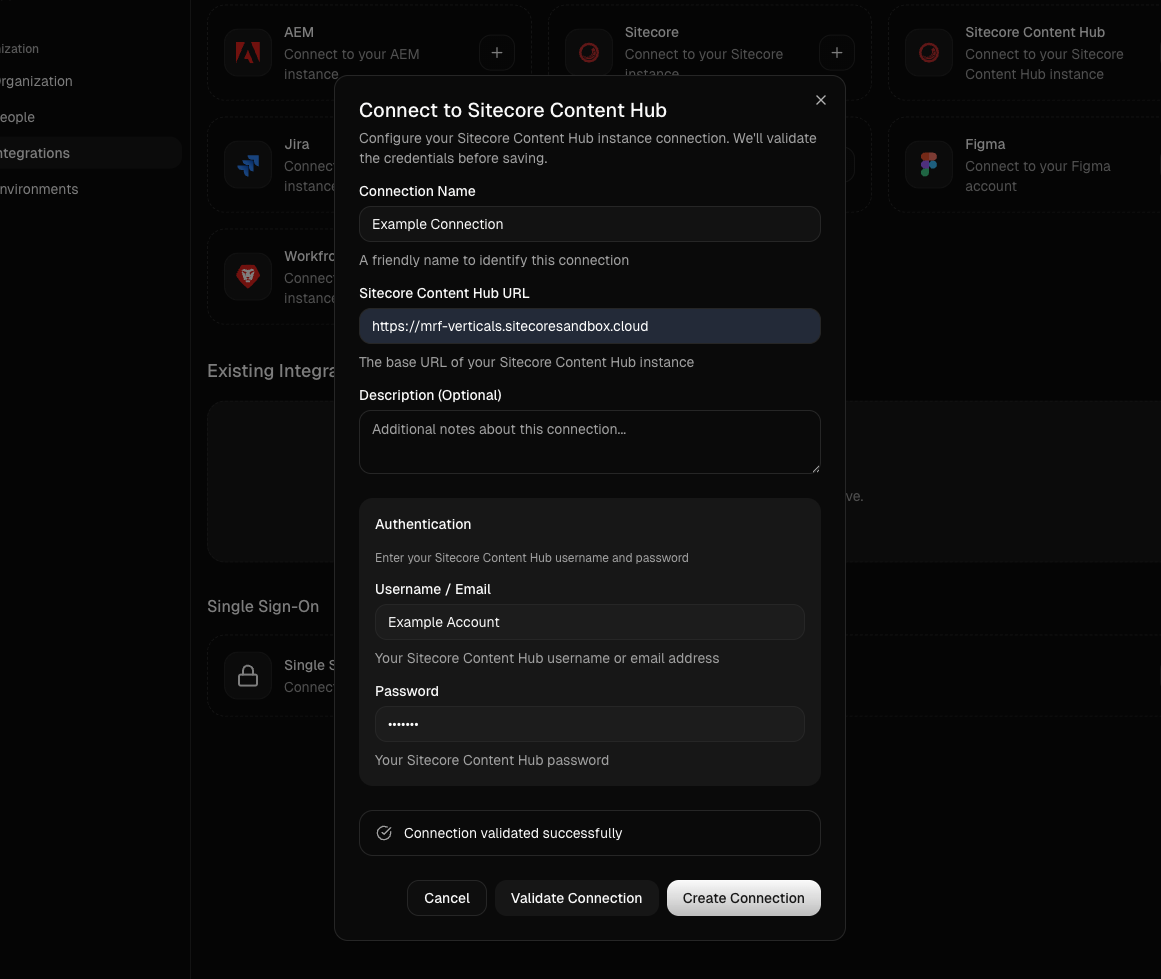
- Sign in and navigate to Settings → Integrations.
- Enter the hostname of your Content Hub environment along with the Username and Password of the configured Content Hub user account.
- Click Validate Connection to confirm permissions and ensure Gradial can authenticate.
- Once verified, select Create Connection to complete the integration.