

Dynamic artifacts were called custom apps before November 2026.
Build one
1
Ask Grady in a task
Open a task and ask in its chat. To start a new task, type the request on Home, click Create as task, then Run with Grady. Ask for a “dynamic artifact” and say what it should show. Attach a spreadsheet if the data is in a file.Sending from Home without Create as task starts a private chat. Grady still builds the dynamic artifact, but only you can open it.
2
Open it
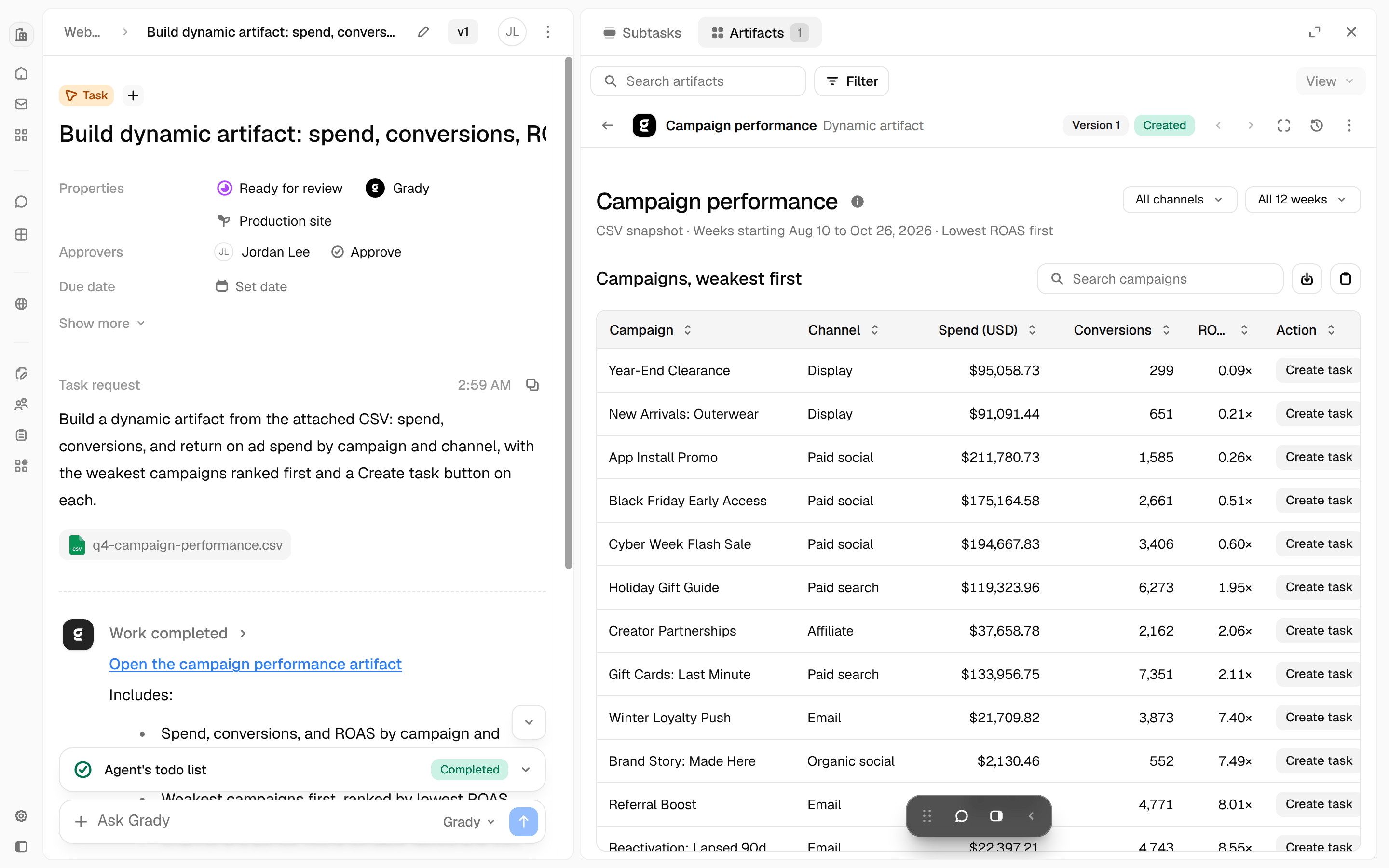
Grady builds the dynamic artifact in the task. Most are ready in 1 to 3 minutes. When it’s ready, Grady’s reply links to it, and it is listed in the task’s Artifacts tab. Open it from either place. It sits beside the chat.
3
Check the numbers
Compare two or three figures with the source before anyone else relies on them. Then ask for changes.
At a glance
What to ask for
A dashboard from a spreadsheet. Attach the file to the request.Change it
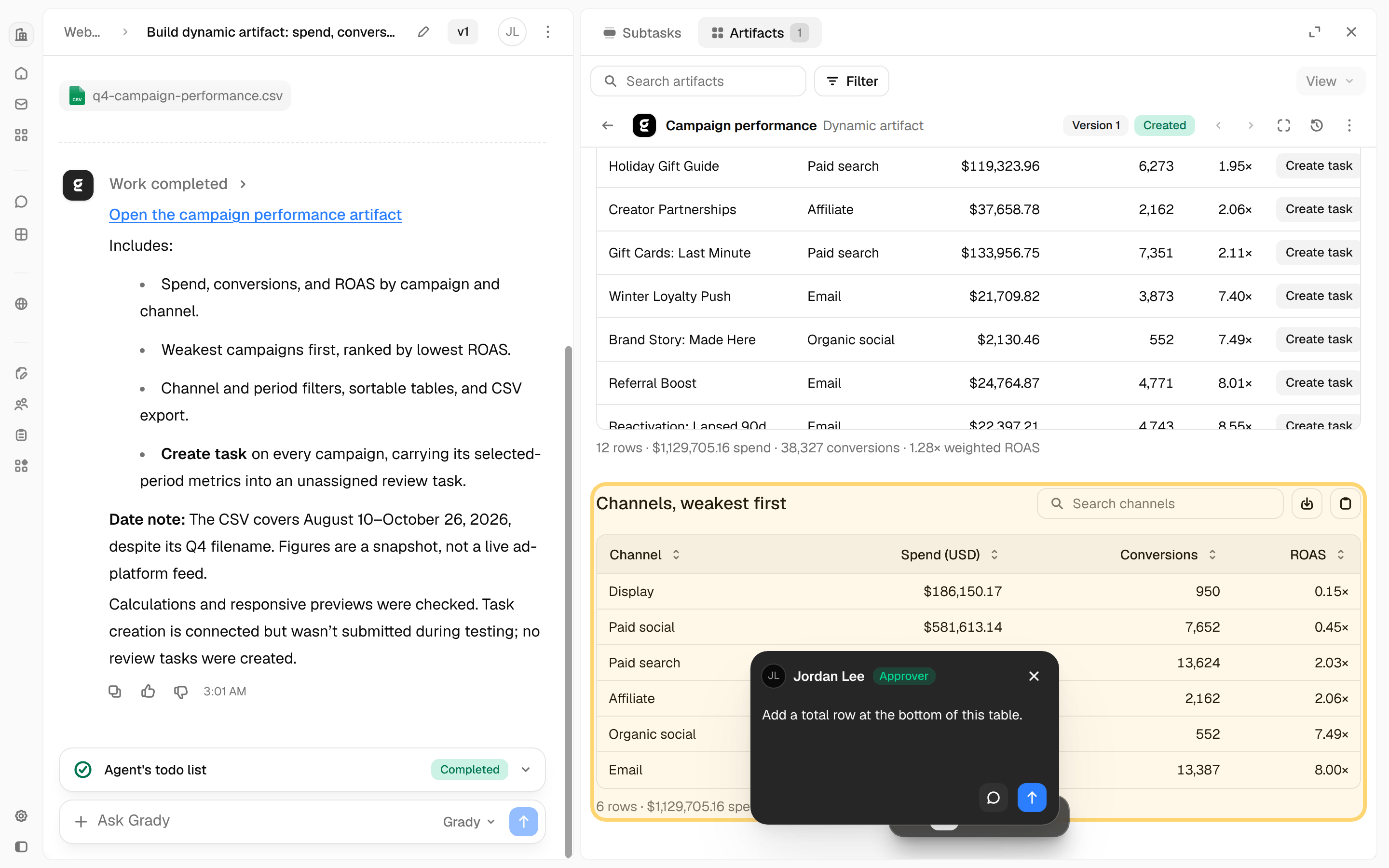
The fastest way is to type the change in the task’s chat. To point at one part of the dynamic artifact instead:- On the toolbar at the bottom of the artifact, click Add comments (the speech bubble). If the toolbar is collapsed, expand it first.
- Click the chart, table, or row you mean.
- Write what should change, then click Submit as prompt (the arrow).
Manage it
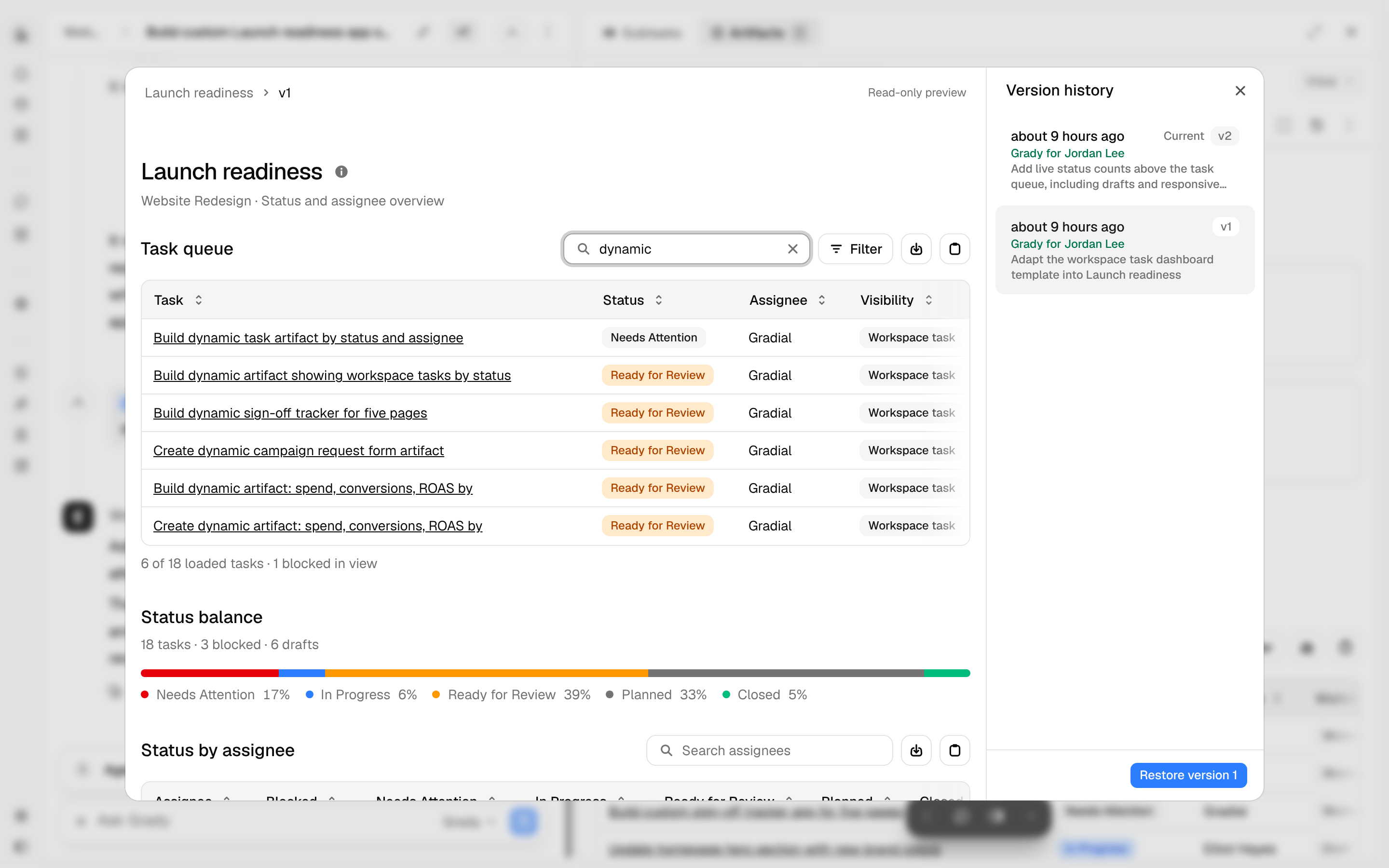
Full screen and Version history are icon buttons at the top right of the artifact. Hover over an icon to see its name. Refresh artifact and Pin artifact are in the ⋮ menu beside those two buttons.
Each request to Grady makes one version. Restoring a version makes a new one, so nothing is lost. A restore does not change the entries people saved in the artifact.
Where the data comes from
A live read fetches data from Gradial or a connected system at the moment the dynamic artifact opens.- Live reads run as the person viewing. A dynamic artifact shows only what that person can already open in Gradial. Two people can see different numbers in the same one.
- A dynamic artifact reads only the systems connected to its task’s workspace. See Integrations.
- Not streaming and not scheduled. A dynamic artifact reads when it opens. To read again, click Refresh artifact.
Act from a dynamic artifact
- Buttons and forms hand off work, as the person who clicked. A dynamic artifact does this in one of two ways:
- It creates a draft task. A Create task button adds a draft under the artifact’s task, with the artifact’s data attached. The draft waits until someone opens it and clicks Run with Grady.
- It sends a request to Grady. The request goes to the chat of the artifact’s task, and Grady acts on it right away. The intake form above works this way: Grady creates the “Campaign request” task and runs it.
- A dynamic artifact can save entries. A sign-off, a checklist, a status. Everyone who opens it sees the same saved entries. People who can edit the task can add, change, or clear any entry. People who can only view the task can read entries, not change them.
- Nothing happens without a click. A dynamic artifact never acts on its own. It also can’t run an action that Grady asks you to approve in a task, such as deleting a file in a connected system. Ask for that action in the task instead.
Reuse it as a template
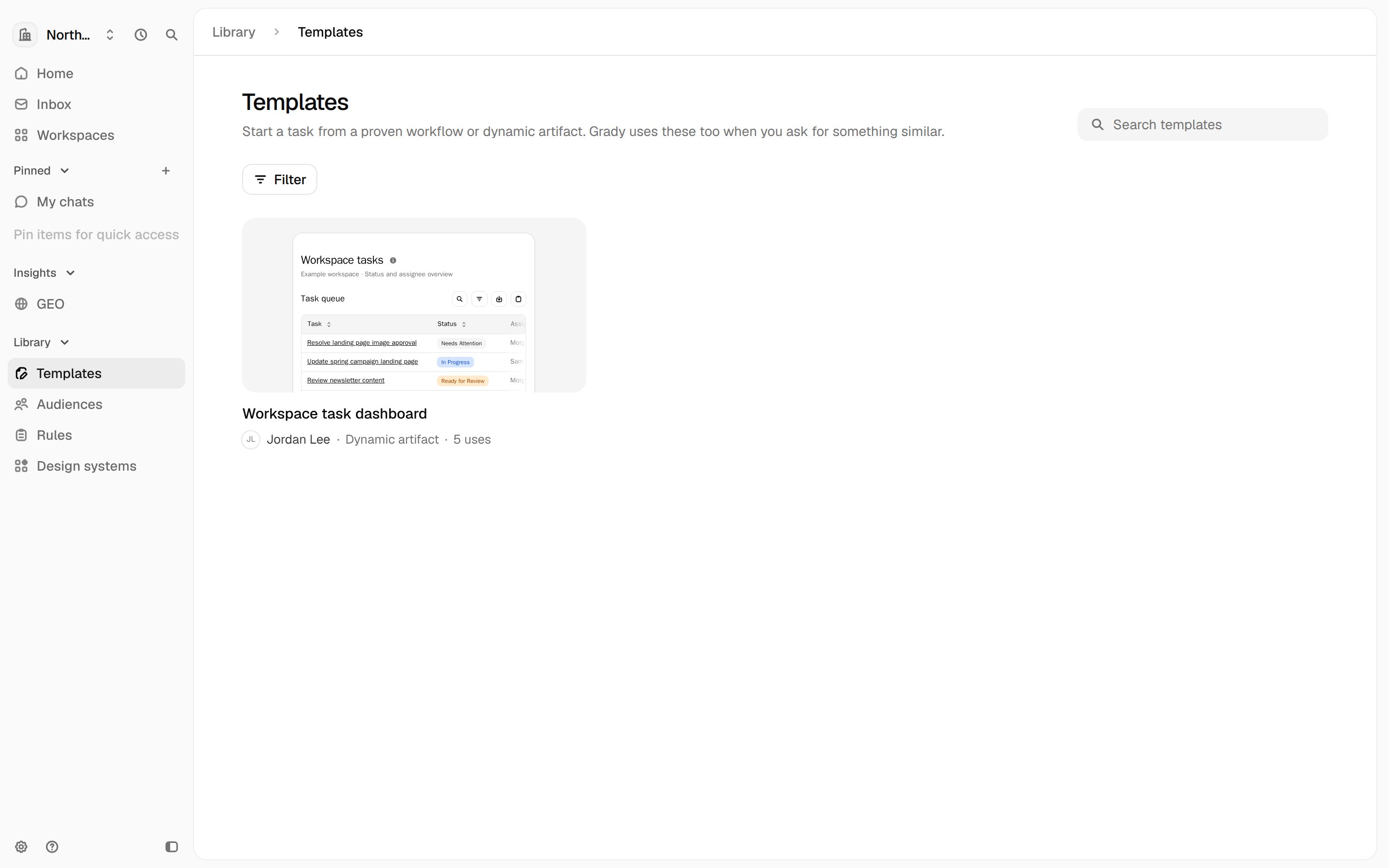
A template is one dynamic artifact, published so your whole organization can start from it. Save and publish a template-
In the dynamic artifact’s task, ask Grady:
- Open the review link Grady gives you. The draft is visible only to you. You can also find it in Library → Templates, marked Draft.
- Check the preview, then click Publish template. The template appears in the Library for your whole organization right away.
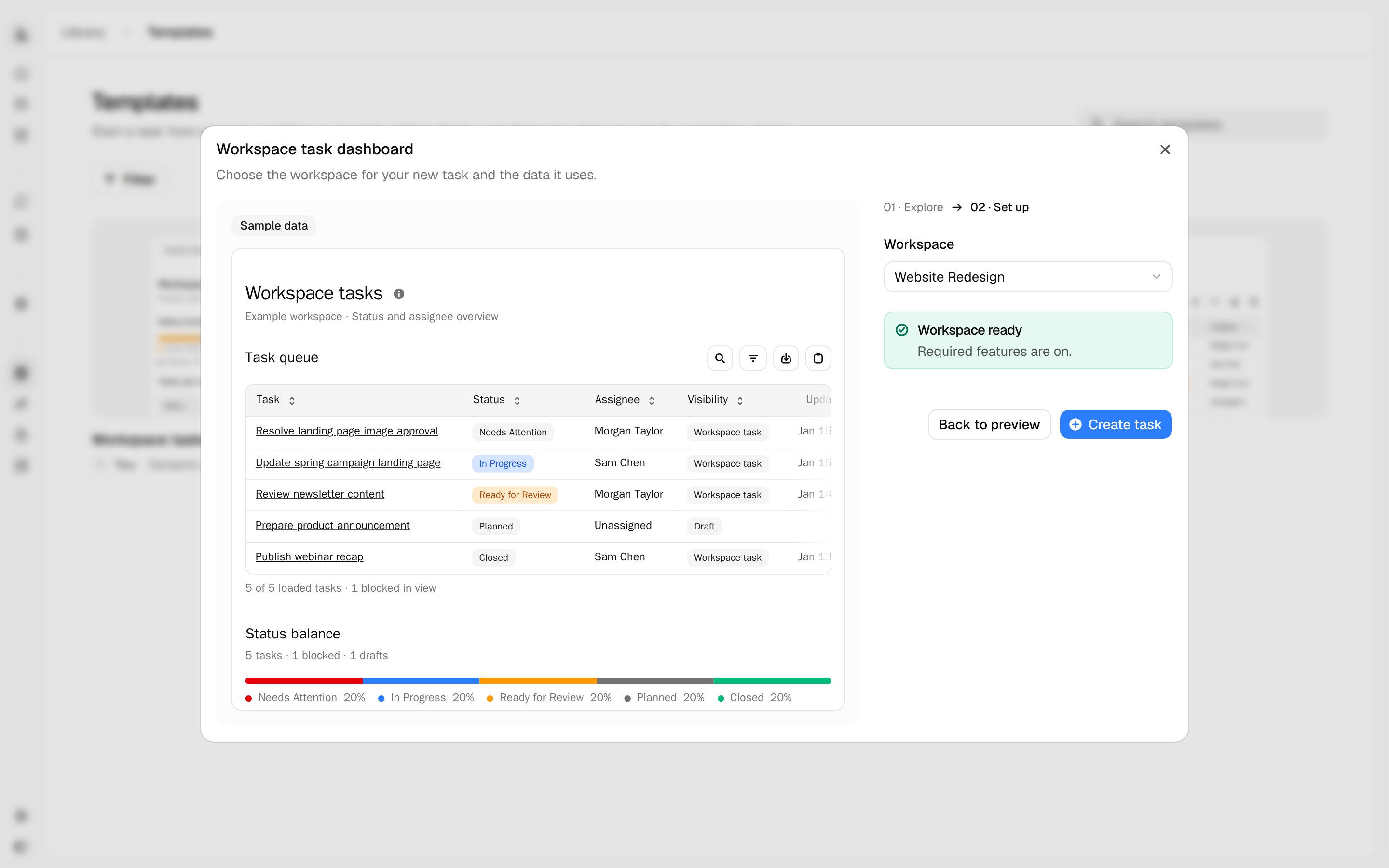
- Go to Library → Templates, open a template, and click Use template.
- Choose a workspace. Gradial checks that the workspace has what the template needs before it creates anything. If the template asks, enter an AEM content path or choose a GEO configuration.
- Click Create task. Your copy opens in a new task and reads data from the workspace you chose. Changes to your copy don’t affect the template.
The review page lists what the template leaves behind. A published version never changes. To update a template, its author asks Grady to revise it, then publishes the new version.
Limits
If something goes wrong
Related
- Ask Grady: ask about your Gradial data without building anything
- Integrations: connect the systems a dynamic artifact can read
- Inside a task: where artifacts and the chat sit
- Customer Use Cases: more requests to copy